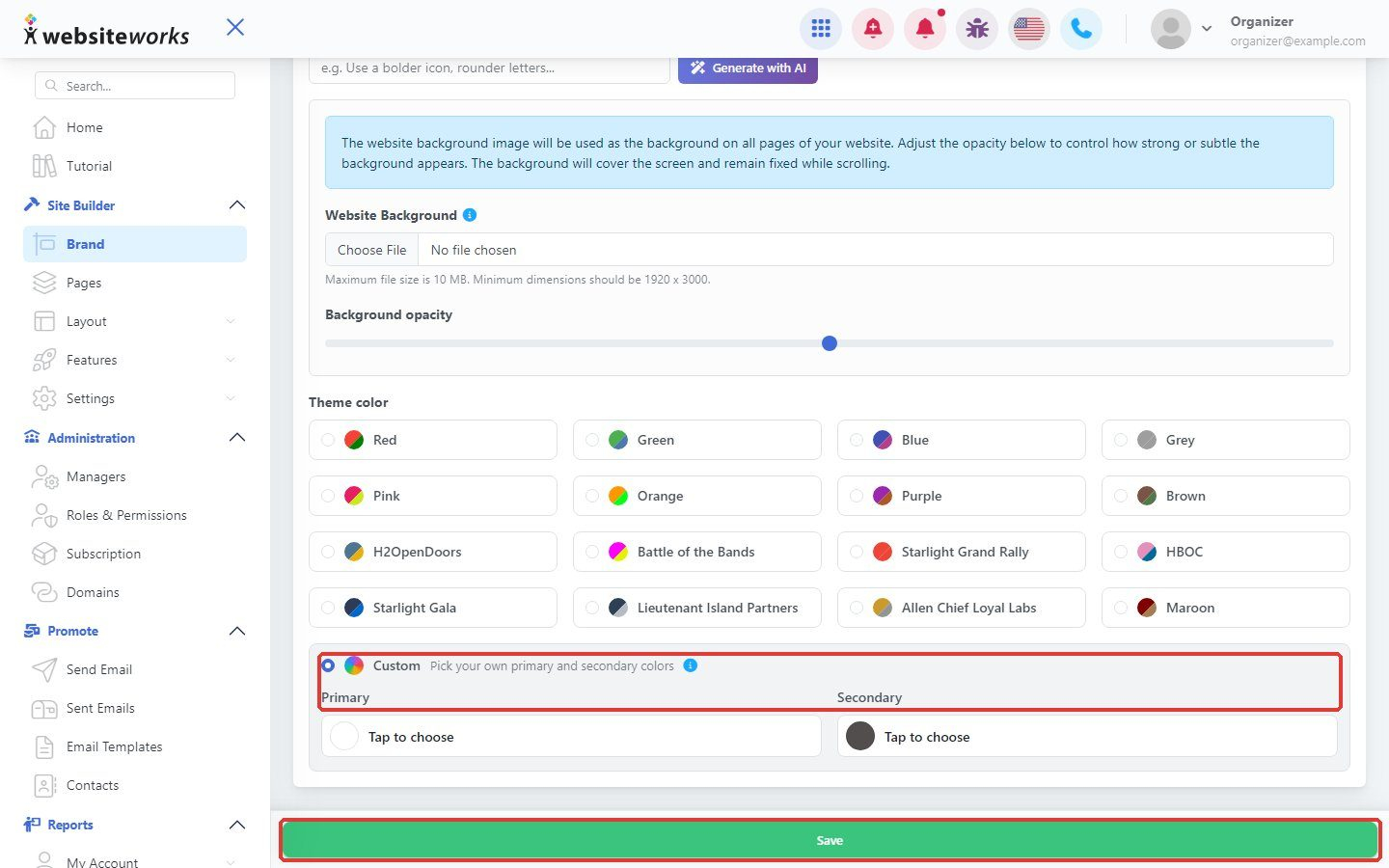

The Brand page controls how your website looks everywhere: your name, logo, background and colors.
Step 1: Open Brand
In the menu, under Site Builder, click Brand.
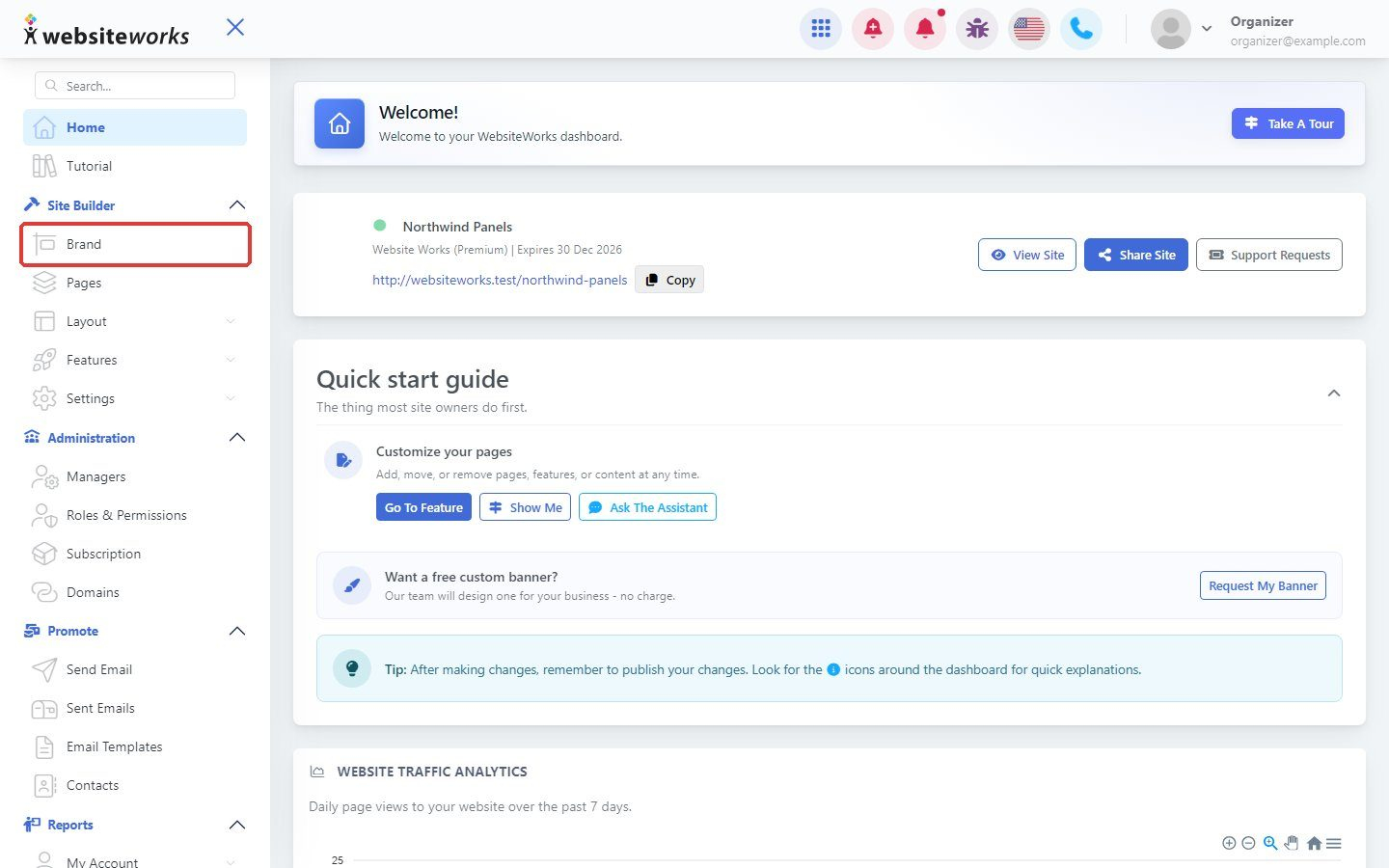
Step 2: Enter your site title and subtitle
Type your website's name in Site title and a short tagline in Site subtitle.
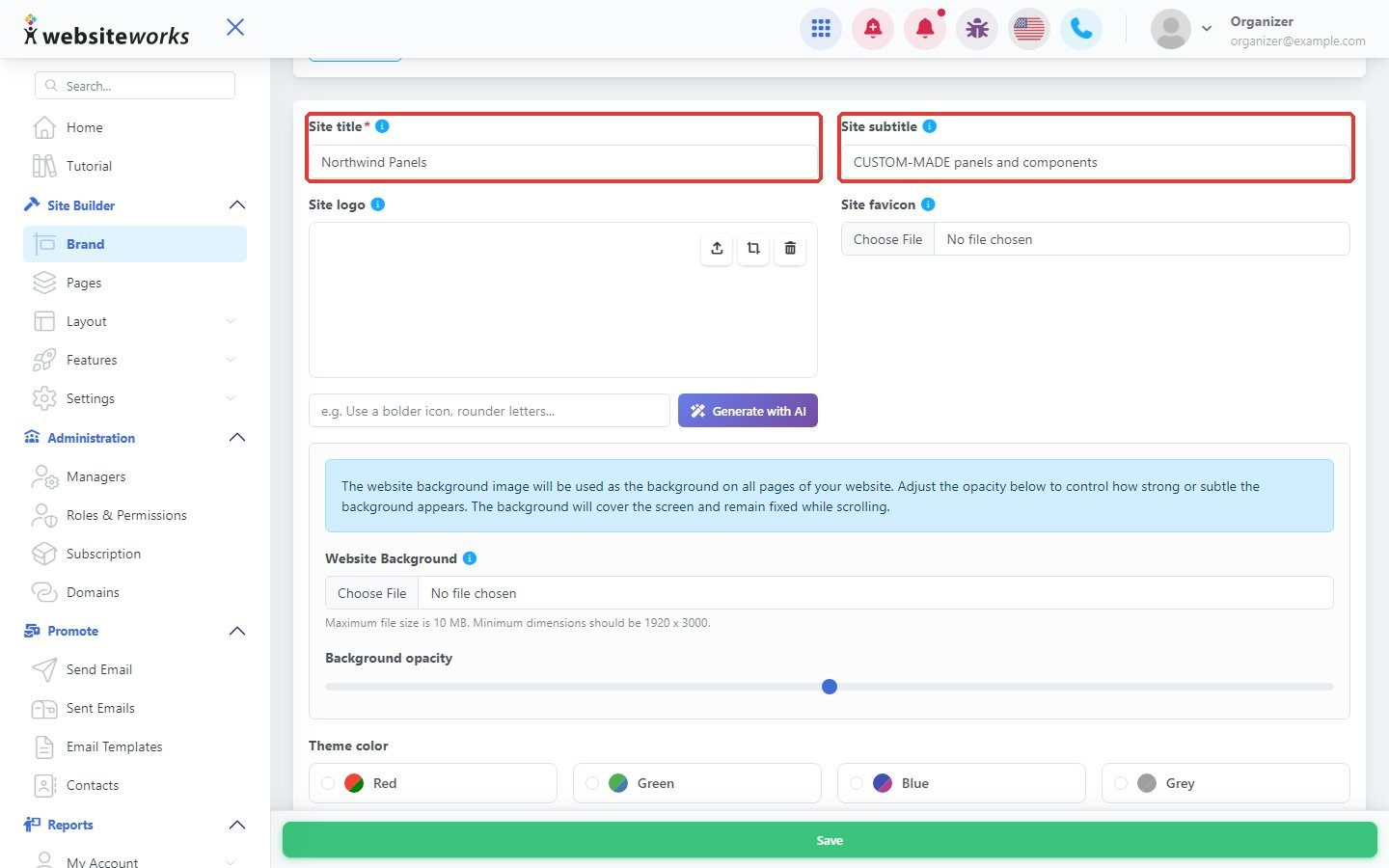
Step 3: Add your logo and favicon
Under Site logo, upload your logo, or click Generate with AI to create one. Under Site favicon, upload the small icon shown in the browser tab.
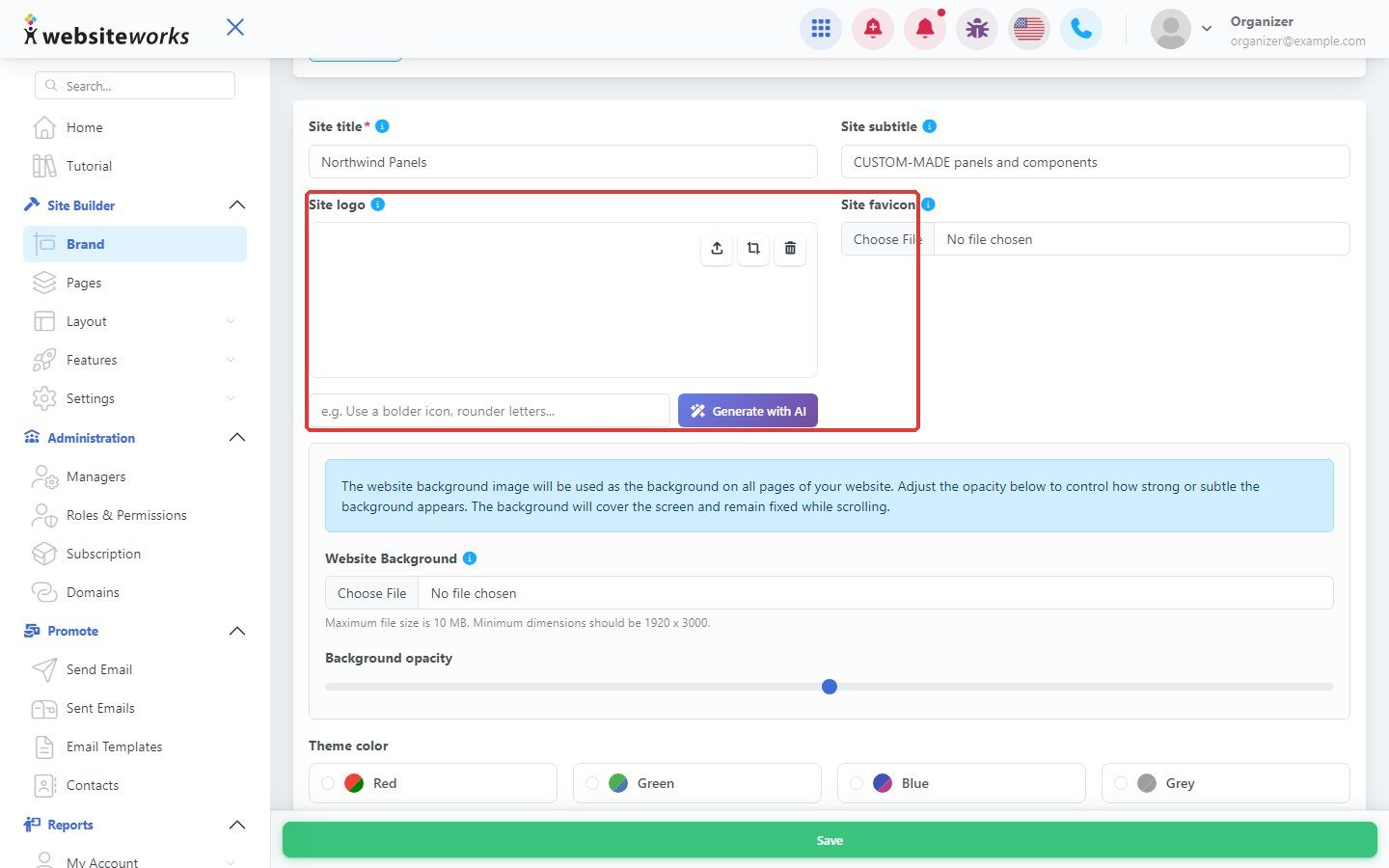
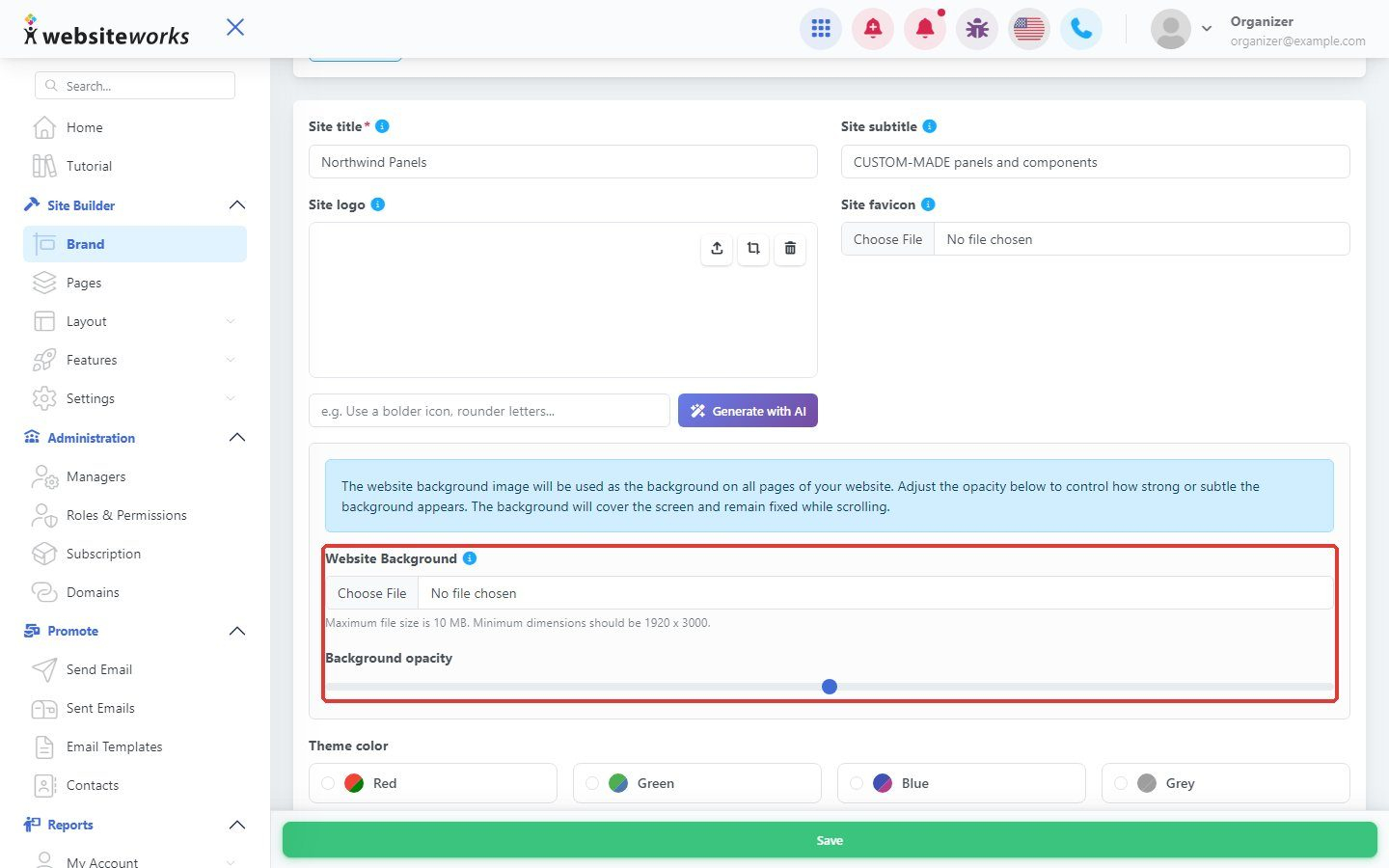
Step 4: Choose a background
Under Website Background, choose an image for the background of your website. Use Background opacity to make it lighter or stronger.
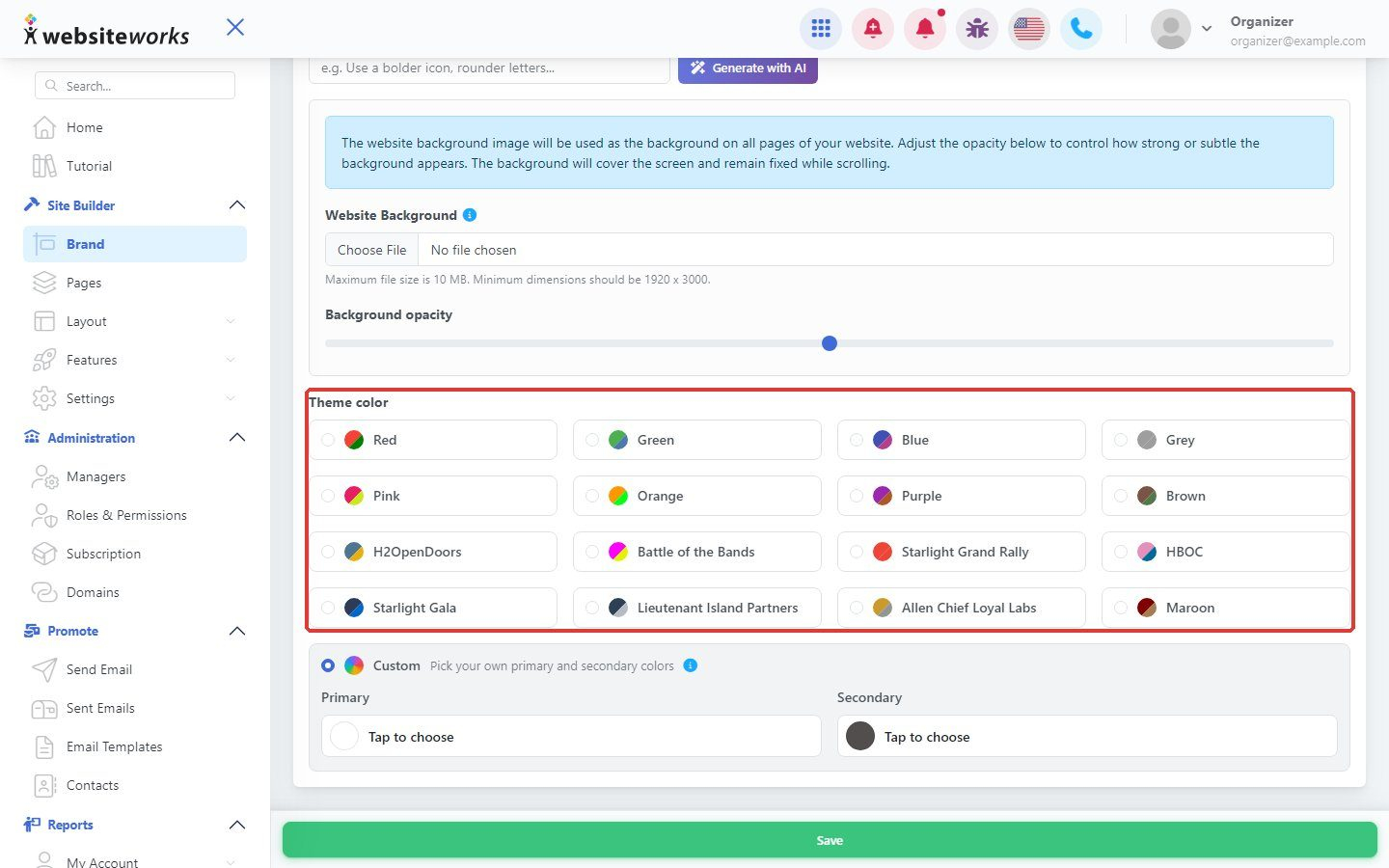
Step 5: Pick your theme colors
Under Theme color, click one of the color sets. To use your own brand colors, choose the custom option and pick a Primary and Secondary color.
Step 6: Save
Click Save at the bottom of the page. Your changes appear on your website right away.