
Your website is made of pages, such as Home, About Us or Contact. This article shows how to add a page, change its settings and edit what is on it.
Step 1: Open Pages
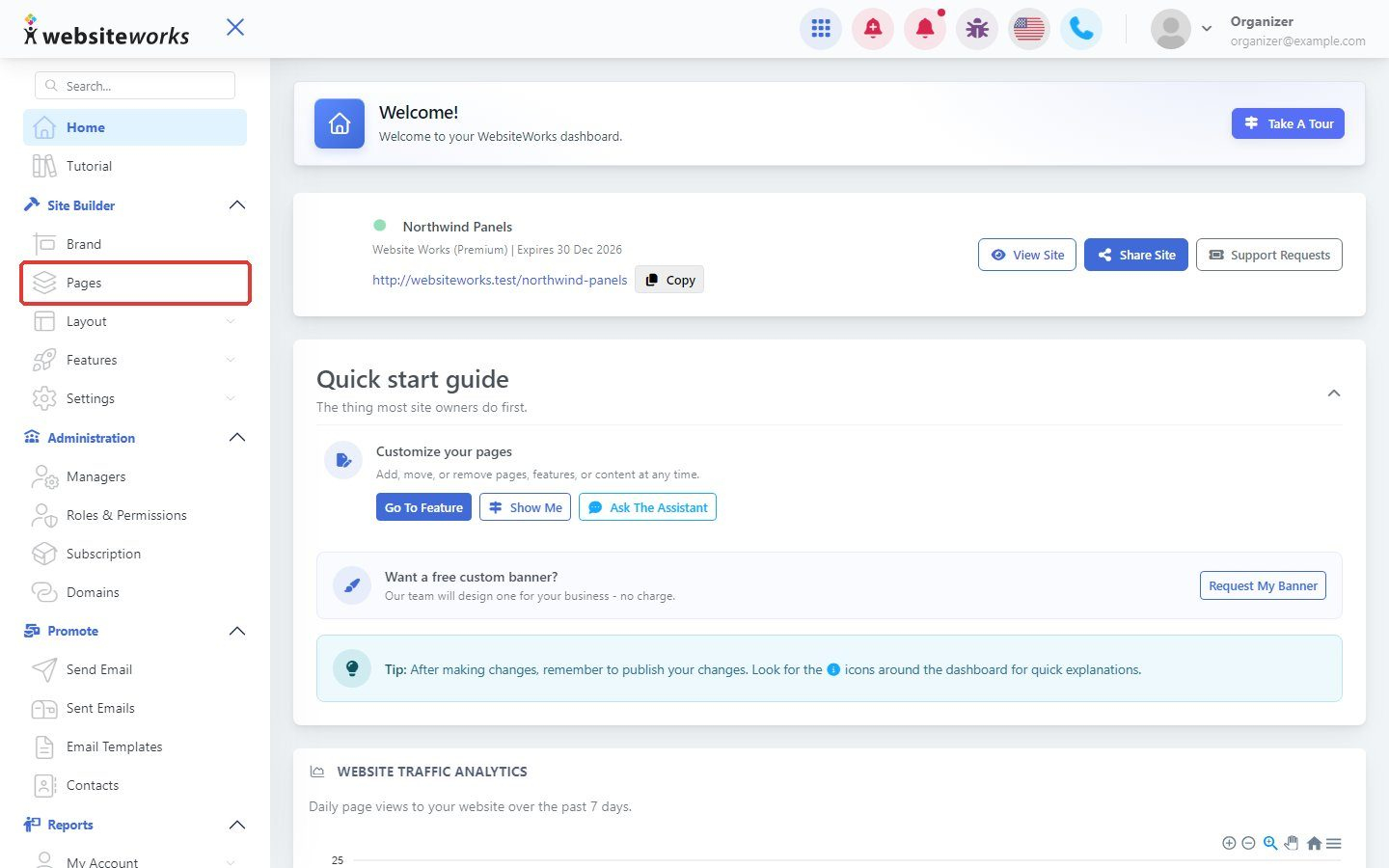
In the menu, under Site Builder, click Pages.
Step 2: Add a new page
Click New Page, enter a title and confirm. Your new page appears in the list.
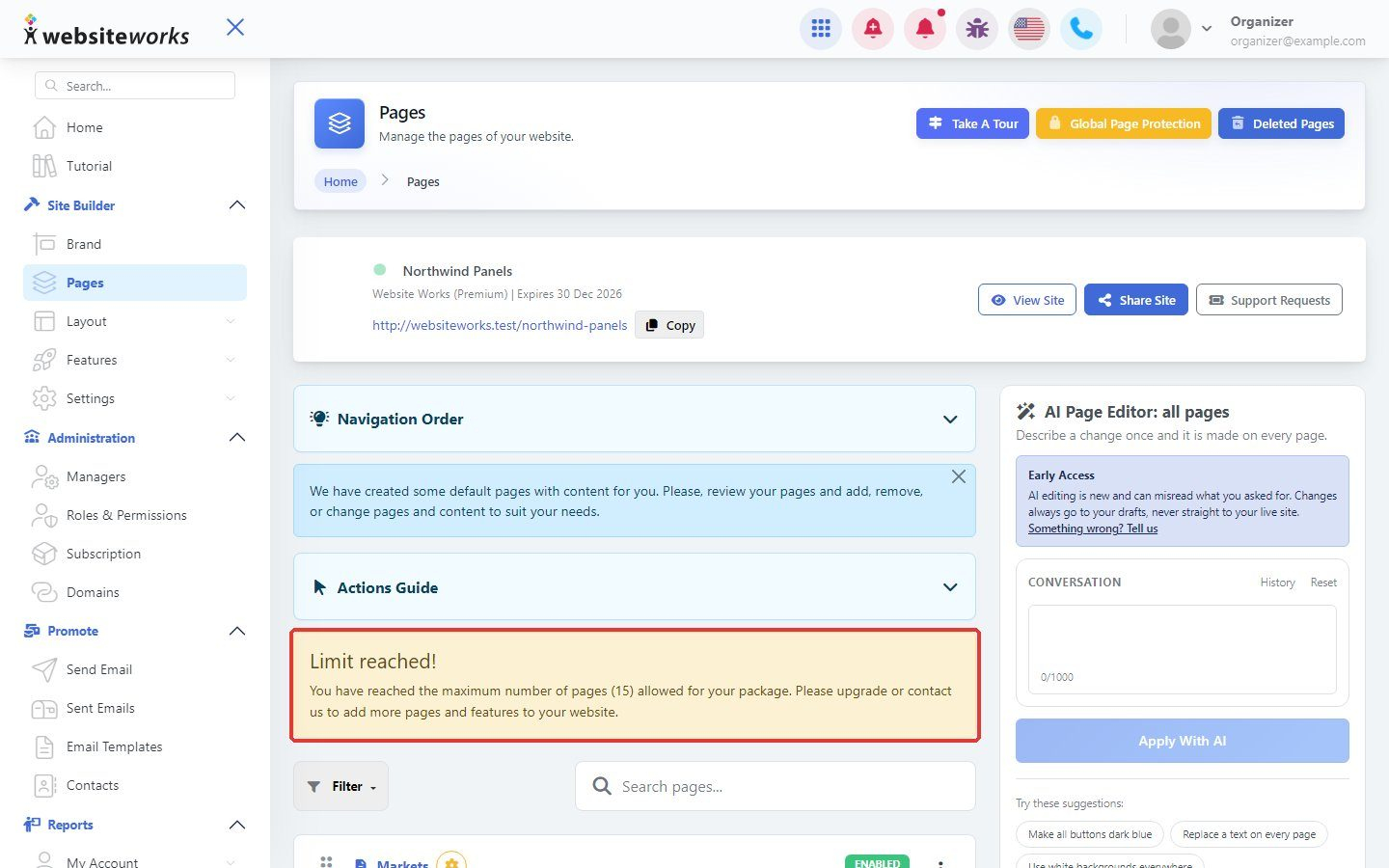
Your plan includes a set number of pages. When you reach it, the page shows Limit reached! and the New Page button is hidden. Delete a page you no longer need, or contact us to add more.
Step 3: Open the page settings
Click the settings button next to a page to open Edit page.
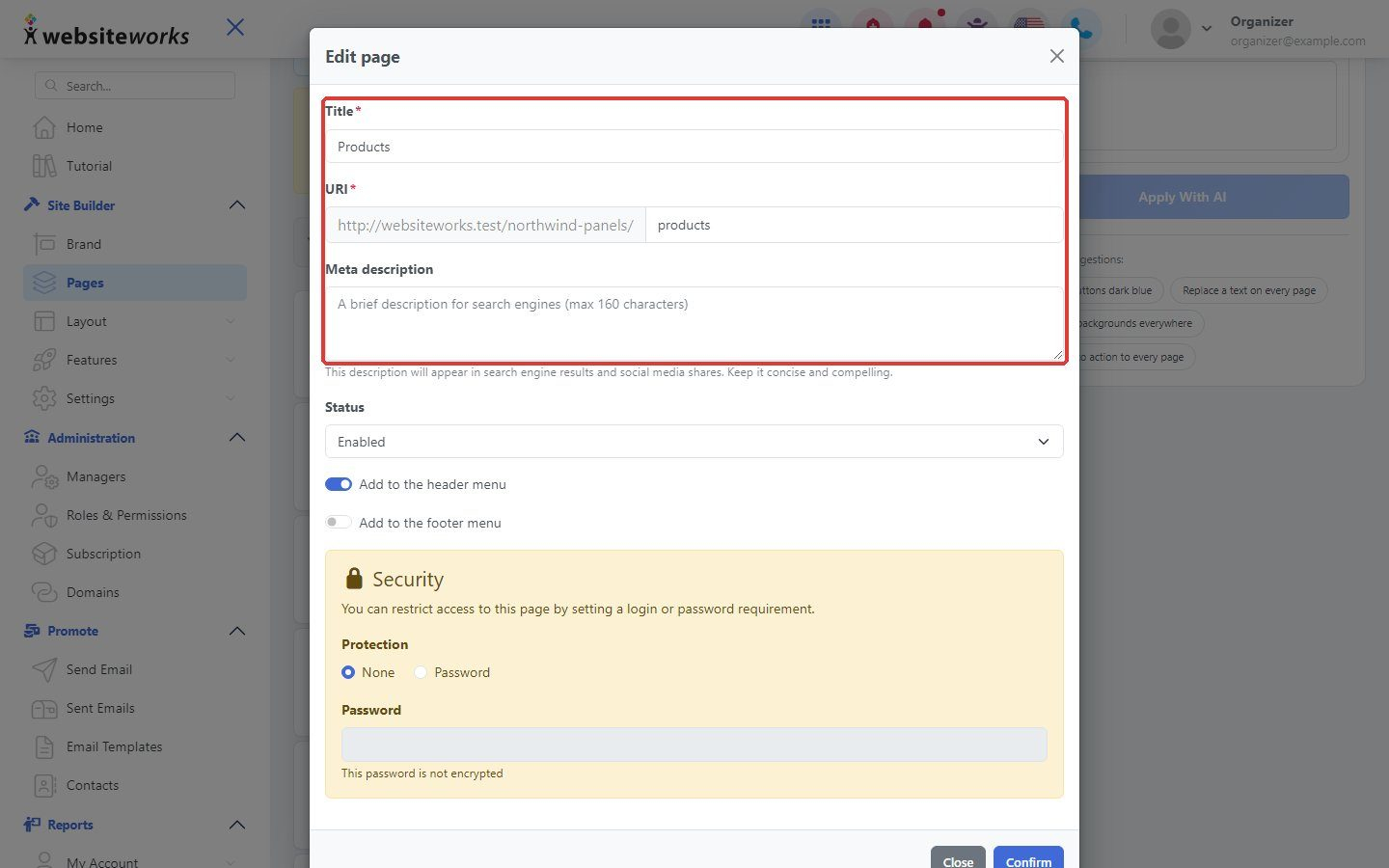
Step 4: Change the title, address and description
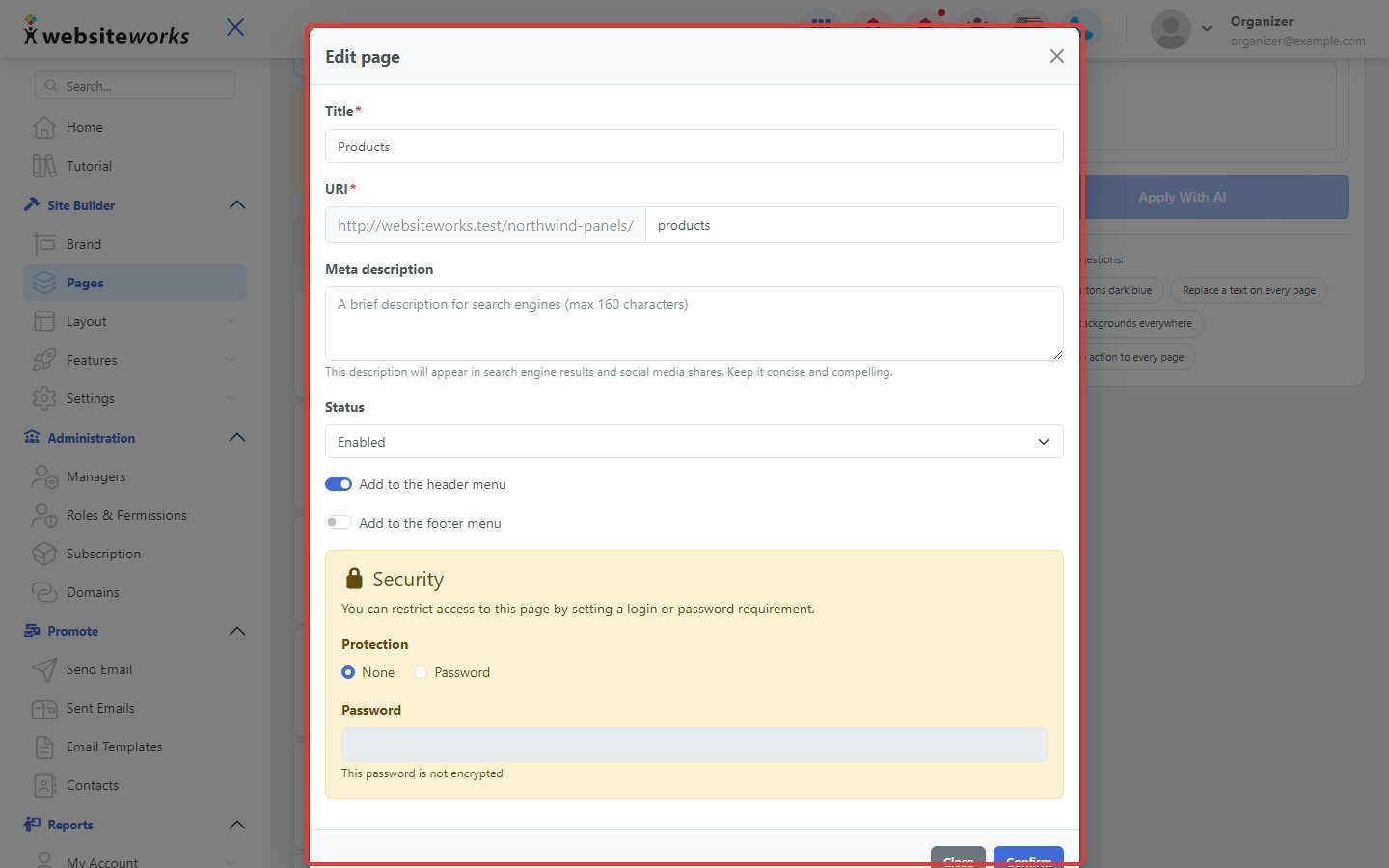
Edit the Title, the URI (the end of the page address) and the Meta description (the short text search engines can show).
Step 5: Choose where the page appears
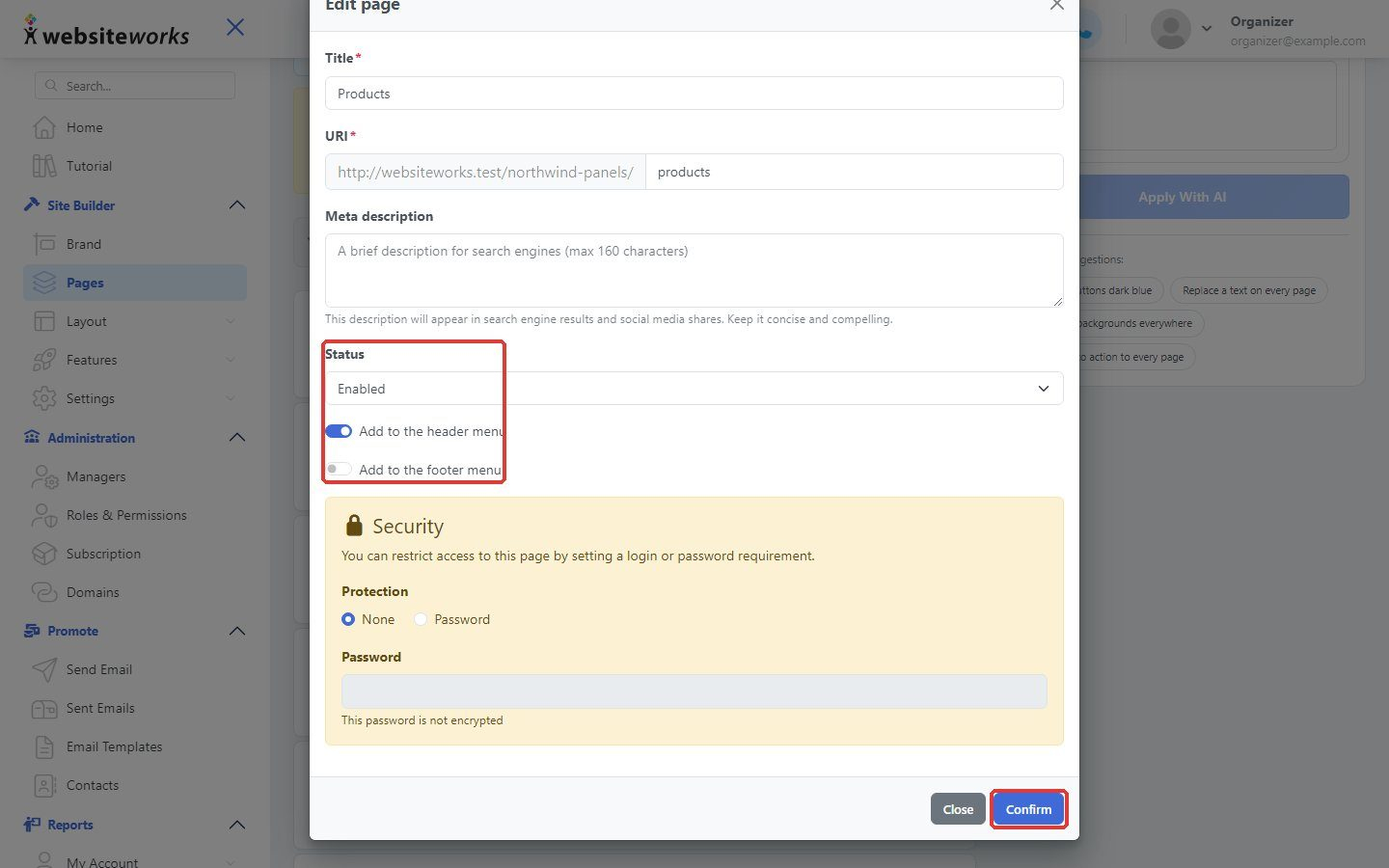
Set Status to Enabled to show the page. Check Add to the header menu or Add to the footer menu to add a link to it. Under Protection, choose Password if only people with the password should see it. Click Confirm.
Step 6: Edit the page content
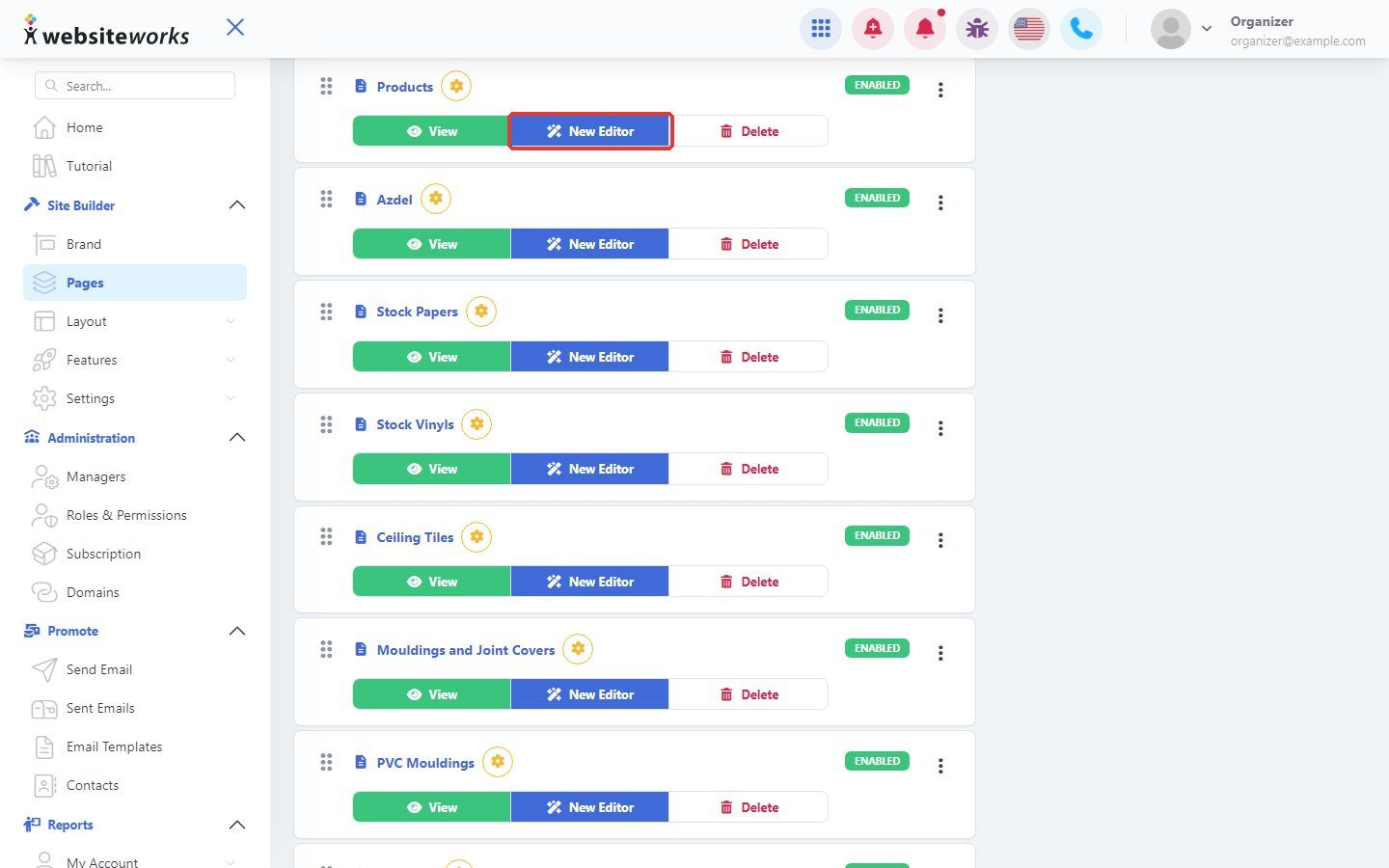
Click New Editor next to the page to change its text, images and blocks. See Adding content blocks to a page.