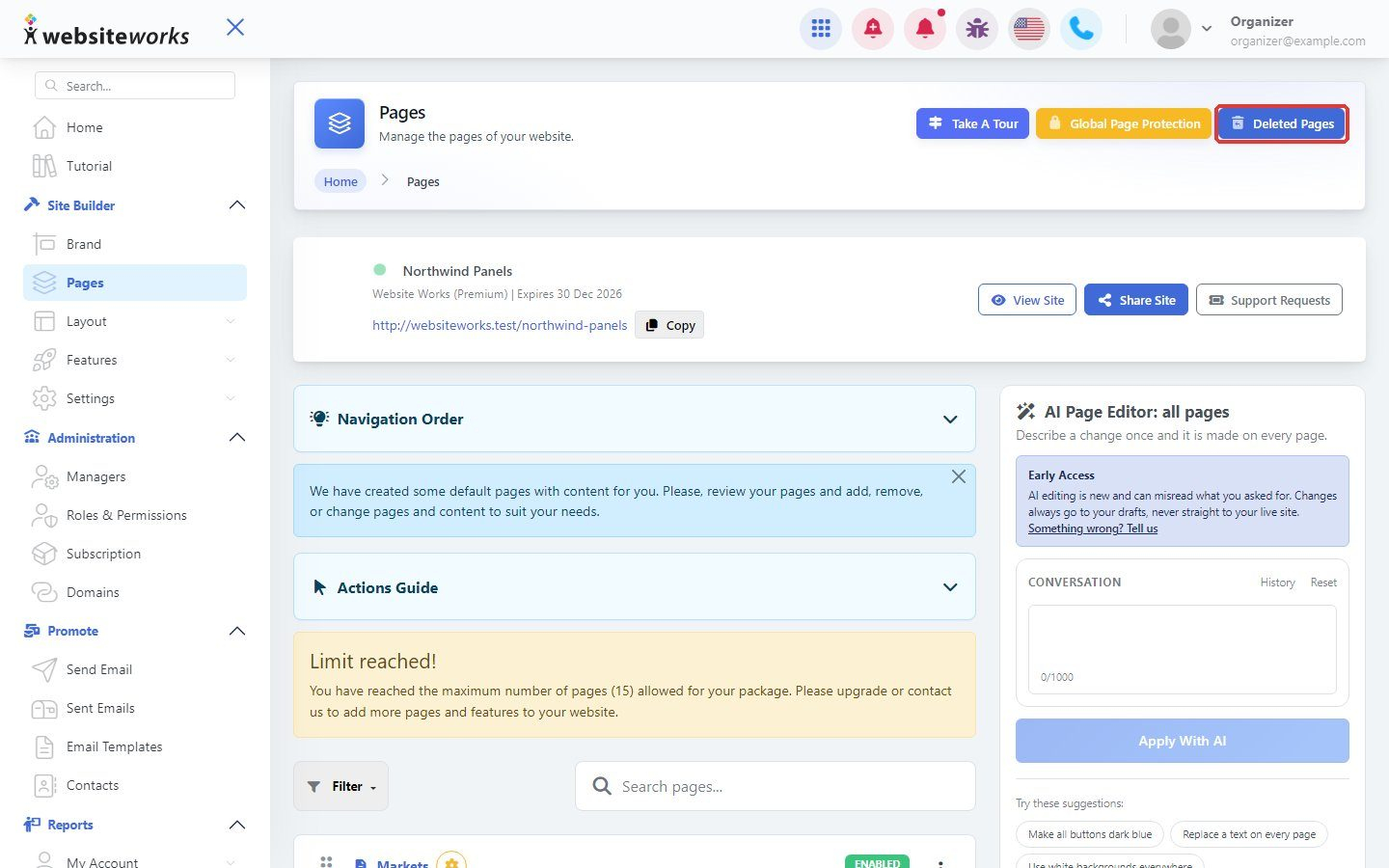

You can change where pages appear in your menu, hide a page without deleting it, or delete pages you no longer need.
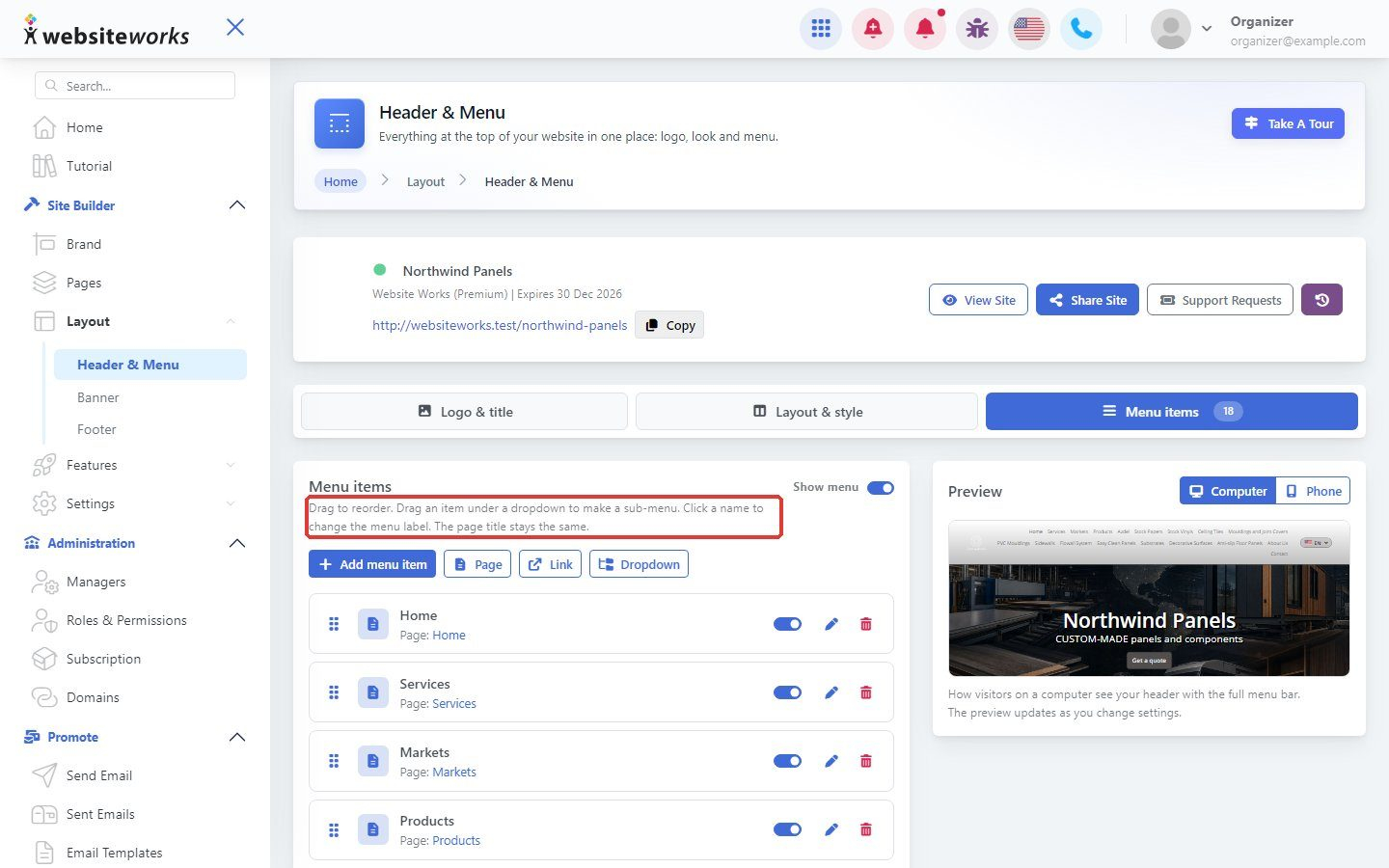
Step 1: Change the menu order
The order of your menu is set in Layout → Header & Menu, on the Menu items tab. Drag an item by its handle to move it. The order of the Pages list does not change your menu.
Step 2: Hide a page
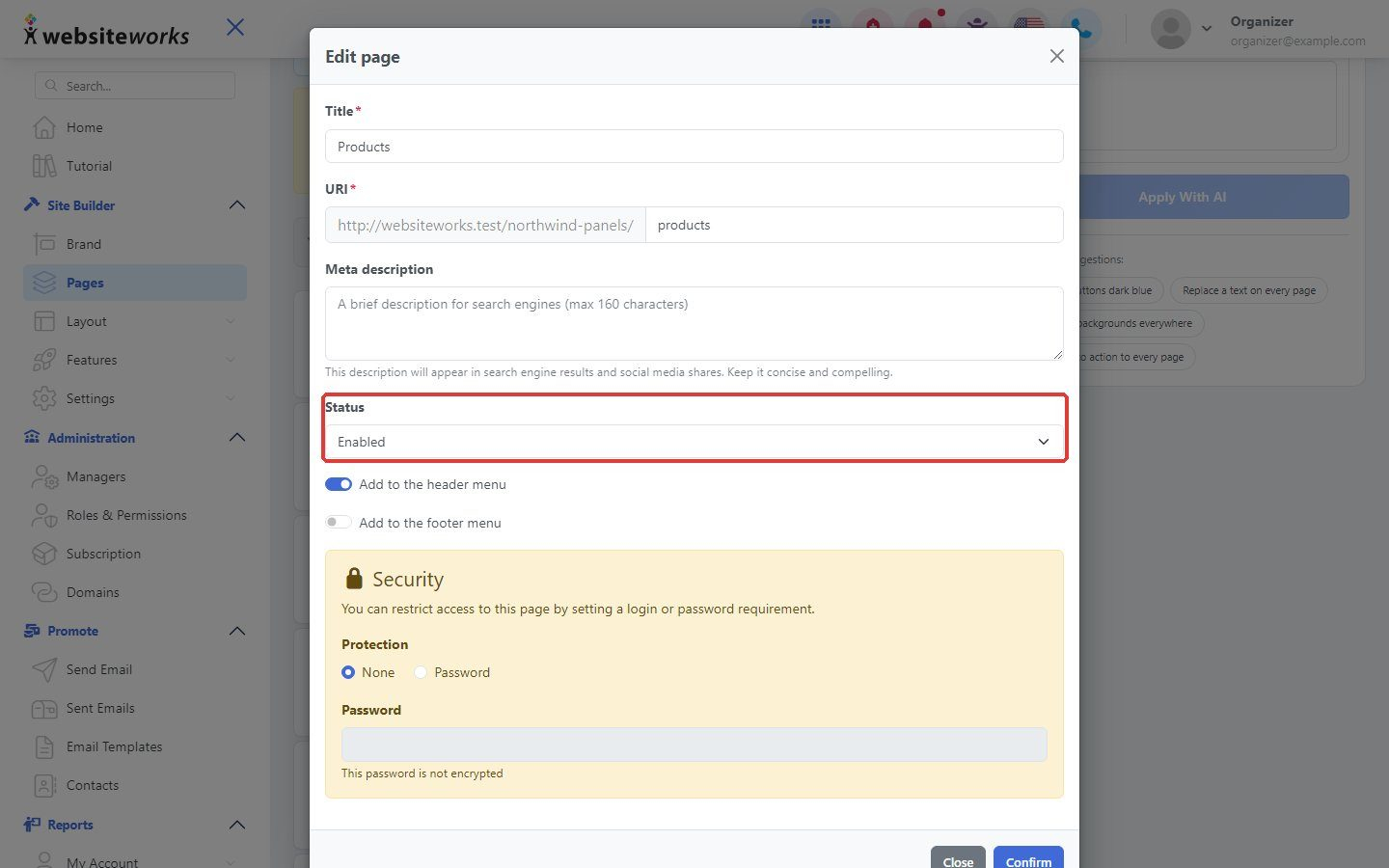
In Pages, open the page settings and set Status to Disabled, then click Confirm. Visitors can no longer see the page, but you keep it.
Step 3: Delete a page
Click the delete button next to the page and confirm. You can restore it later under Deleted Pages.
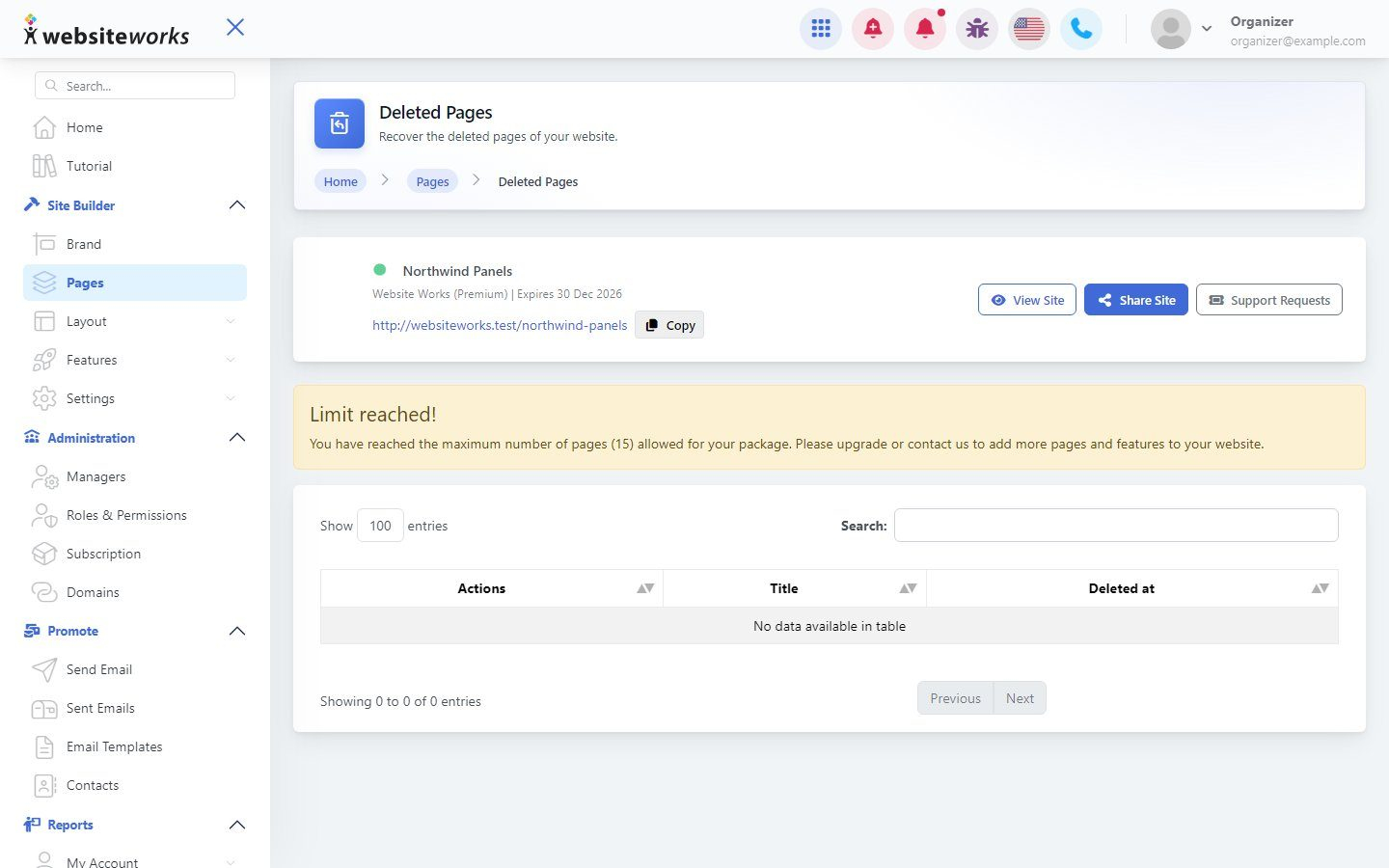
Step 4: Restore a deleted page
On the Pages page, click Deleted Pages to see the pages you deleted and restore one.