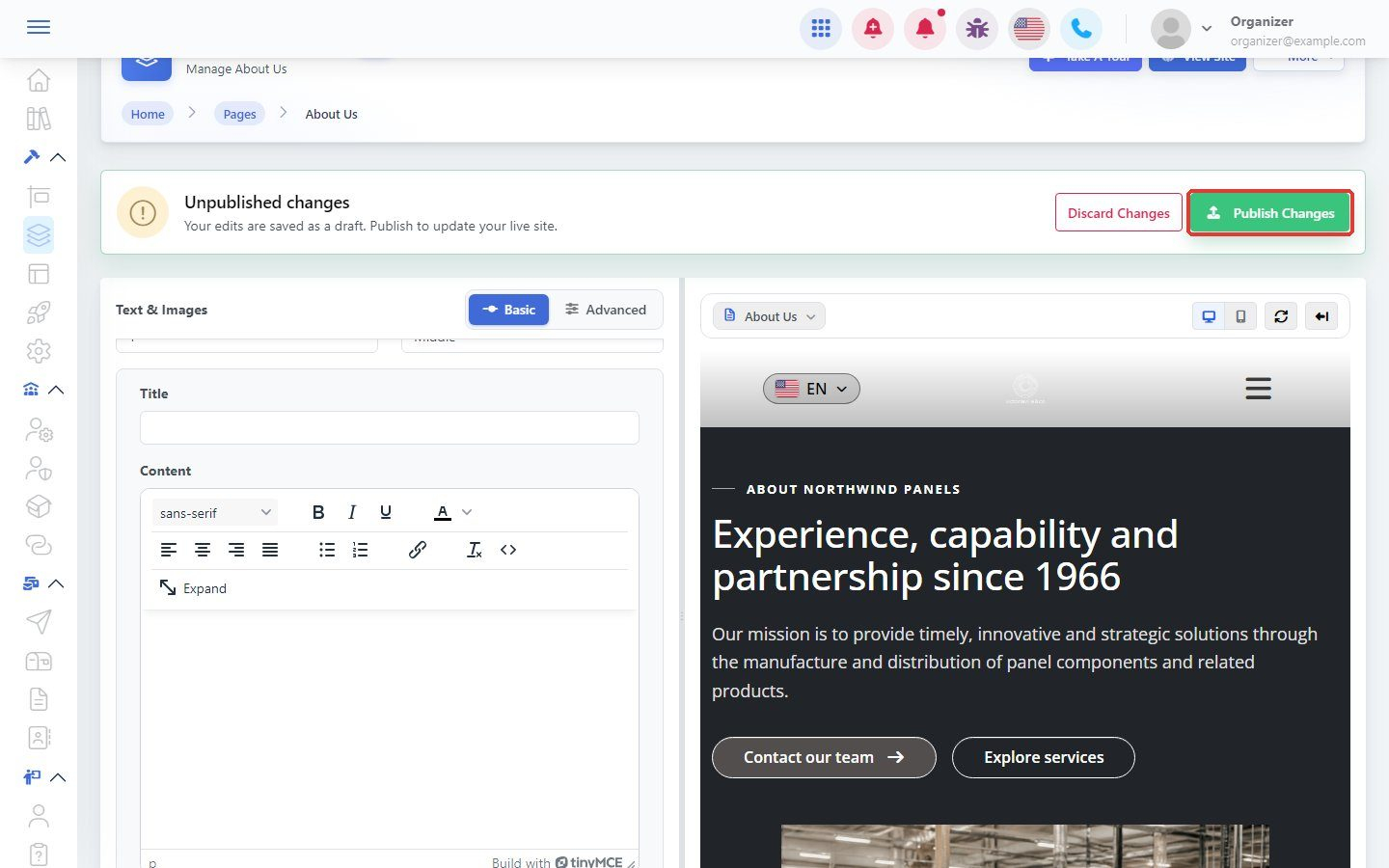

Pages are built from blocks: text, images, galleries, FAQs, buttons and more. Here is how to add one.
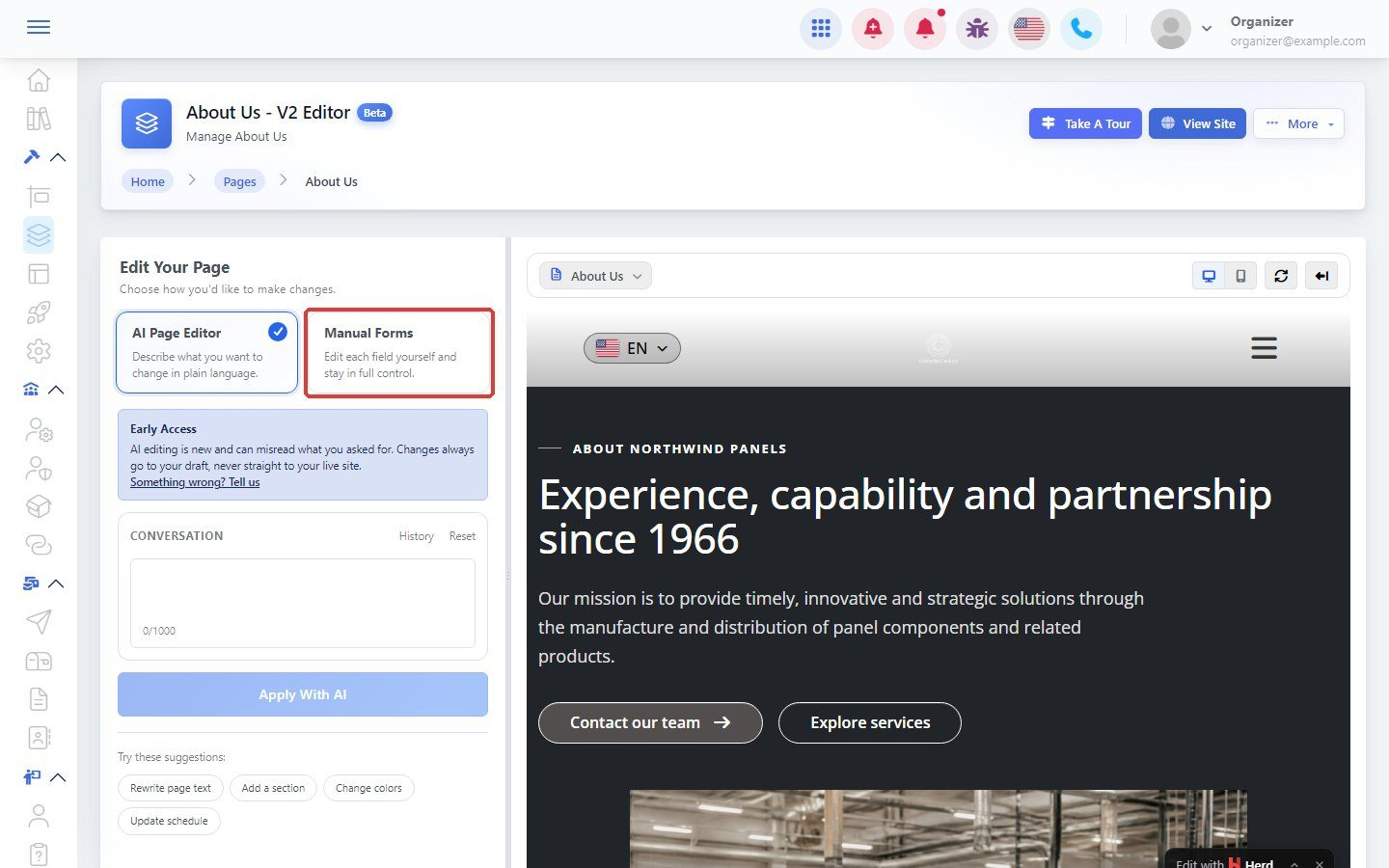
Step 1: Open the editor and choose Manual Forms
In Pages, click New Editor next to your page. Choose Manual Forms. (Choose AI Page Editor instead to describe your change in words.)
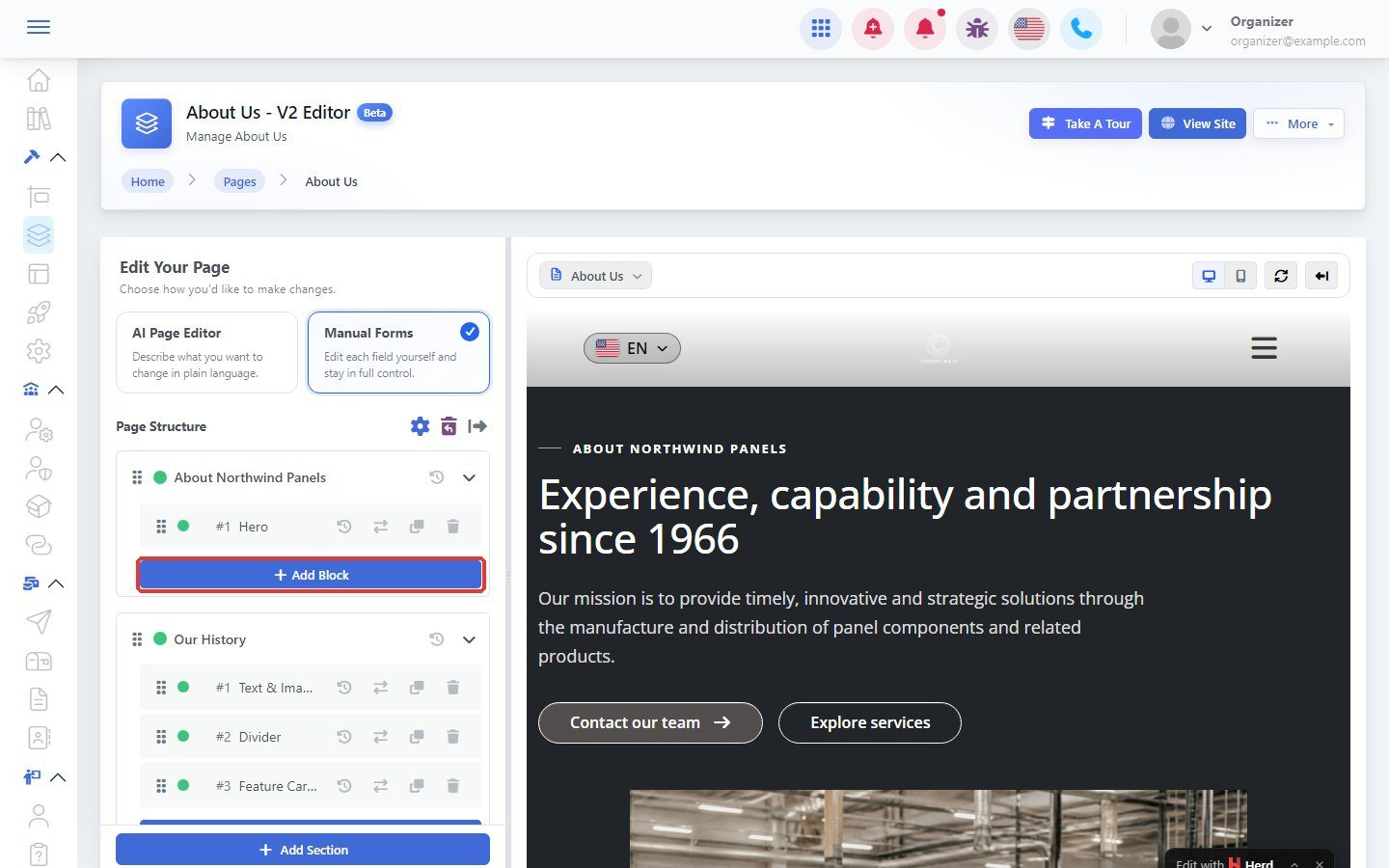
Step 2: Click Add Block
In Page Structure, click Add Block in the section where the block should go. You can also click Add Section to start a new section.
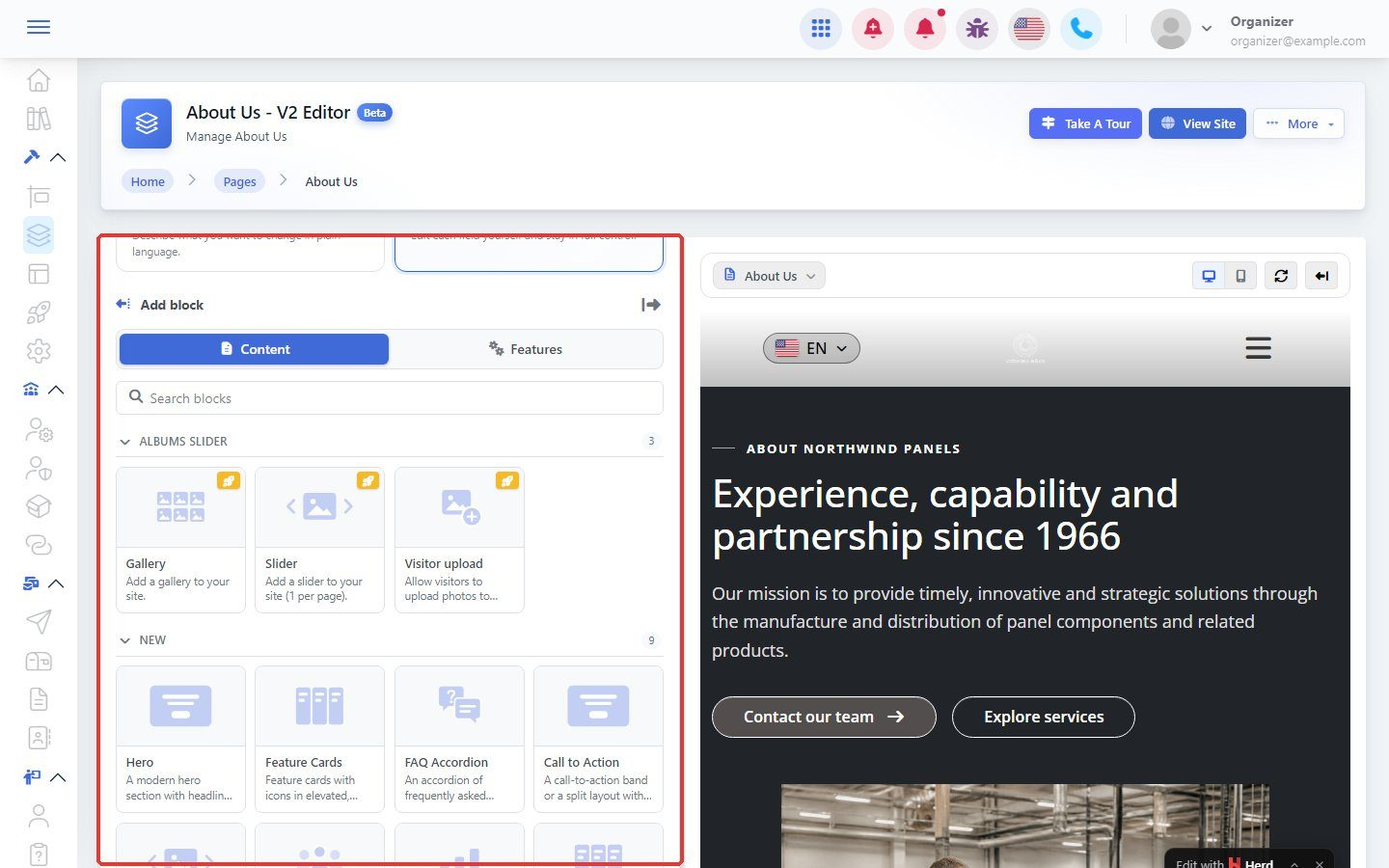
Step 3: Choose a block
Browse the Content and Features tabs, or type in Search blocks. Blocks include Hero, Feature Cards, FAQ Accordion, Call to Action, Meet the Team, Pricing, Text & Images, Video, Buttons and photo album blocks.
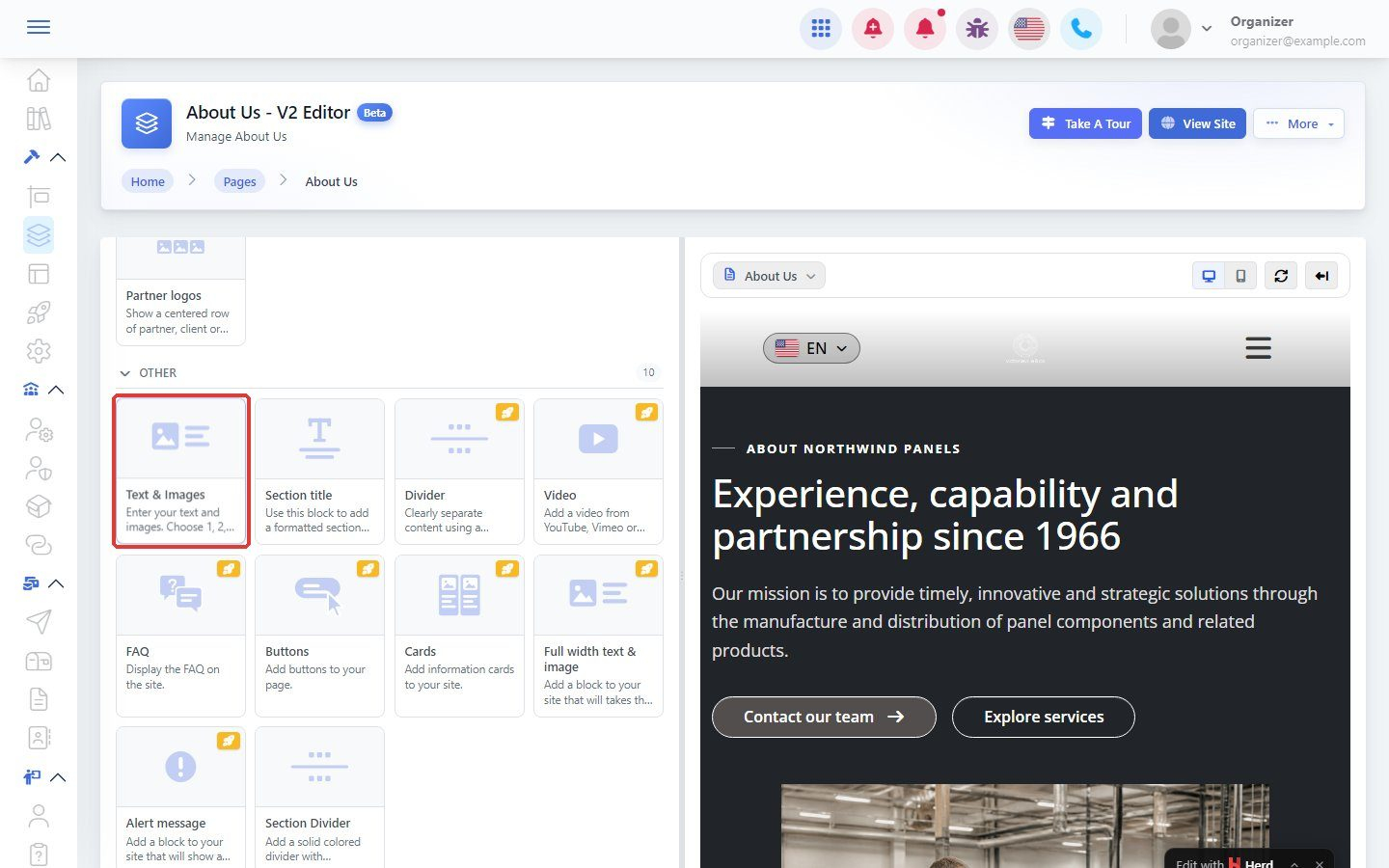
Step 4: Add a Text & Images block
Click Text & Images. The block is added to your page.
Step 5: Fill in the block
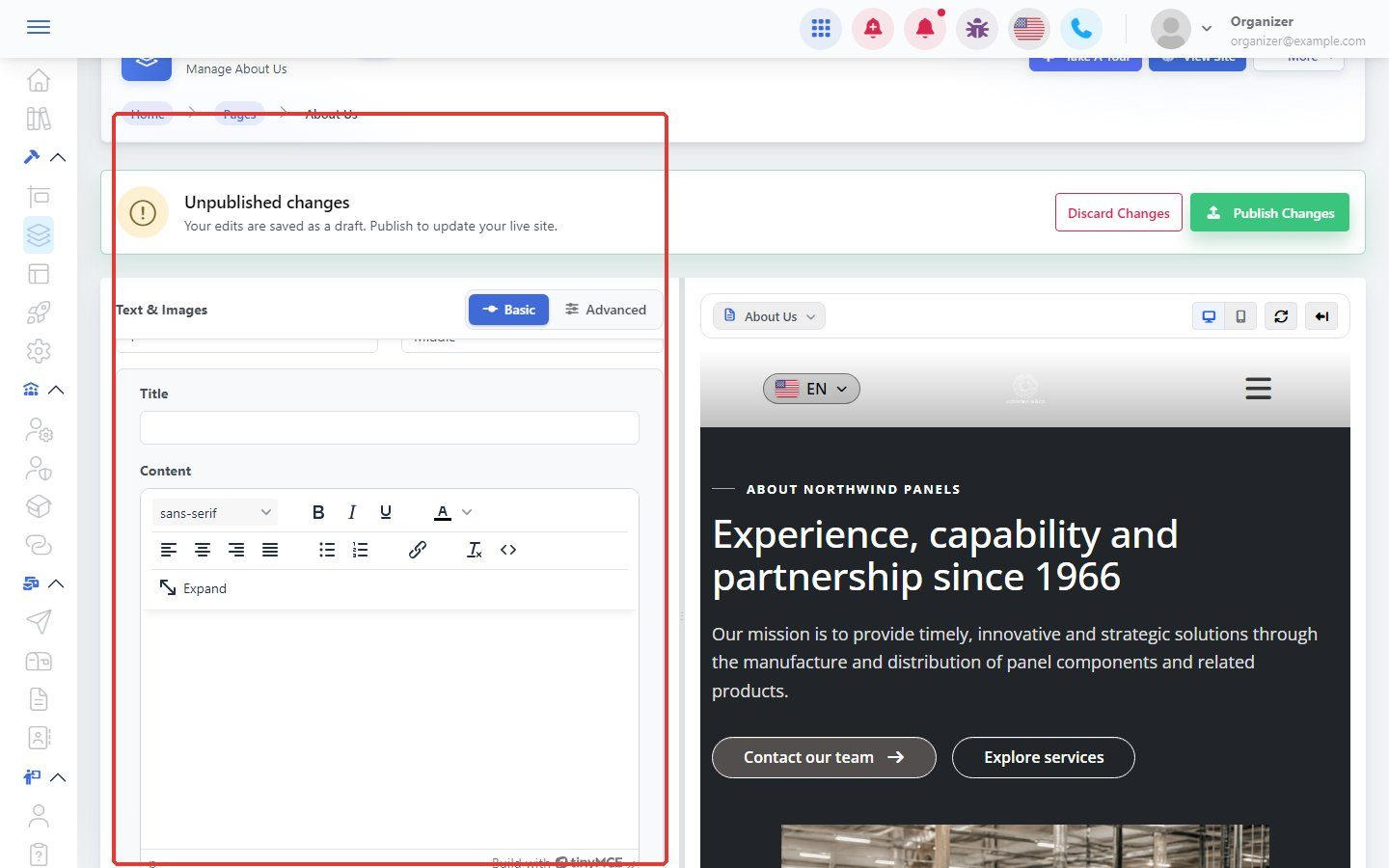
In Block Settings, enter your title and text and upload an image. The Basic tab has the main options; Advanced has extra layout options.
Step 6: Publish
Click Publish Changes to make the block live, or Discard Changes to remove your draft.