
The header is the bar at the top of every page with your logo and menu.
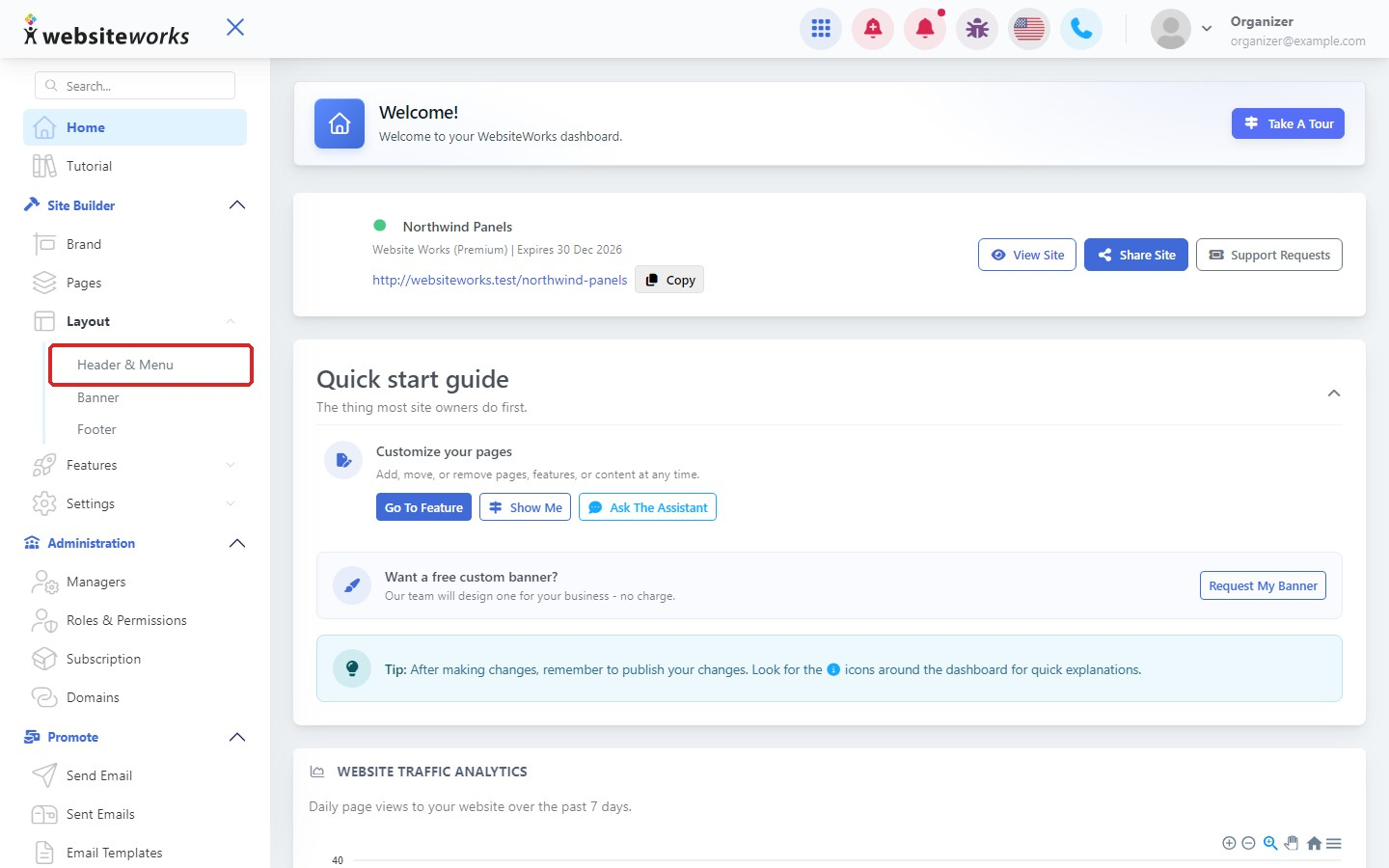
Step 1: Open Header & Menu
In the menu, under Layout, click Header & Menu.
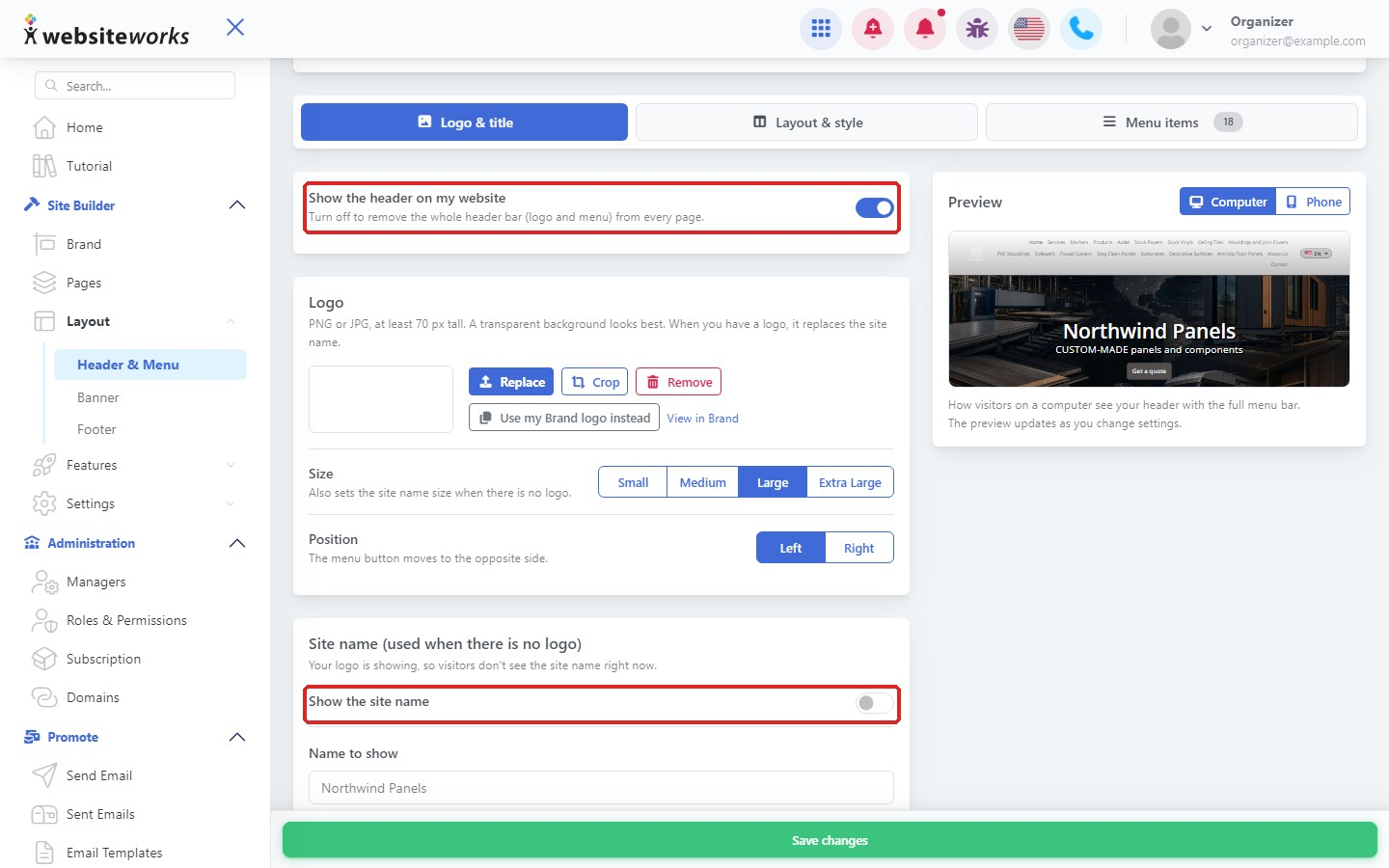
Step 2: Choose what to show
On the Logo & title tab, choose whether to show your logo and site title in the header.
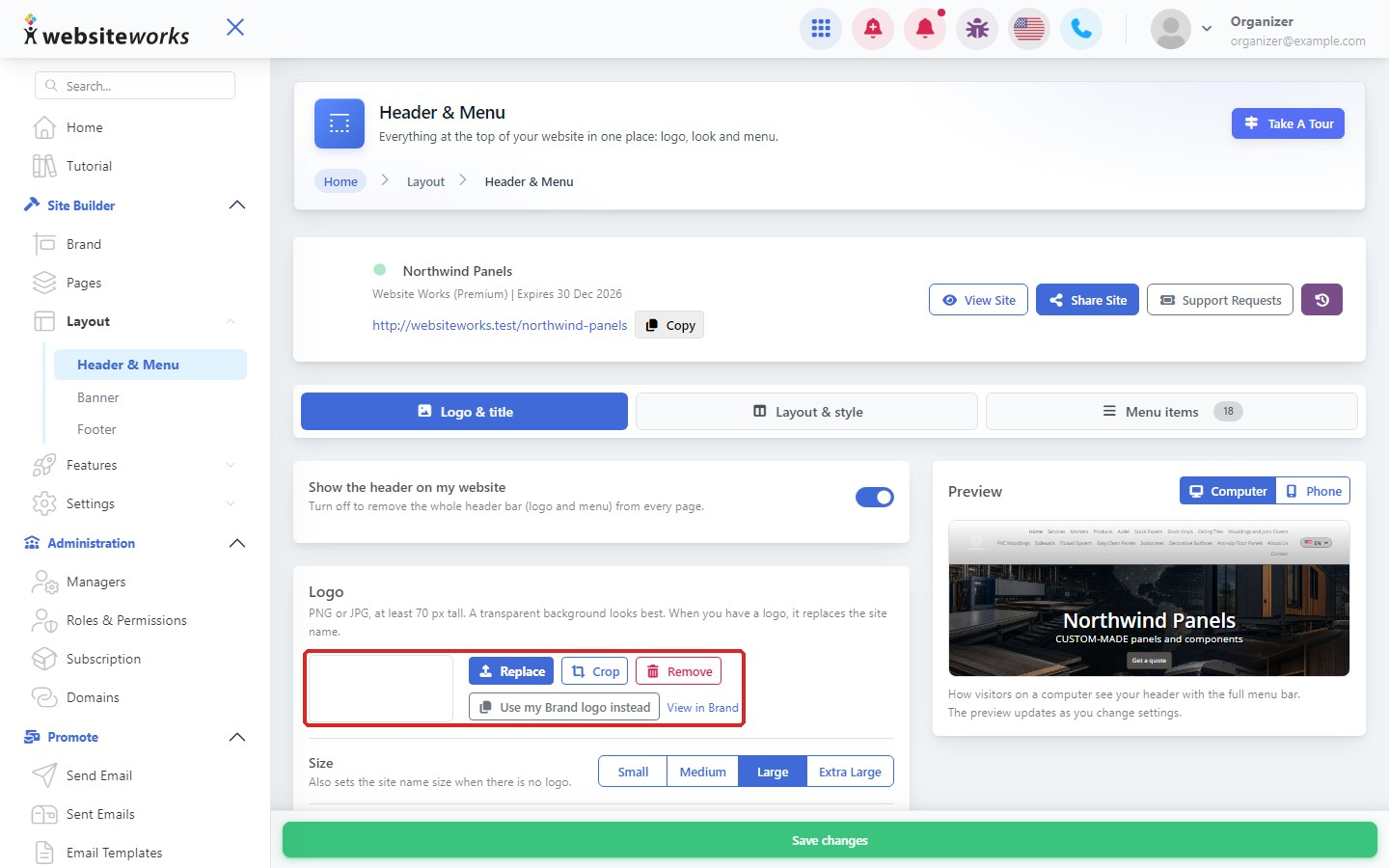
Step 3: Set the logo
Upload or change the logo shown in the header.
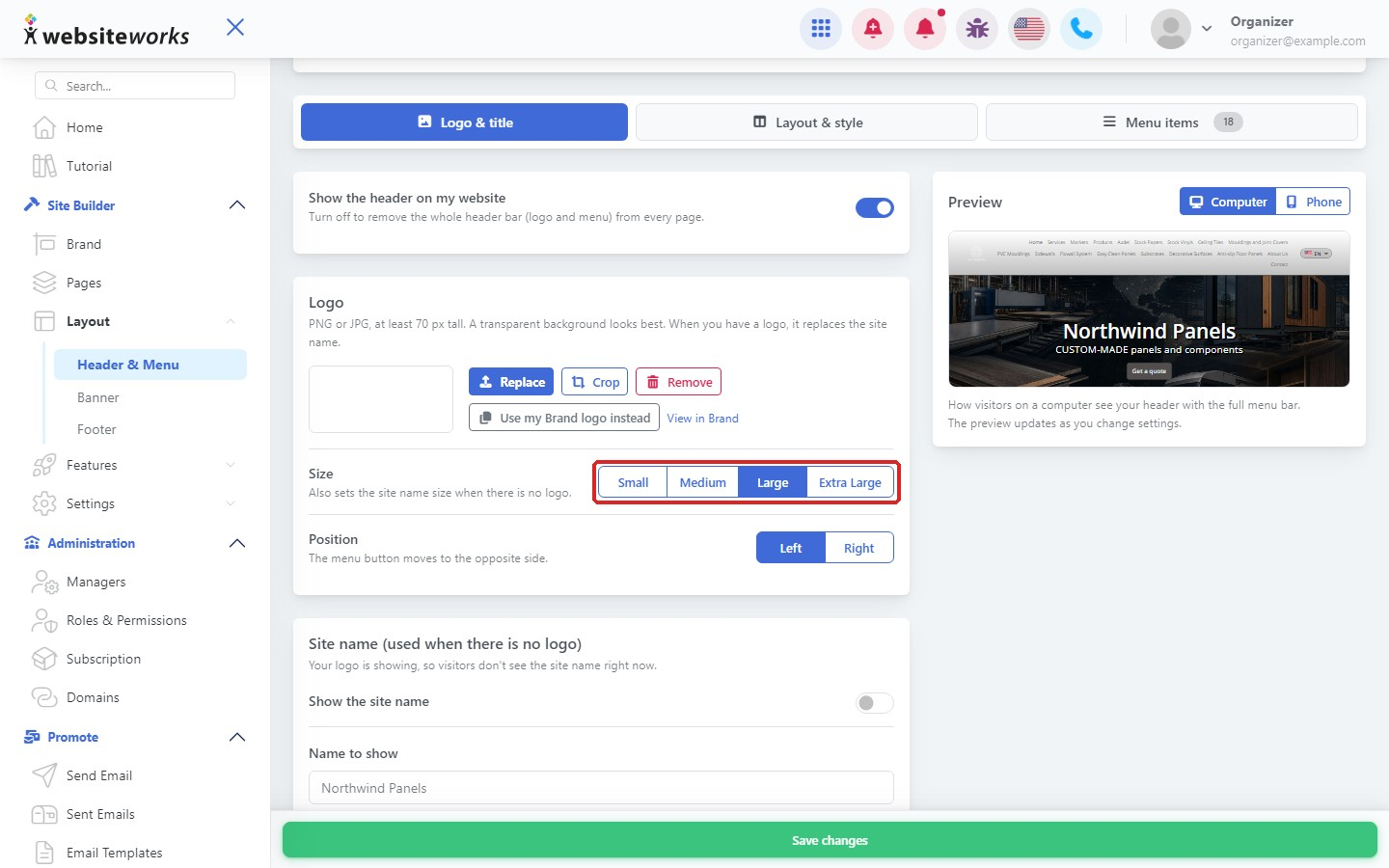
Step 4: Adjust the size
Choose the size of your logo.
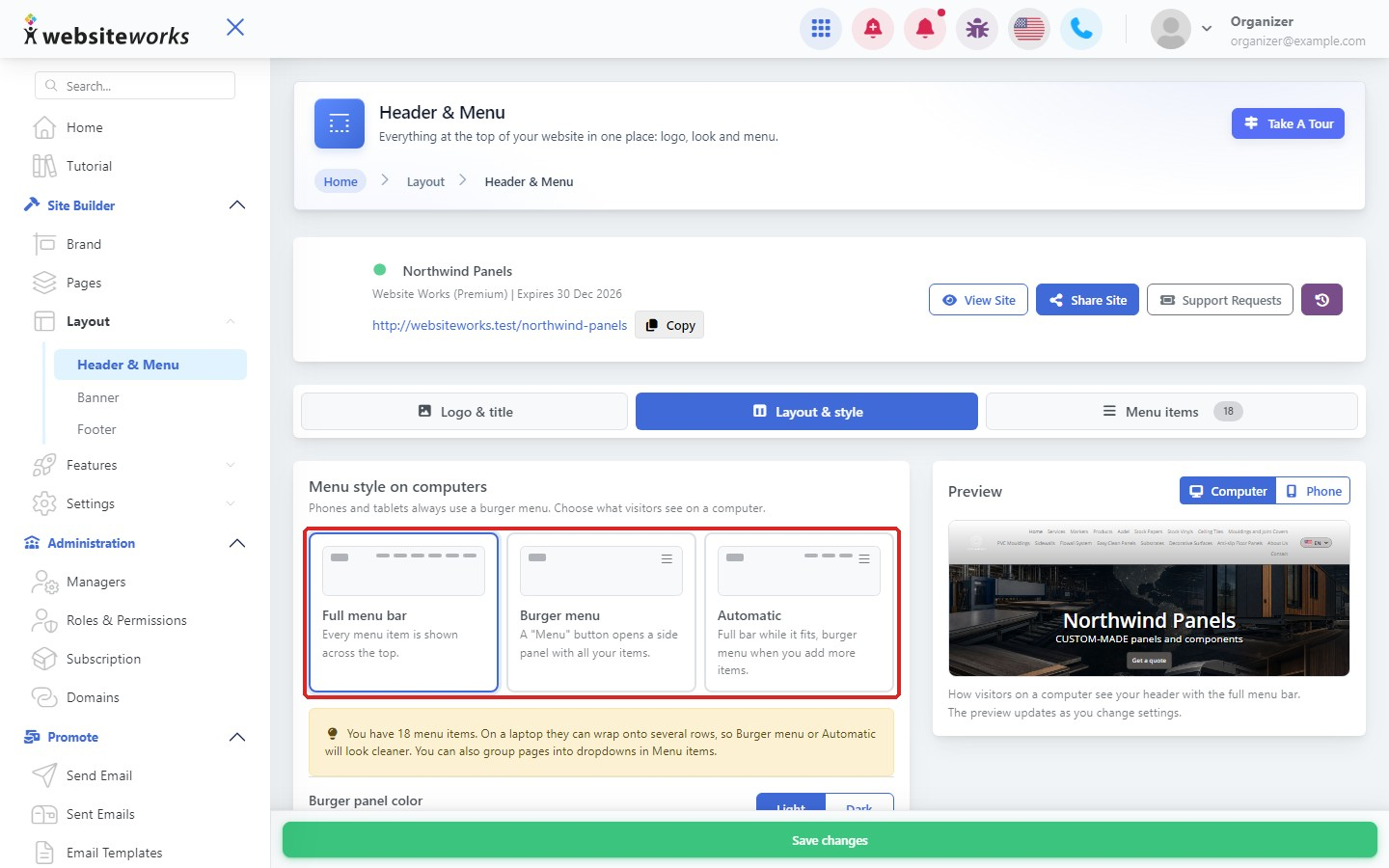
Step 5: Pick a menu style
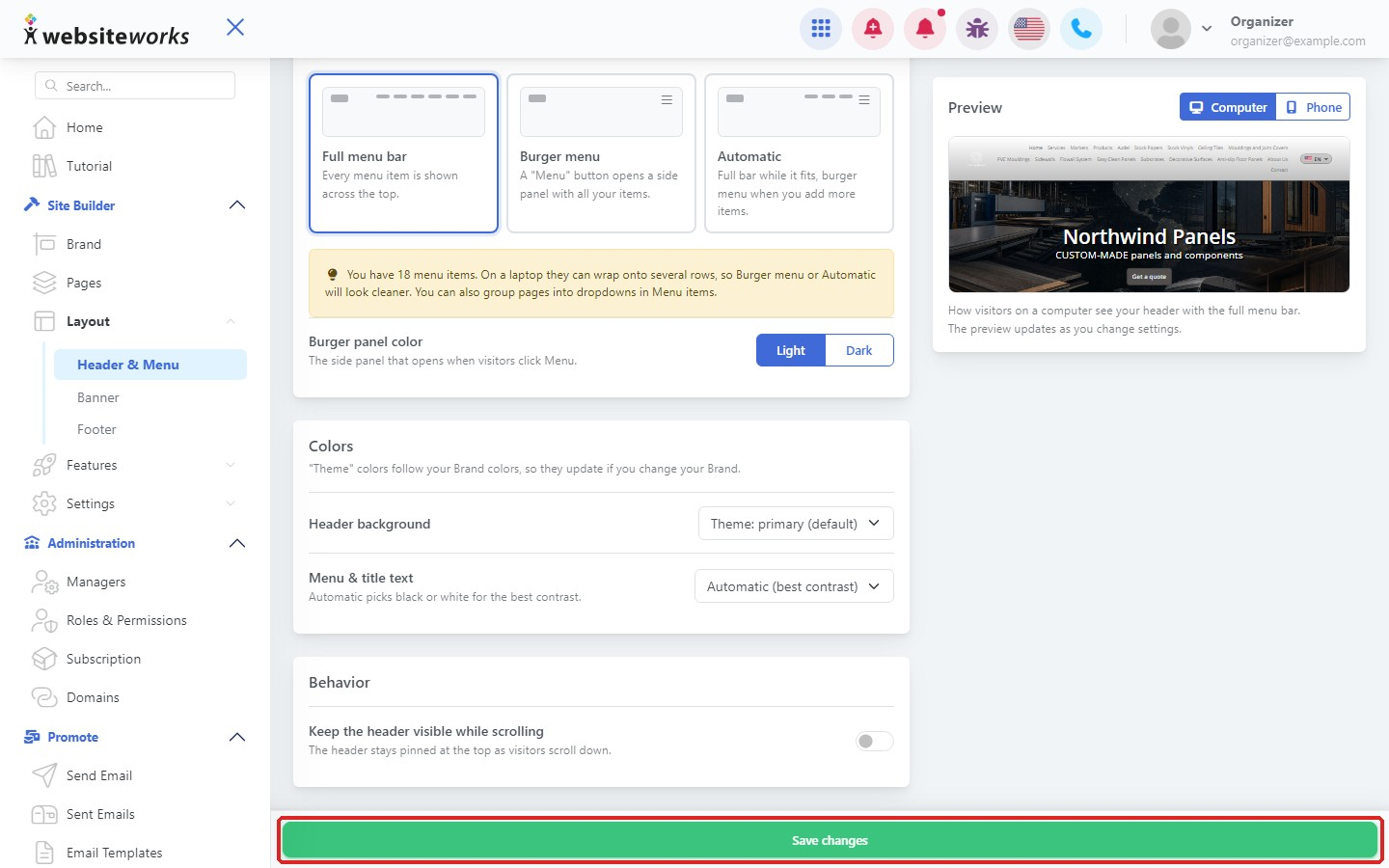
On the Layout & style tab, choose Full menu bar, Burger menu or Automatic.
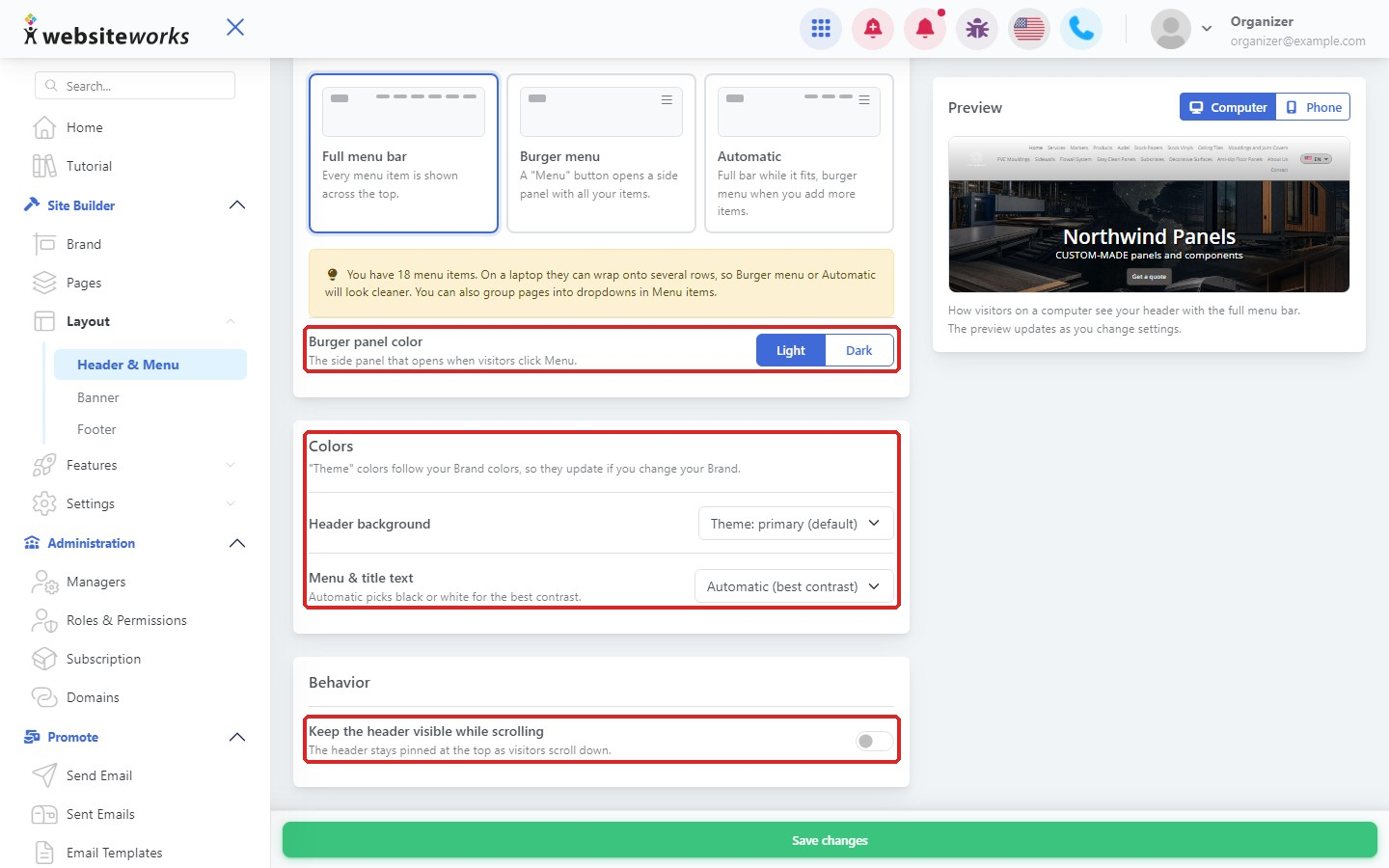
Step 6: Choose colors
Set the Header background, the Menu & title text color and the Burger panel color. Turn on Keep the header visible while scrolling if you want the header to stay at the top.
Step 7: Save changes
Check the preview, using Computer or Phone, then click Save changes.