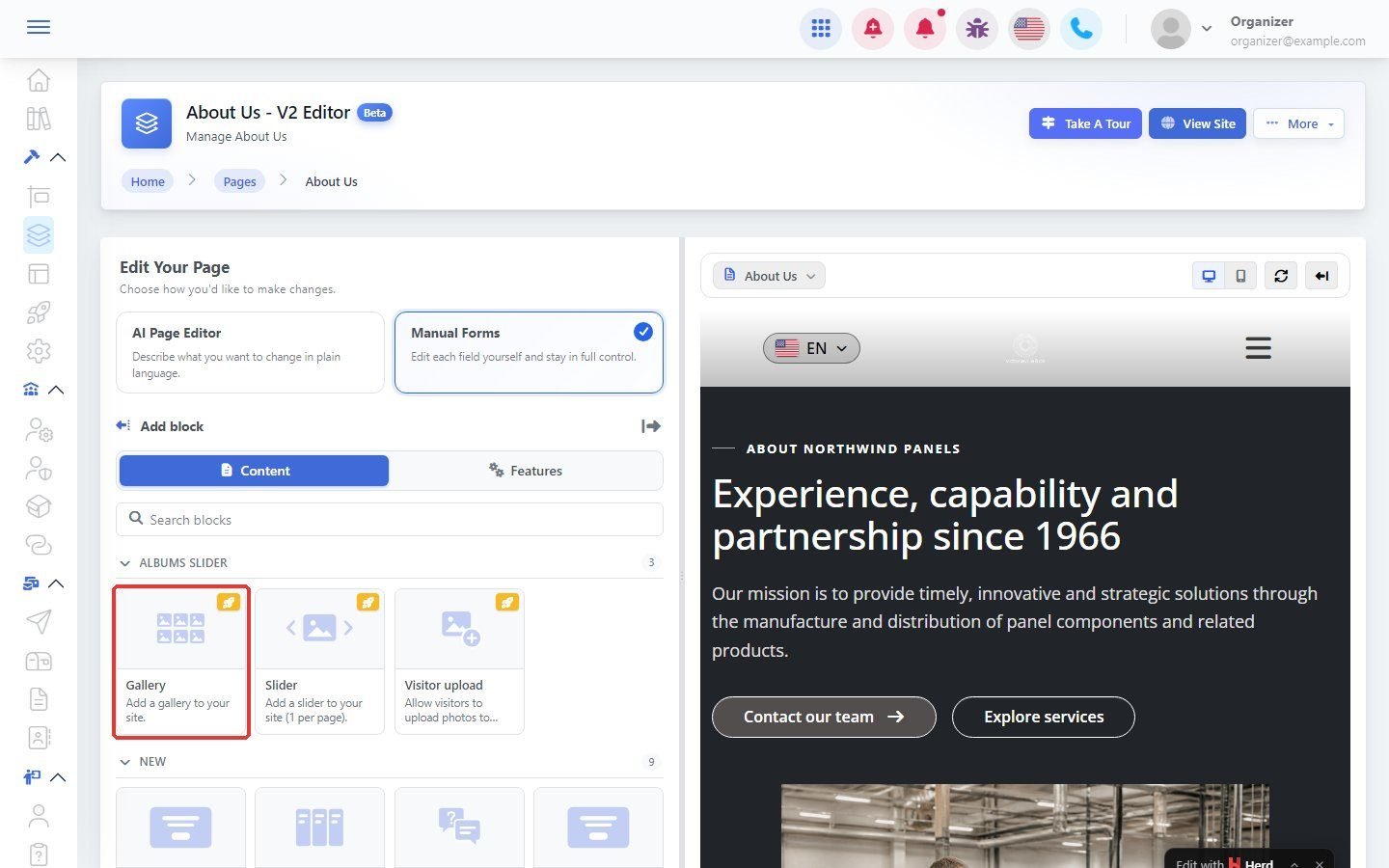

Albums let you show your photos on your website as a gallery or slider.
Step 1: Open Albums
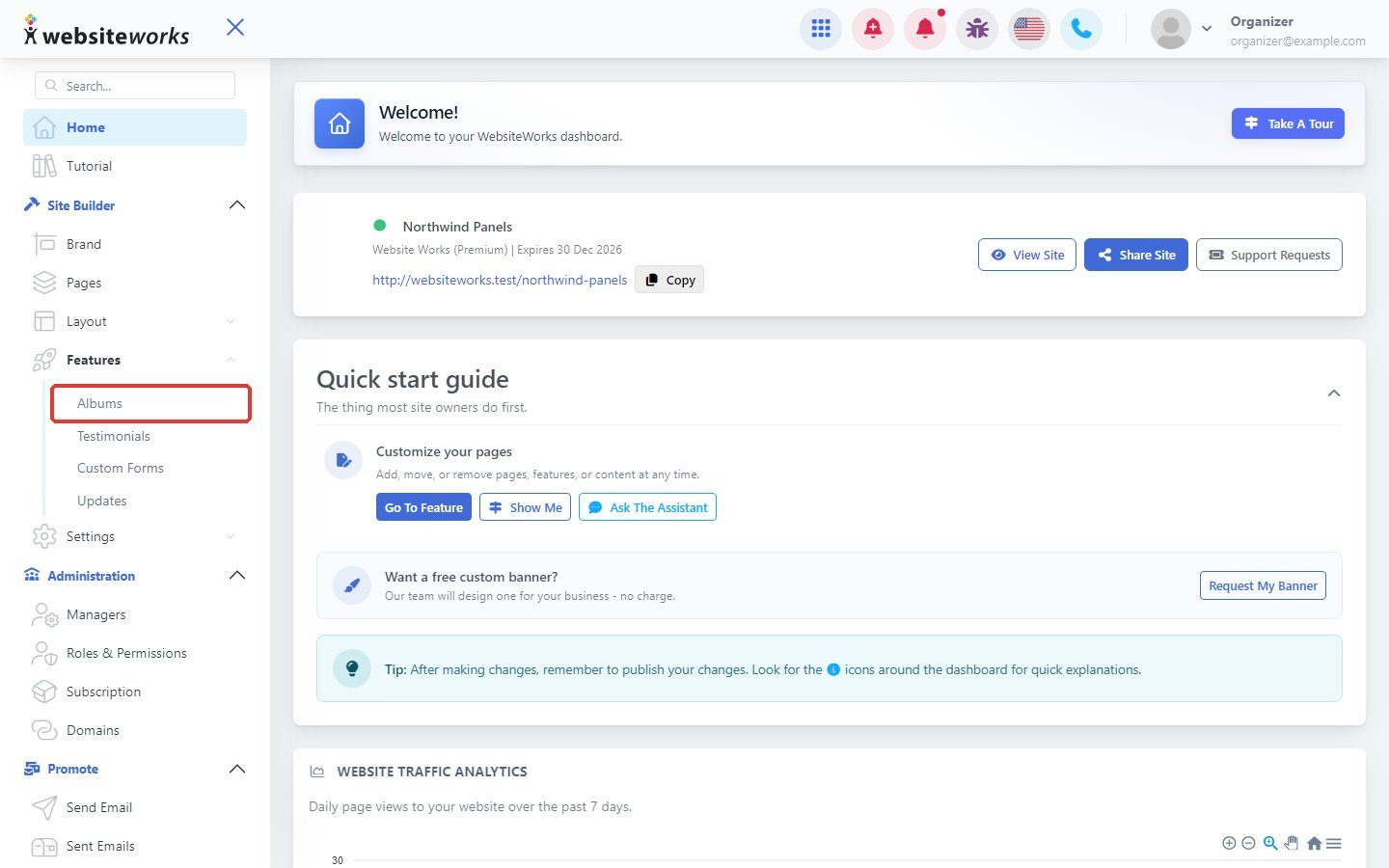
In the menu, under Features, click Albums.
Step 2: Click New Album
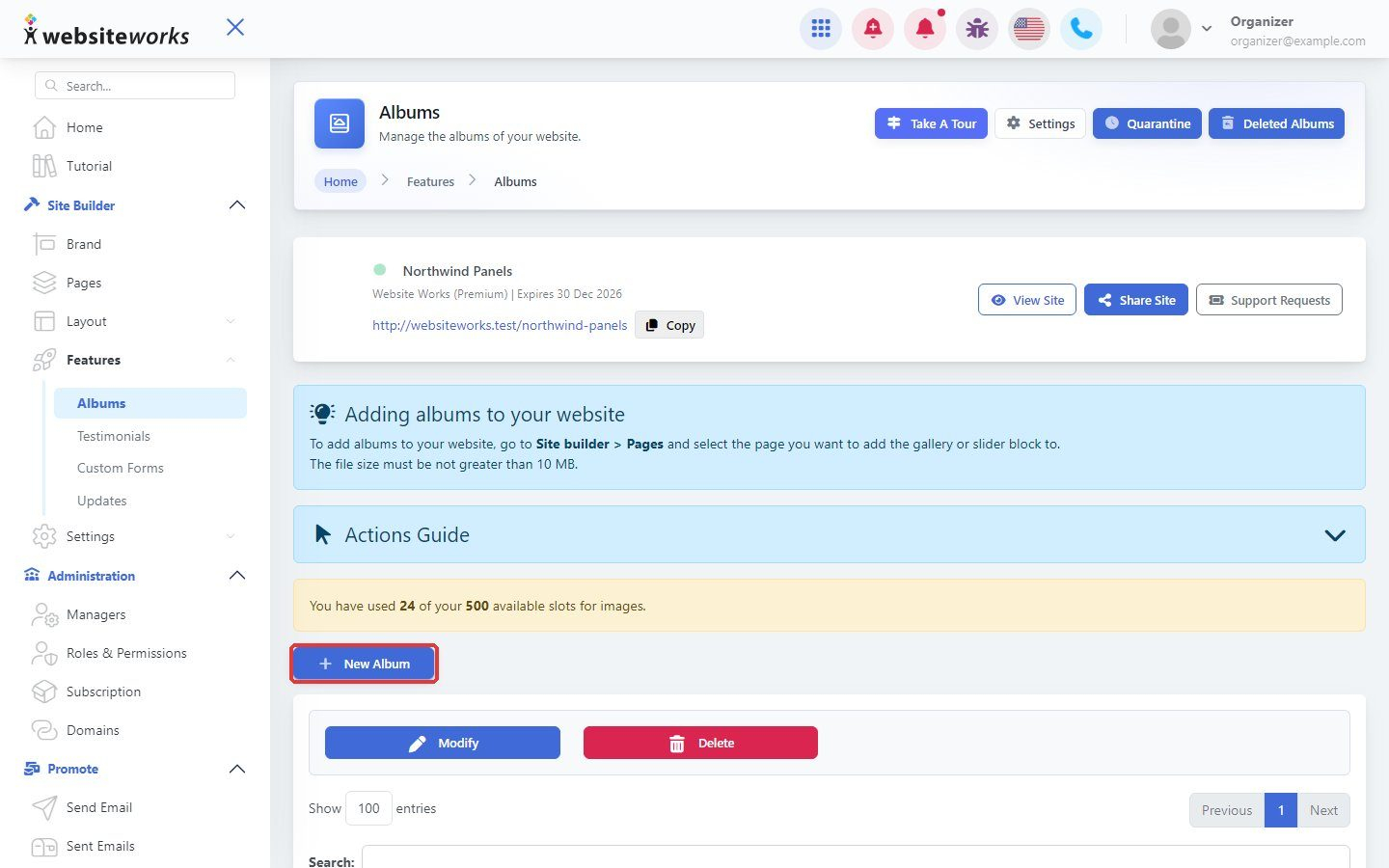
Click New Album.
Step 3: Name the album
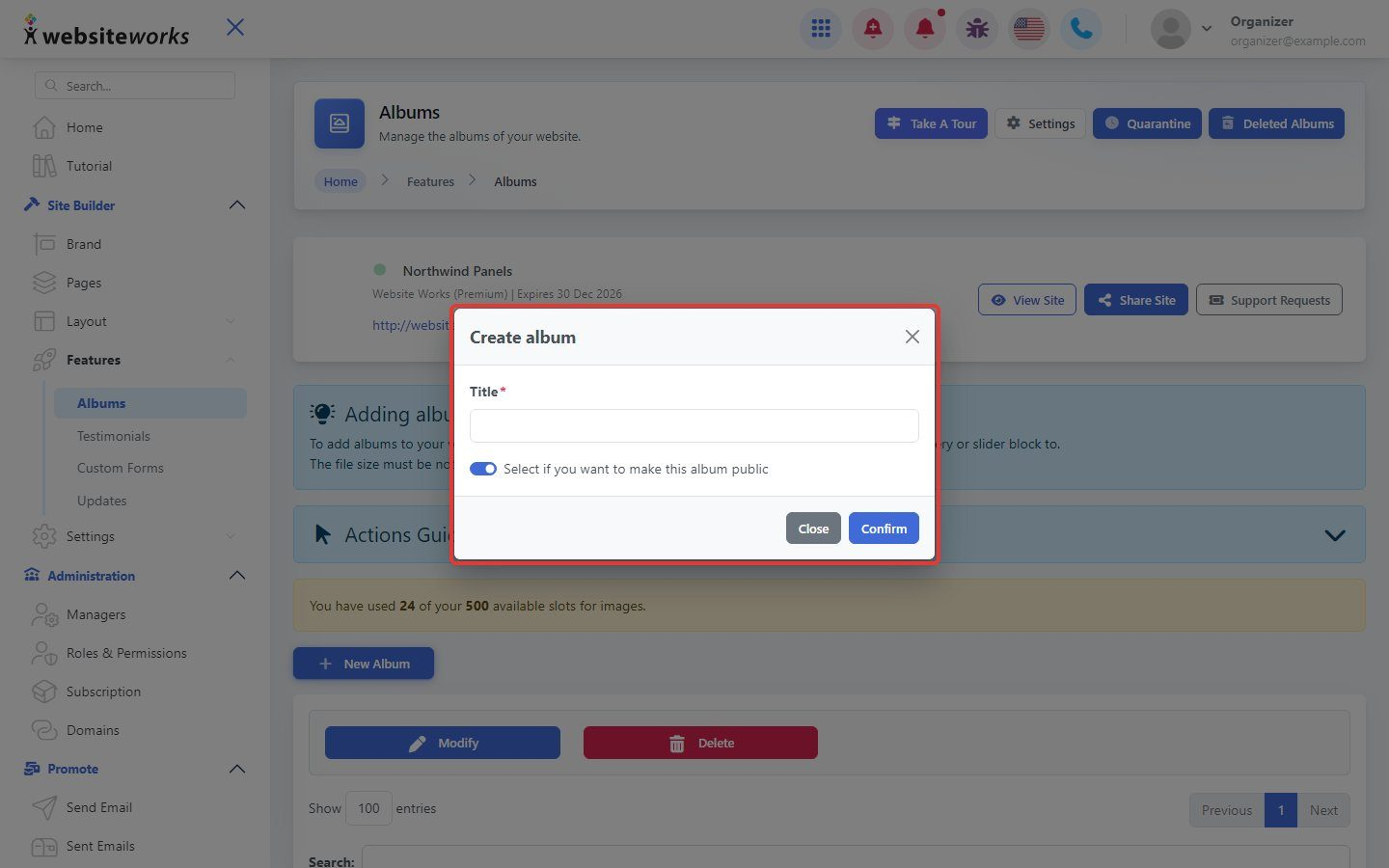
In Create album, enter a Title. Check the box if you want to make this album public. Click Confirm.
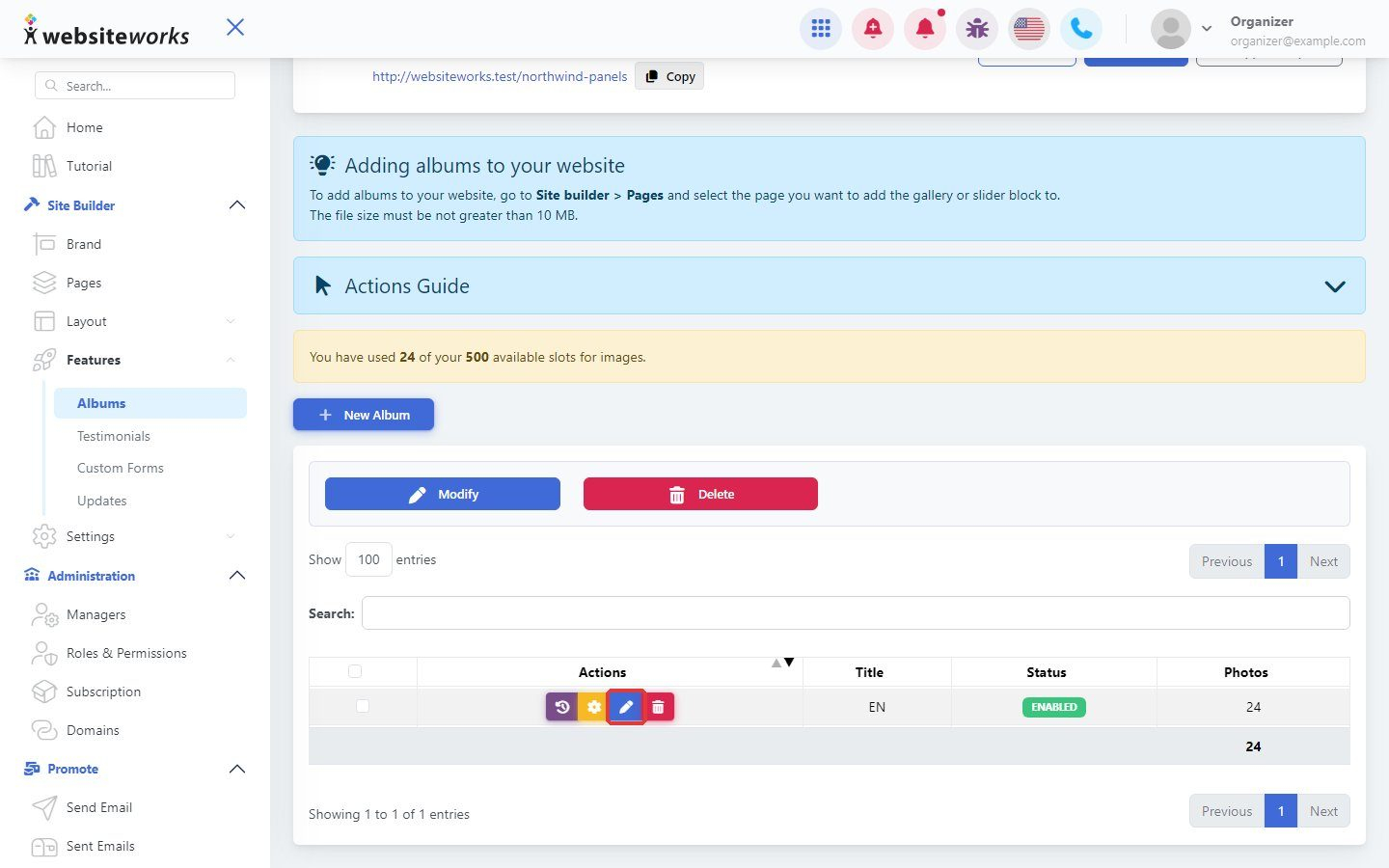
Step 4: Open the album
Click the button next to your album to manage its photos.
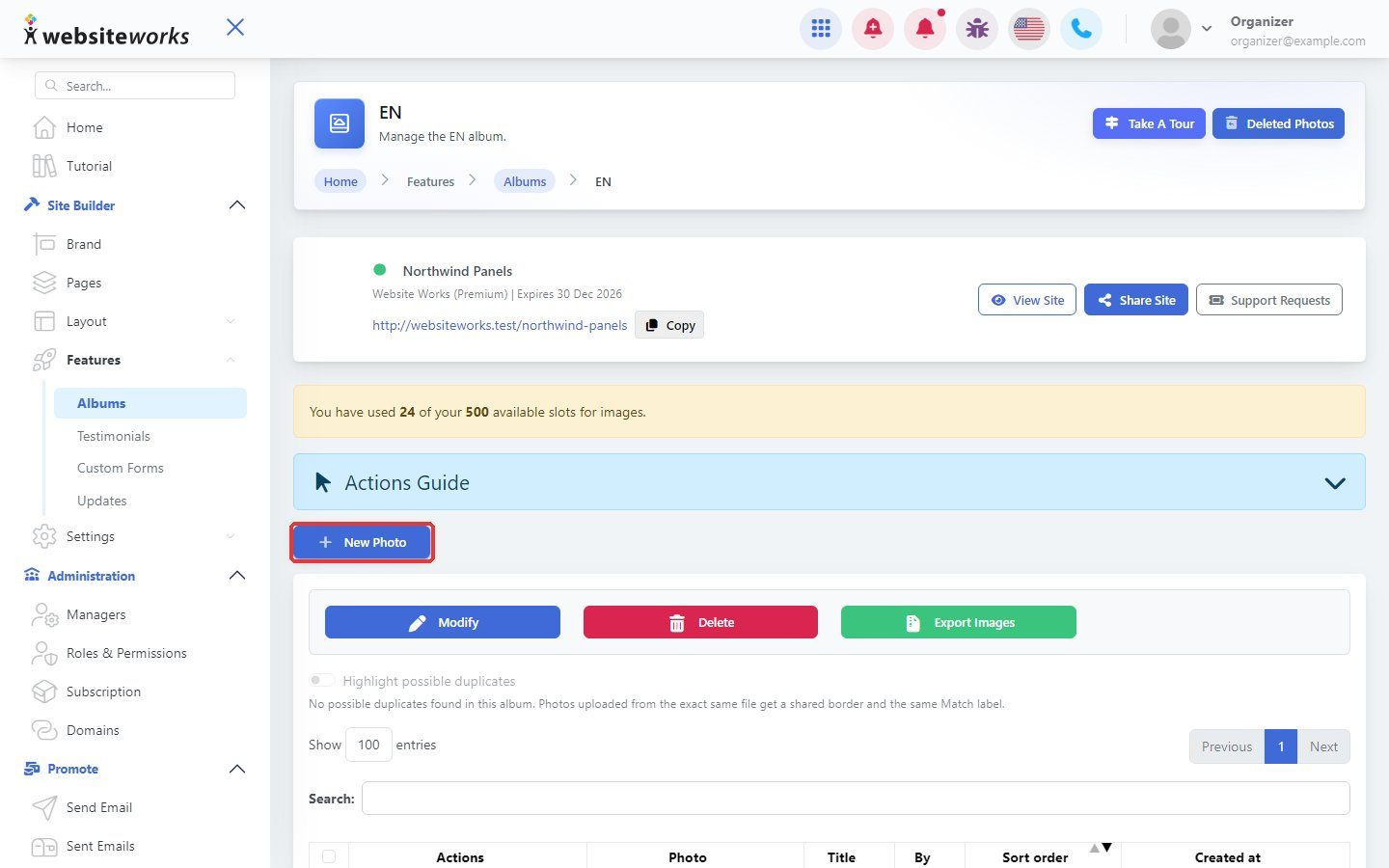
Step 5: Add photos
Click New Photo.
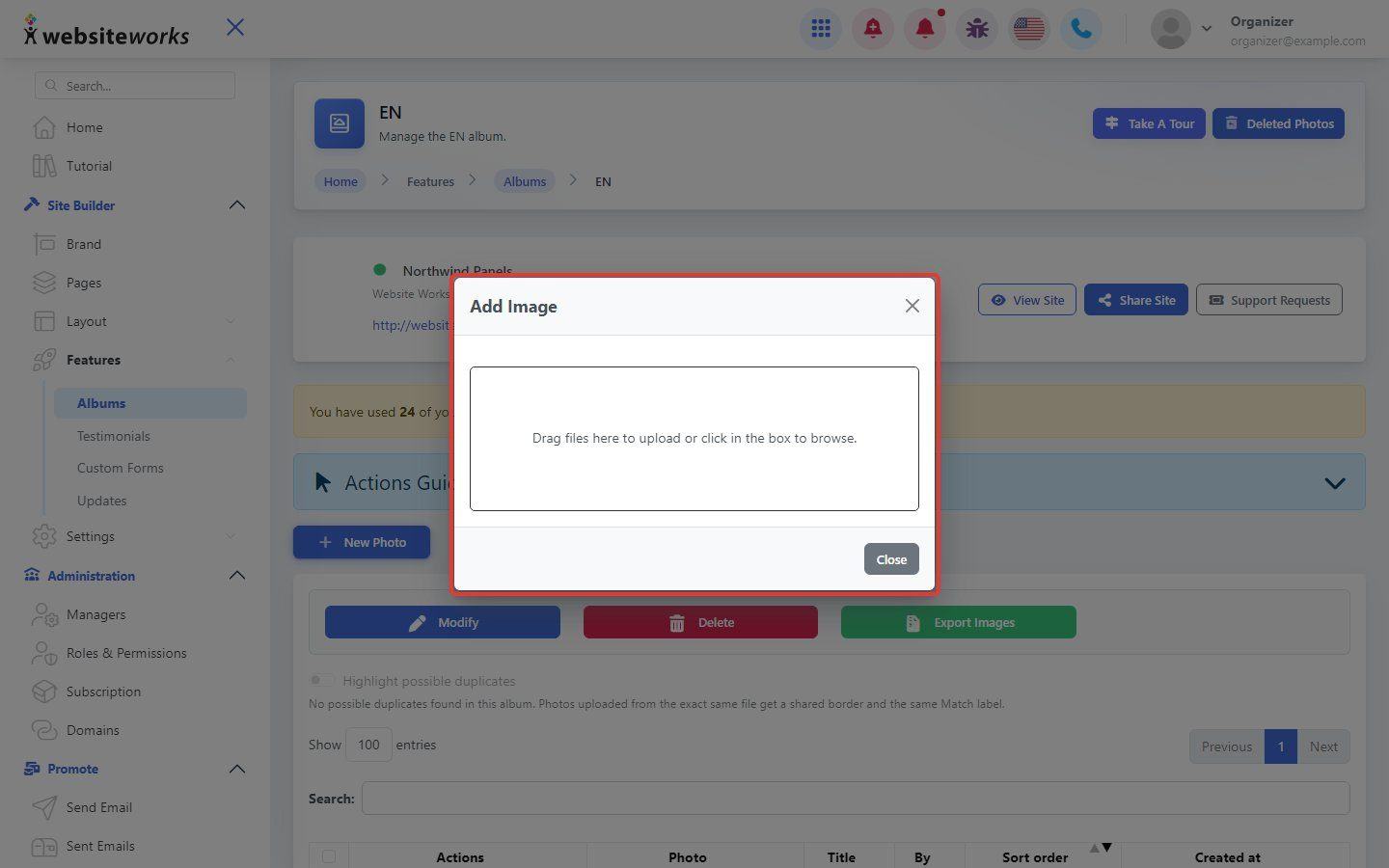
Step 6: Upload your images
Drag your images into the window, or click to choose them.
Step 7: Show the album on a page
Open a page with New Editor, choose Manual Forms, click Add Block and pick Gallery, Slider or Visitor upload. Choose your album and click Publish Changes.