Your website can email you when something happens, such as a new contact form message. In Settings > Notifications you choose which notifications you want and who receives them.
Step 1: Open Notifications
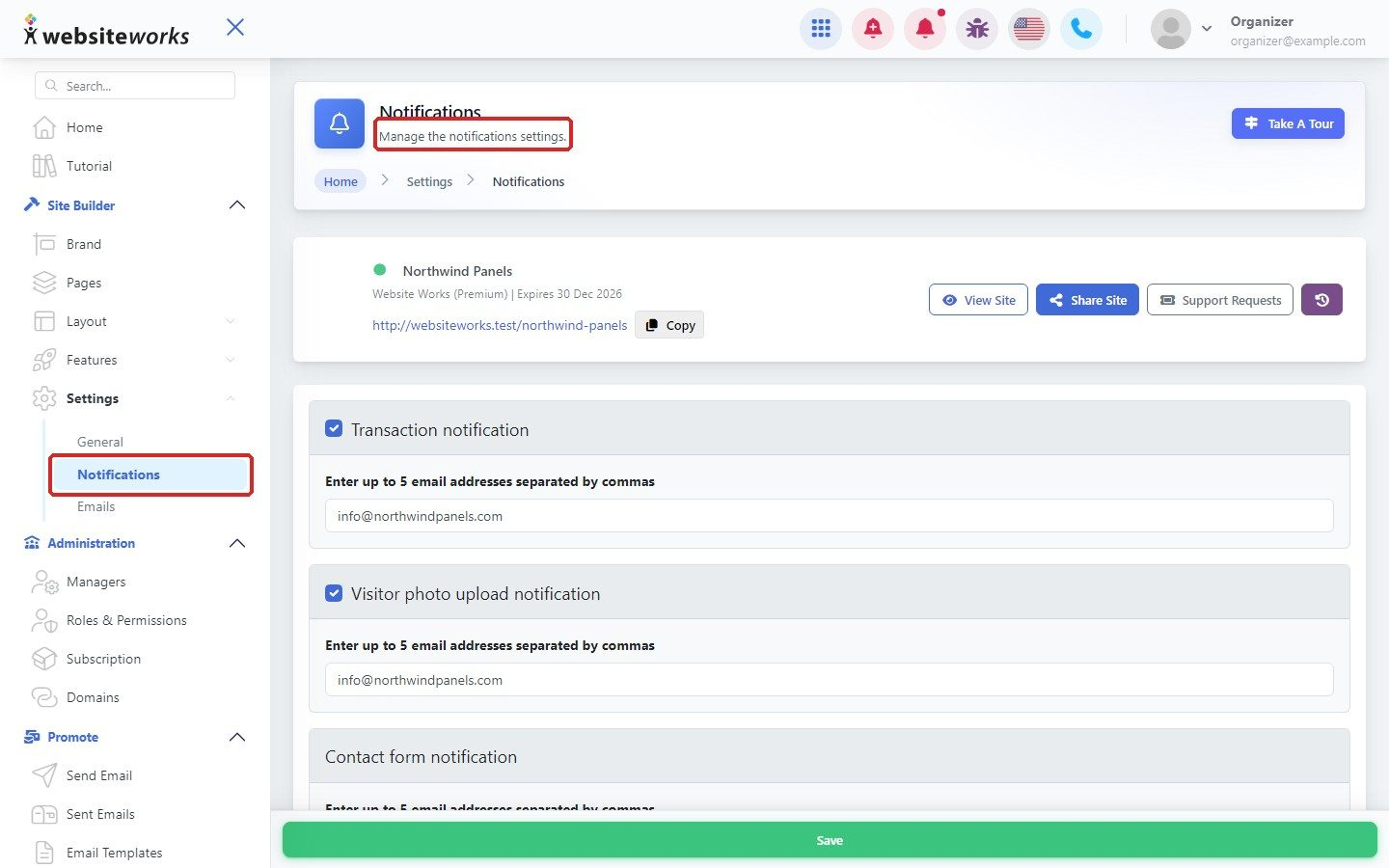
In the menu, click Settings, then Notifications.
Step 2: Choose your notifications and addresses
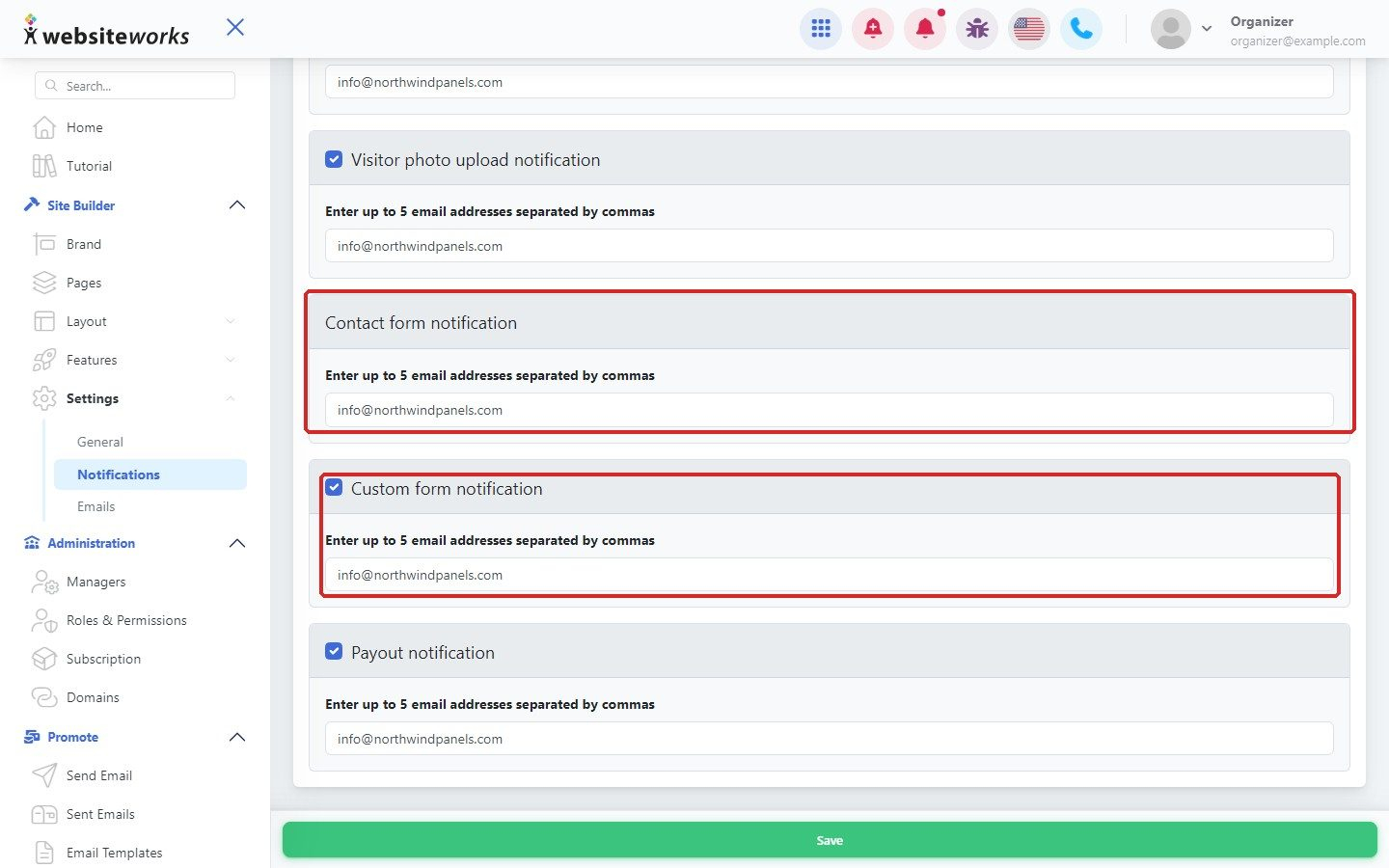
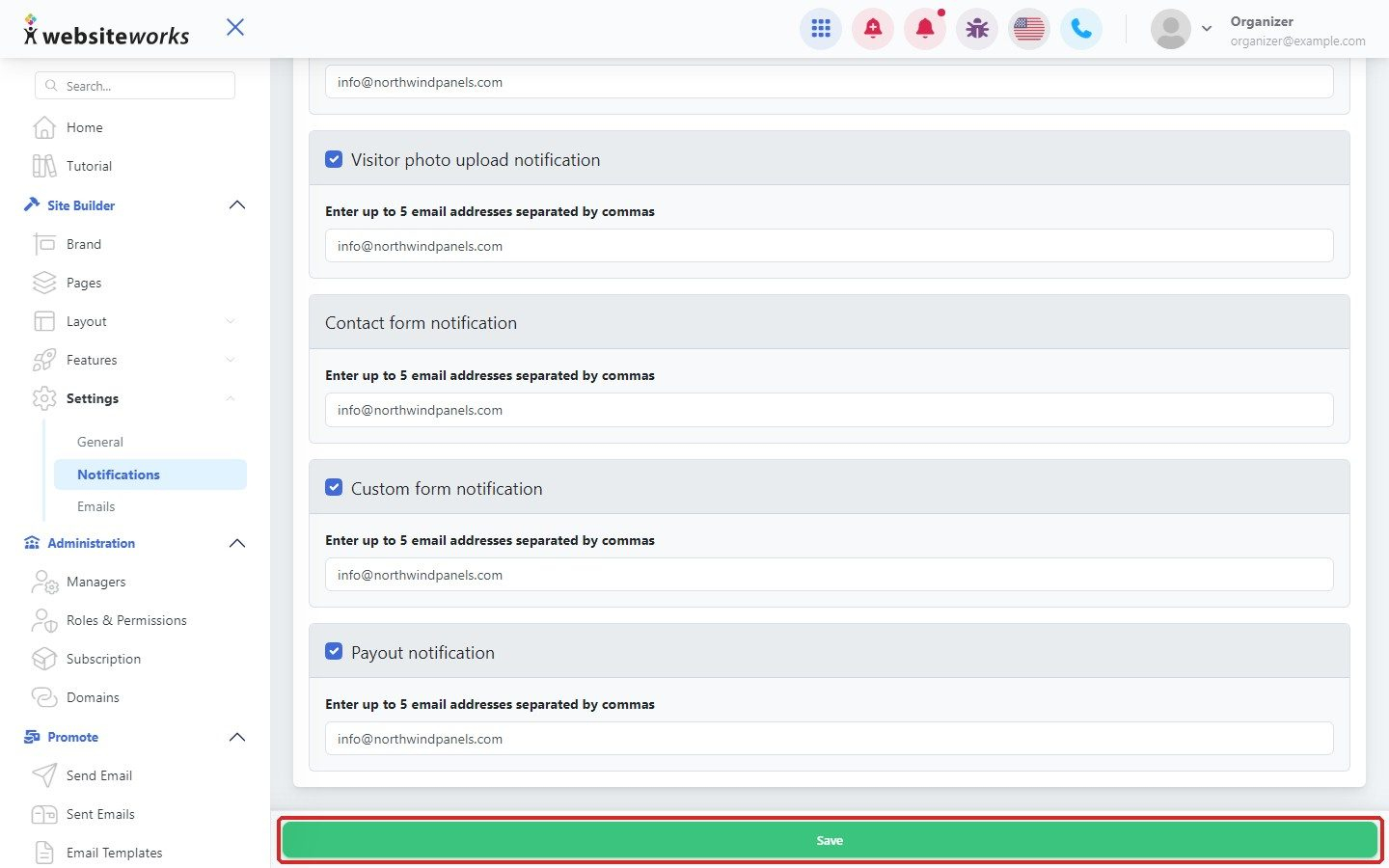
Contact form notification emails you when a visitor sends your contact form. Tick Custom form notification to also be told about answers to your custom forms, or Visitor photo upload notification to hear about photos visitors upload. In the box below each one, Enter up to 5 email addresses separated by commas.
Step 3: Save your changes
Click Save.
Step 4: Check the history
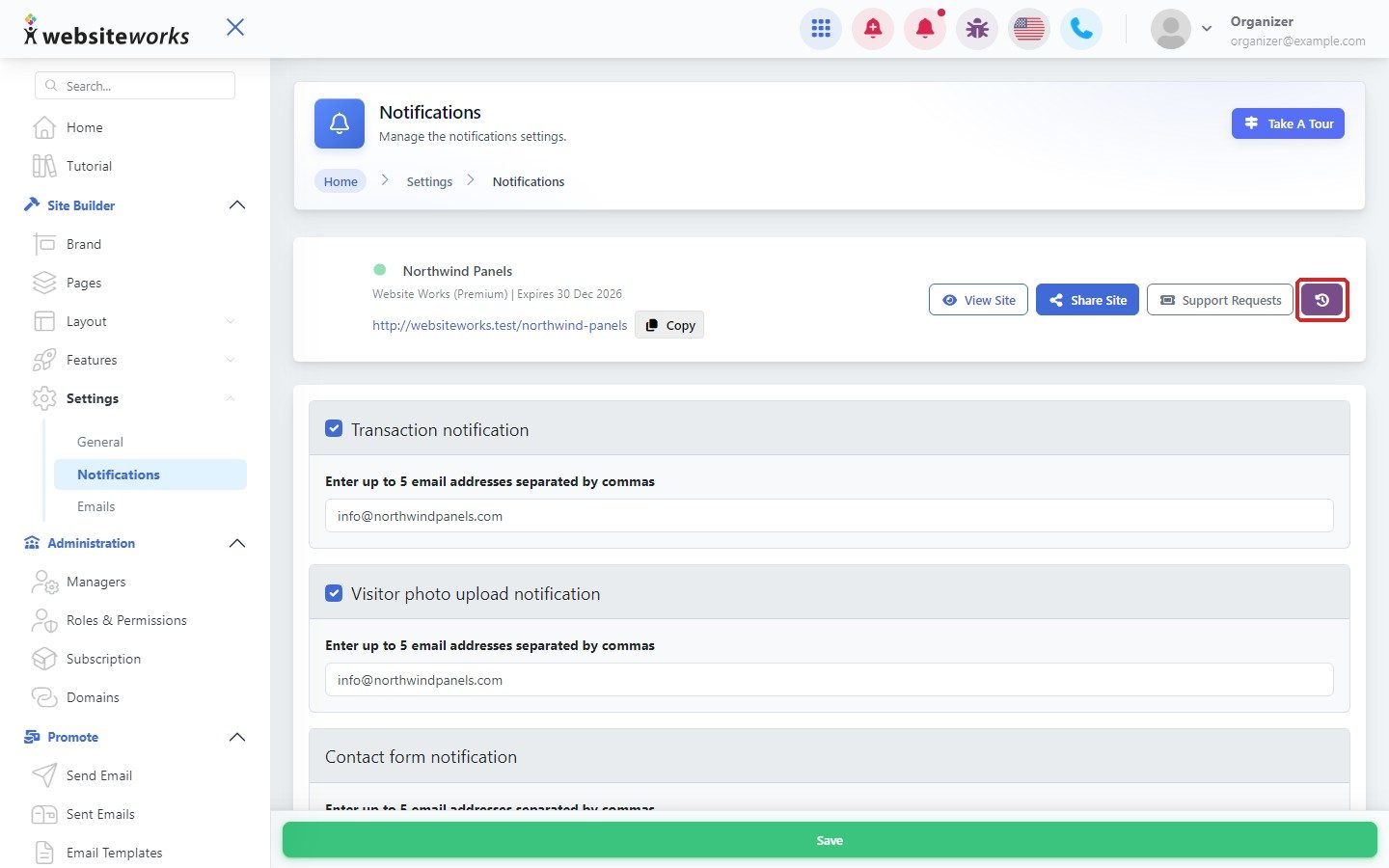
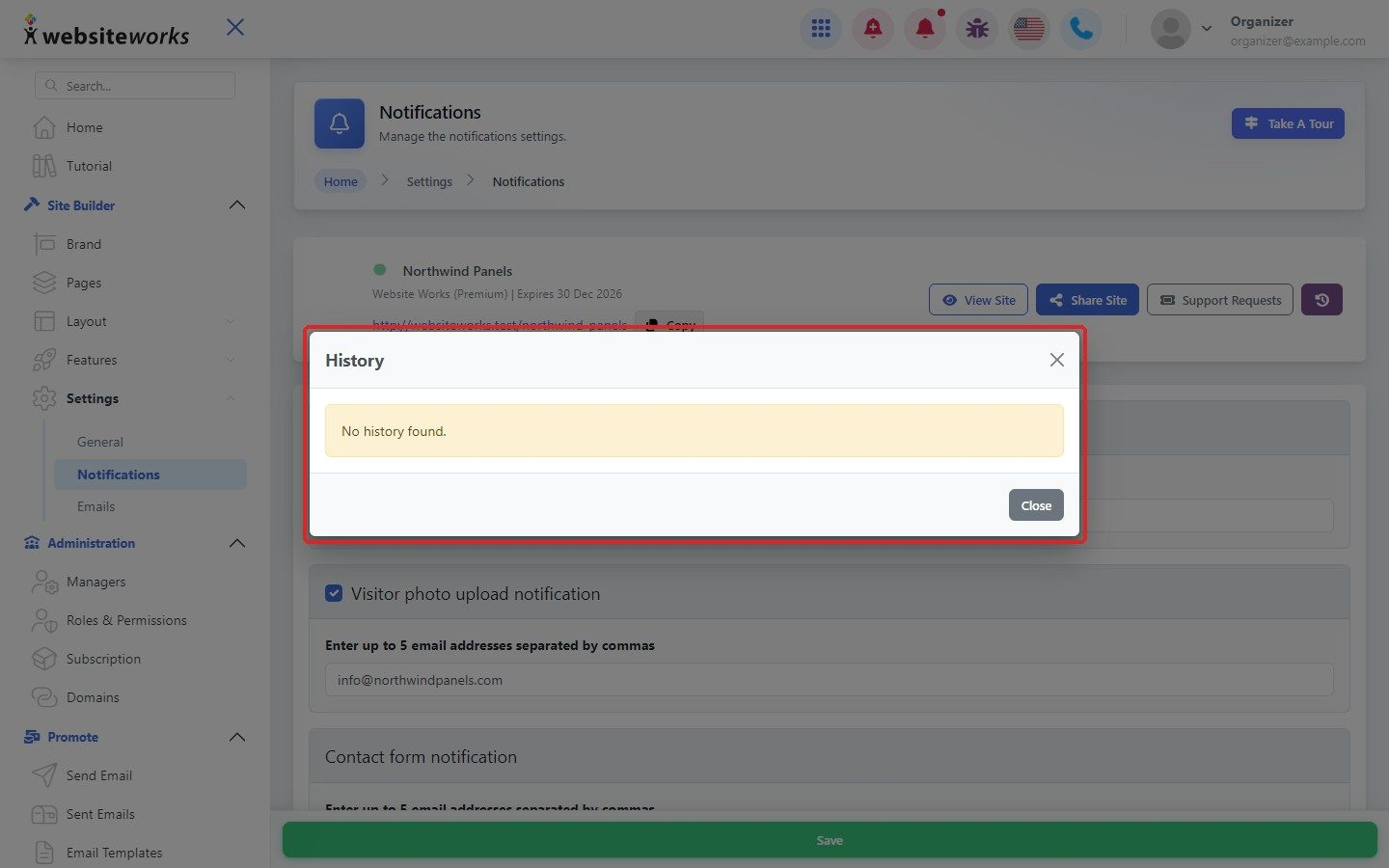
Click the History button at the top right to see earlier changes to these settings. If nothing has changed yet, you see No history found.