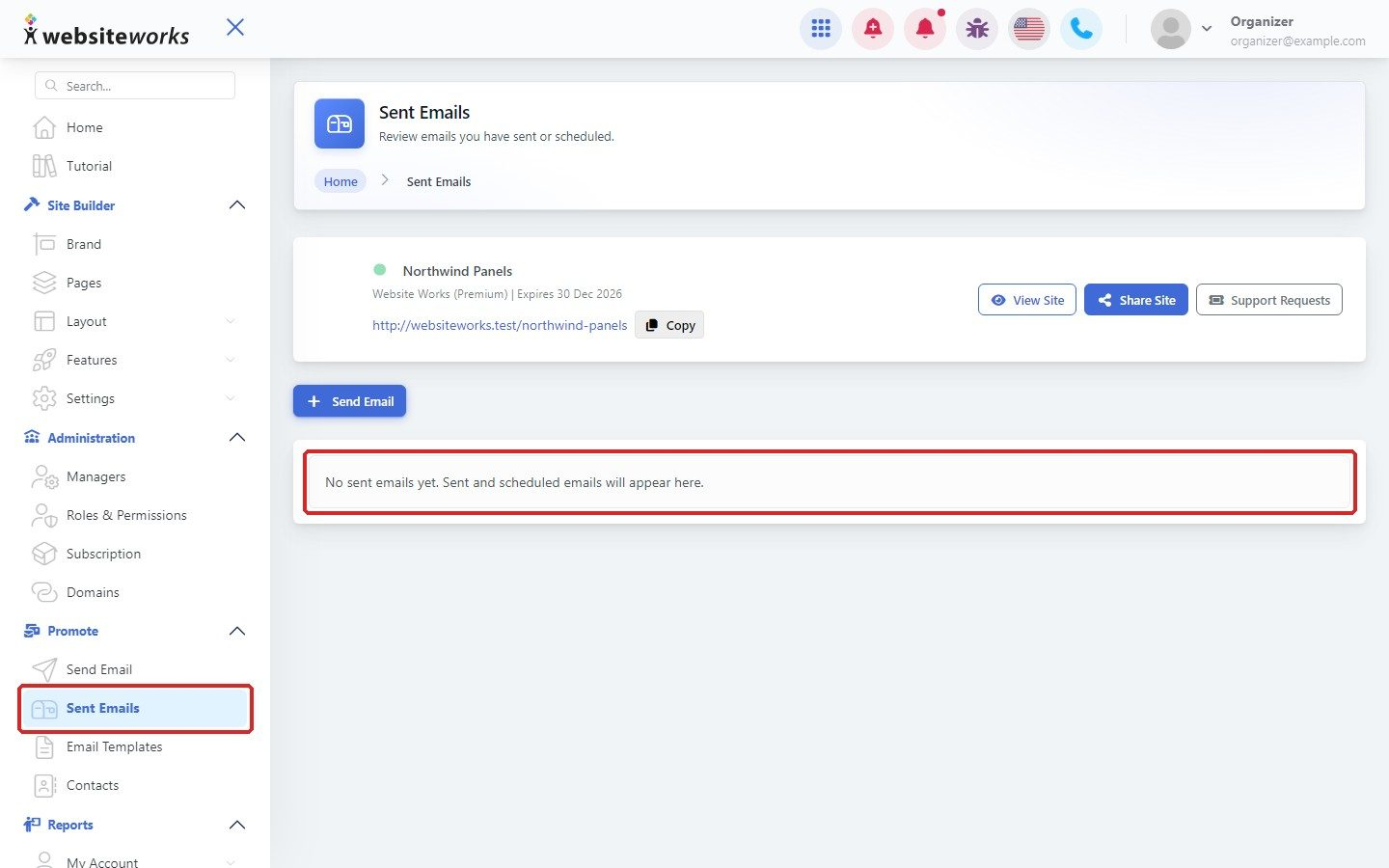
Use Send Email to send one of your saved email templates to your contacts. You need at least one template first; see Creating reusable email templates.
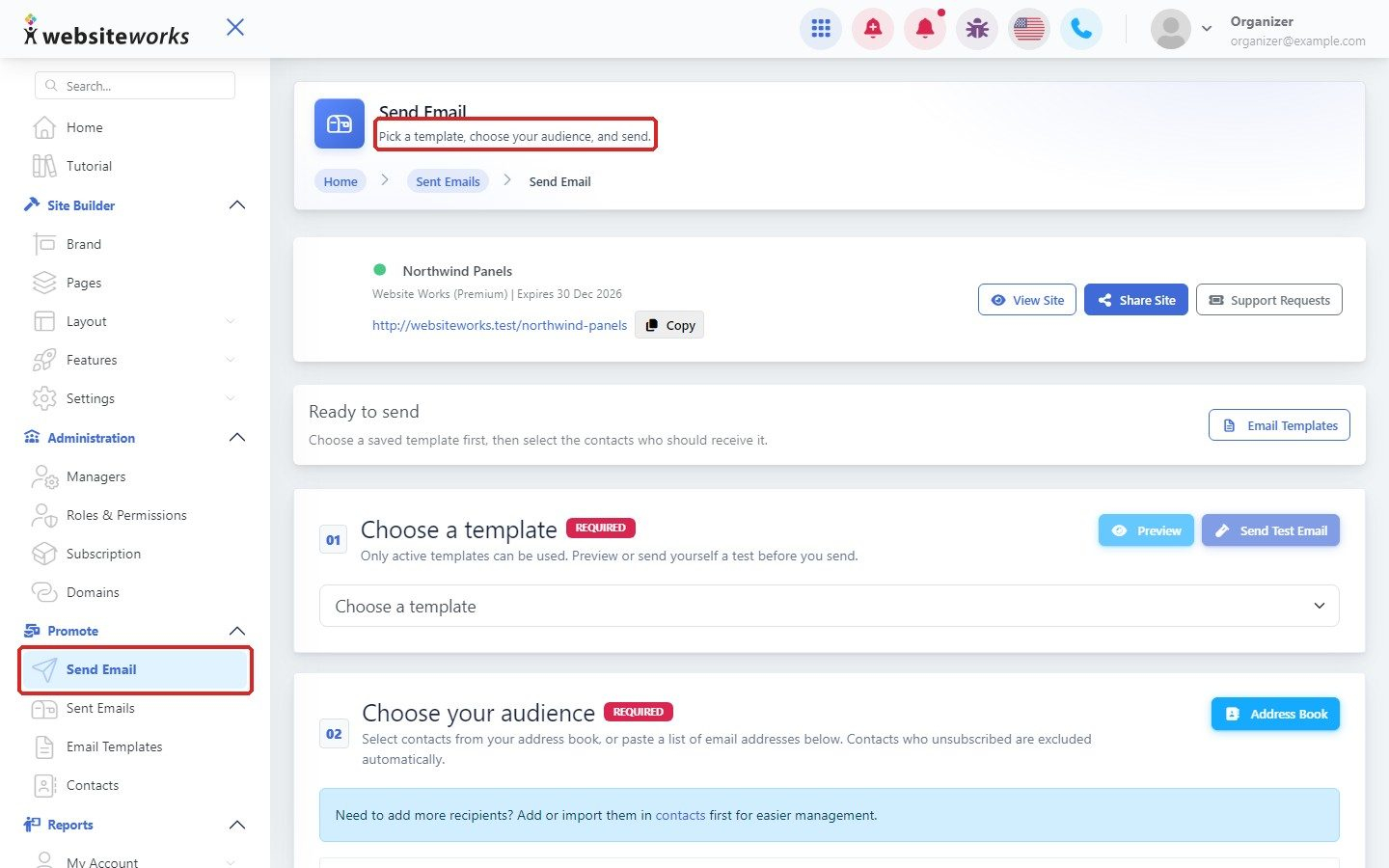
Step 1: Open Send Email
In the menu, click Promote, then Send Email.
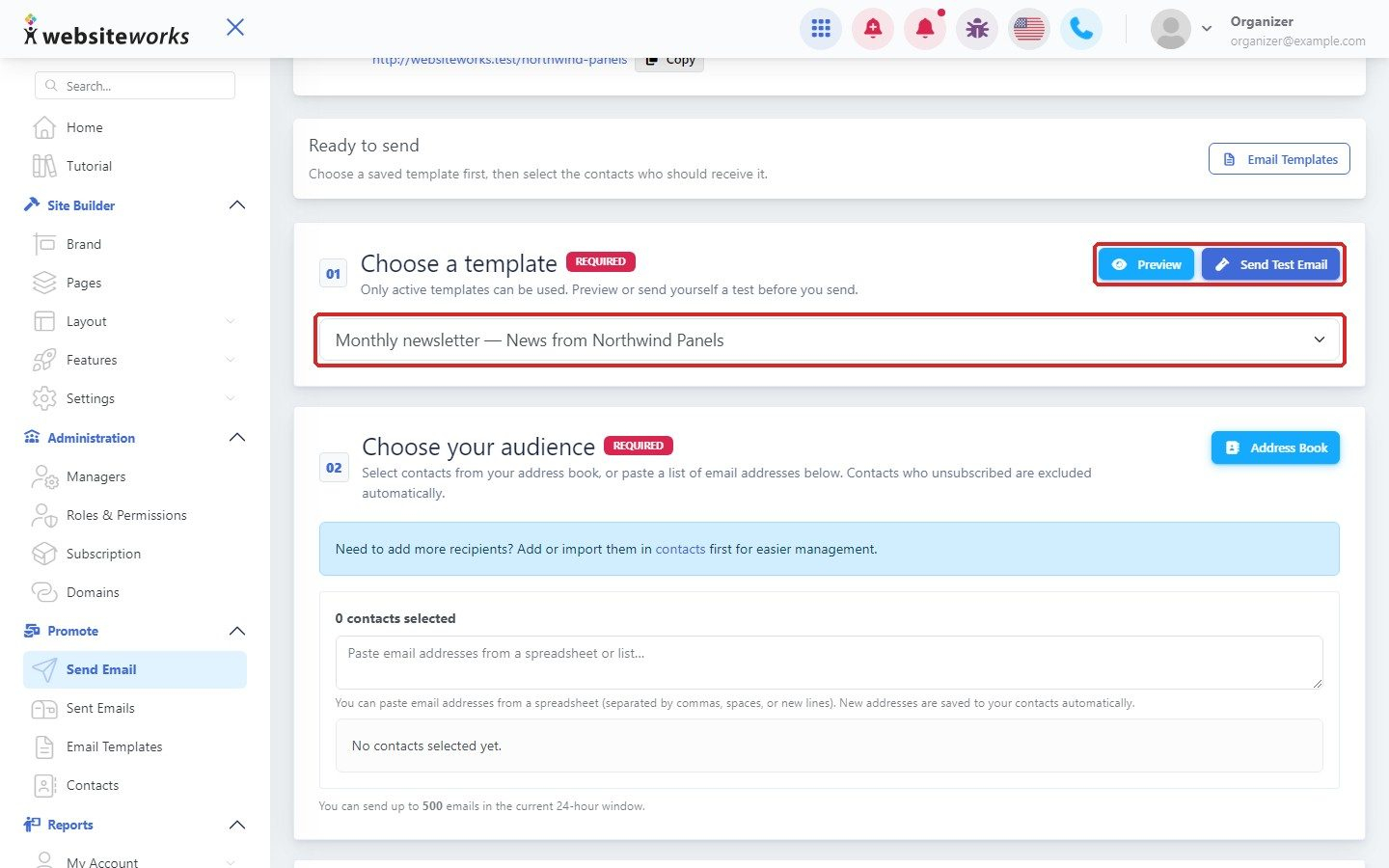
Step 2: Choose a template
Under Choose a template, pick your template. Click Preview to check it, or Send Test Email to send it to yourself first.
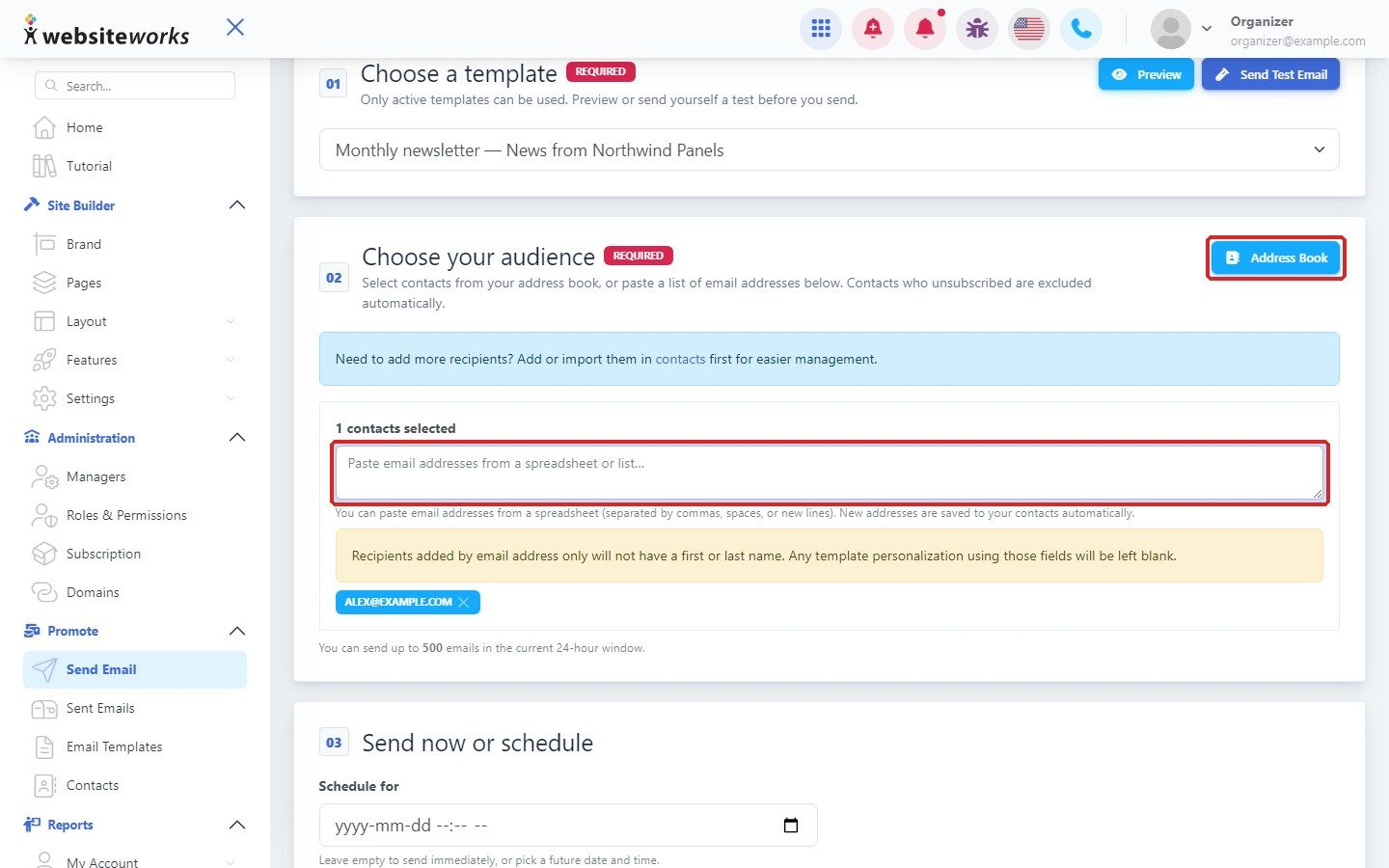
Step 3: Choose your audience
Click Address Book to select contacts, or paste email addresses in the box. Contacts who unsubscribed are left out automatically.
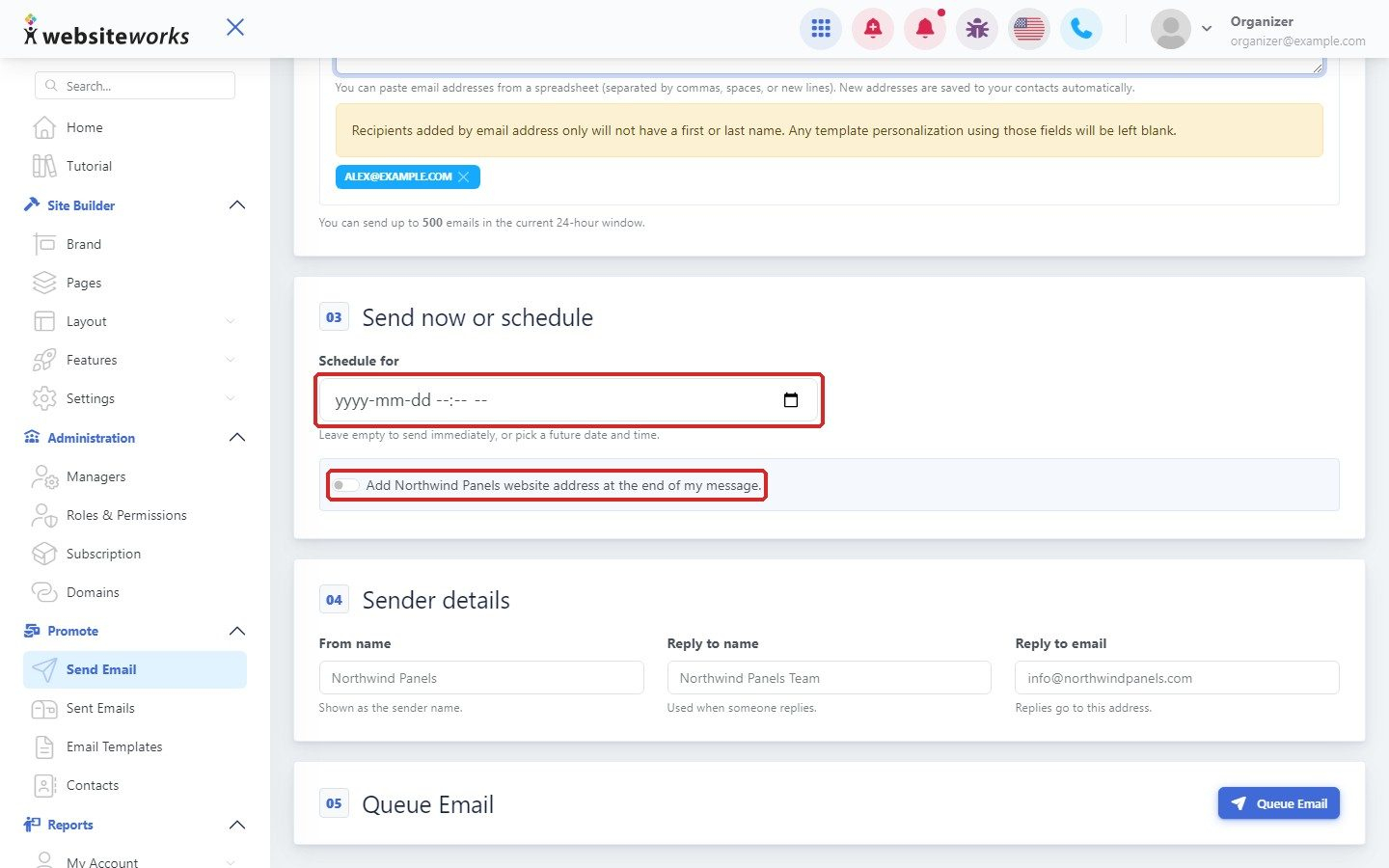
Step 4: Send now or schedule
Leave Schedule for empty to send right away, or pick a future date and time. Tick Add Northwind Panels website address at the end of my message. to add your website address (it shows your own website name).
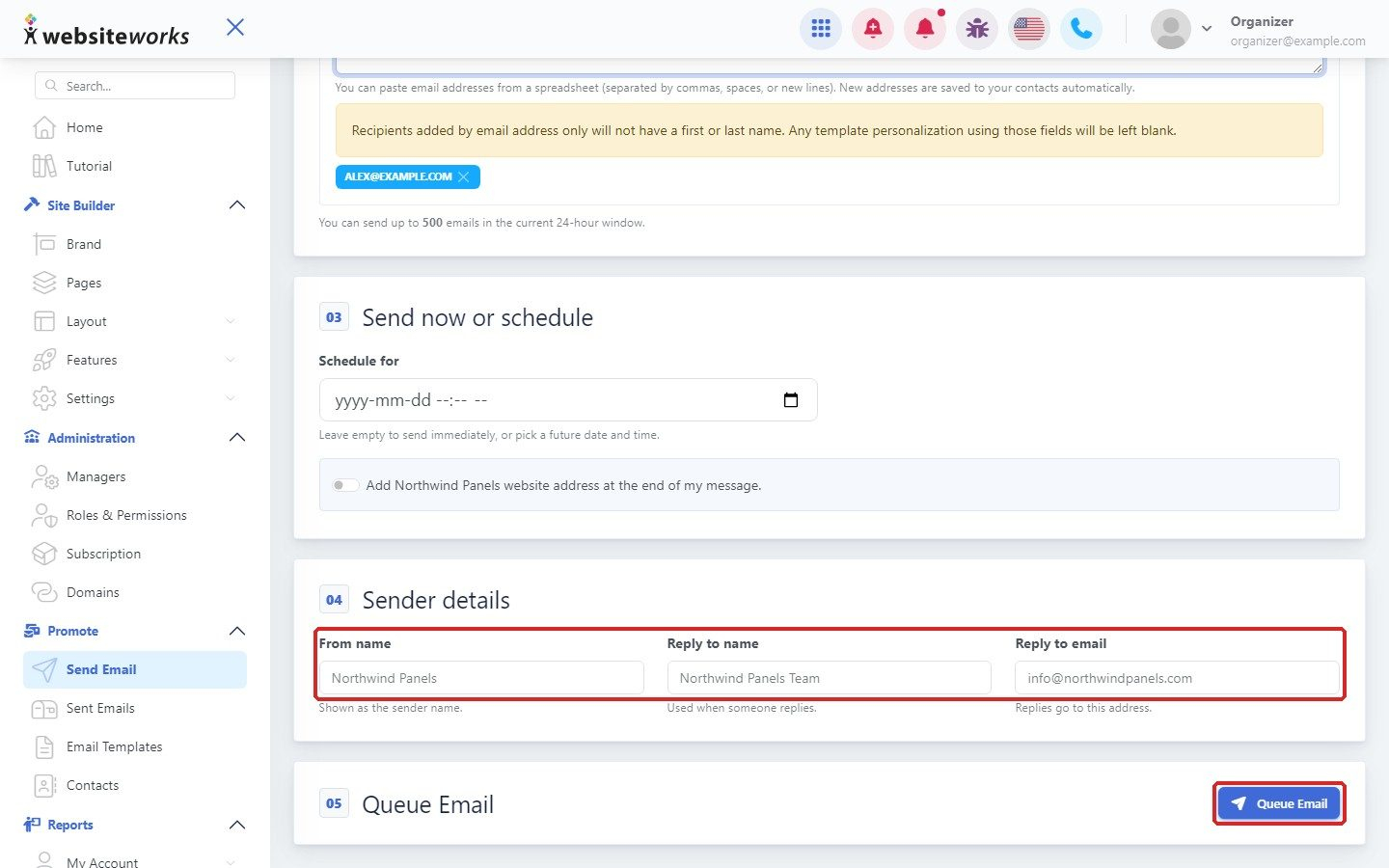
Step 5: Check sender details and queue
Under Sender details, check the From name, Reply to name and Reply to email. When everything is ready, click Queue Email.
Step 6: Follow your sent emails
Click Sent Emails in the menu to see emails you sent or scheduled.