An email template is a saved message you can send again and again from Send Email.
Step 1: Open Email Templates
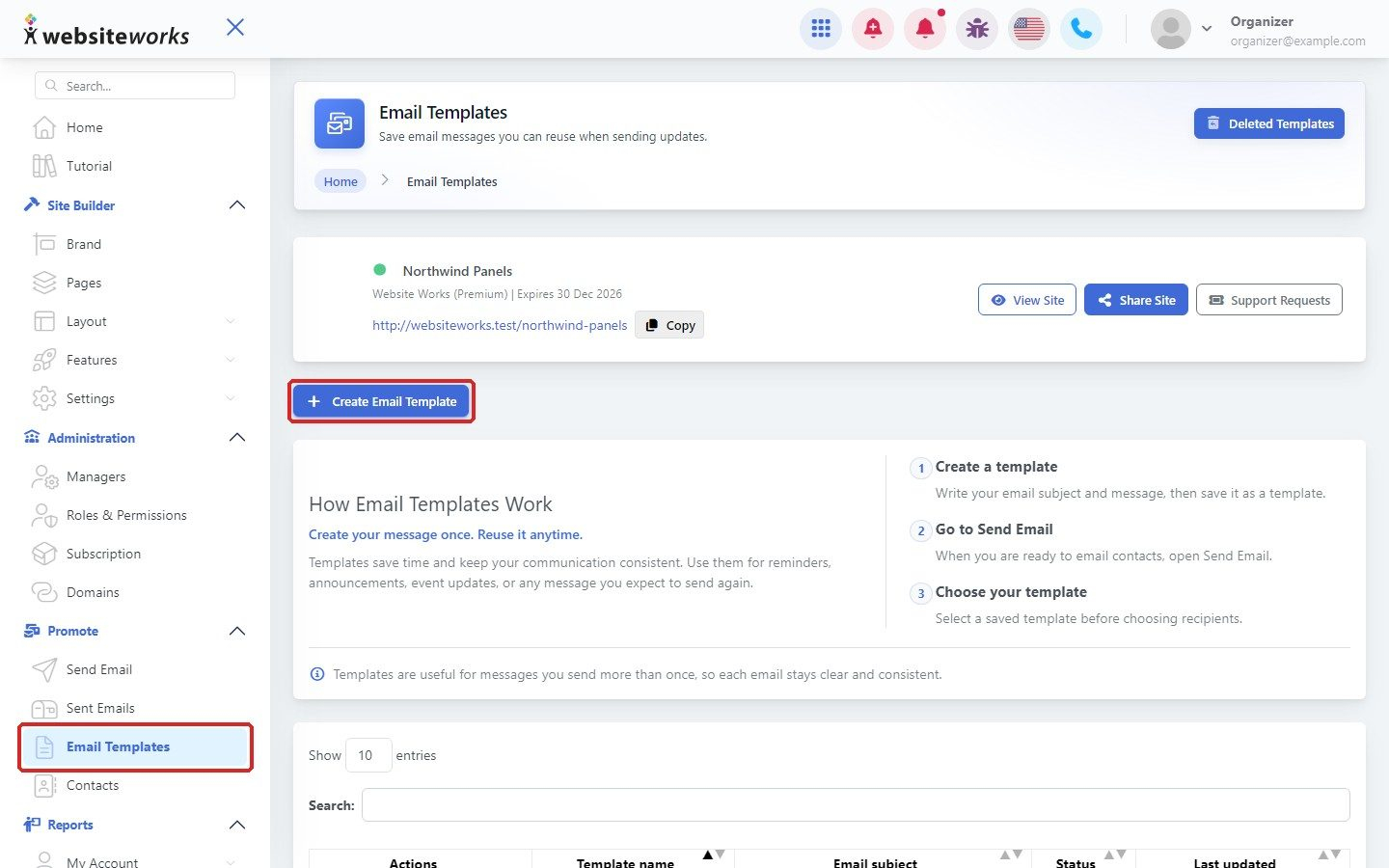
In the menu, click Promote, then Email Templates. Click Create Email Template.
Step 2: Name the template and add a subject
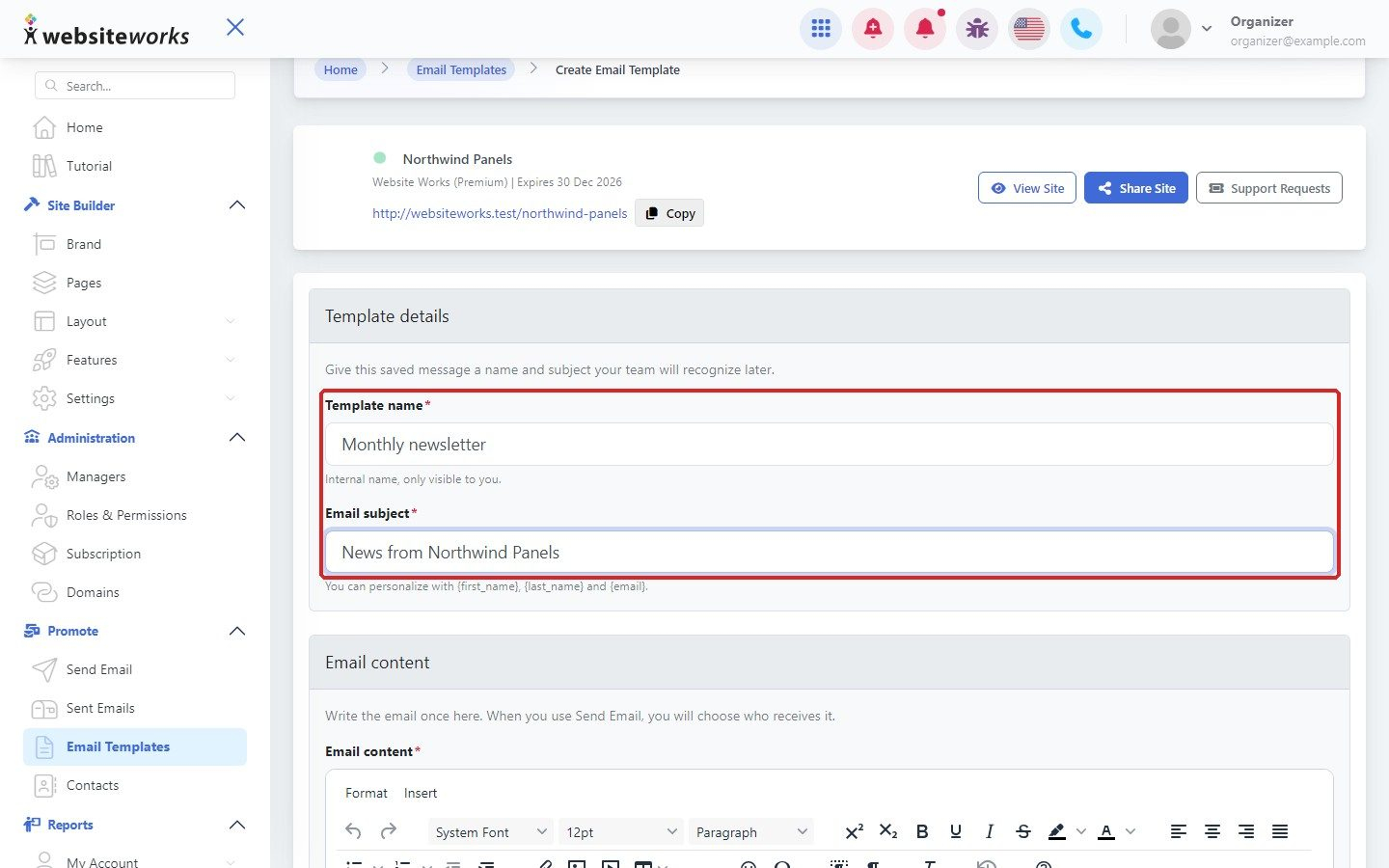
Enter a Template name. Only you see it. Then enter the Email subject your contacts will see.
Step 3: Write the email
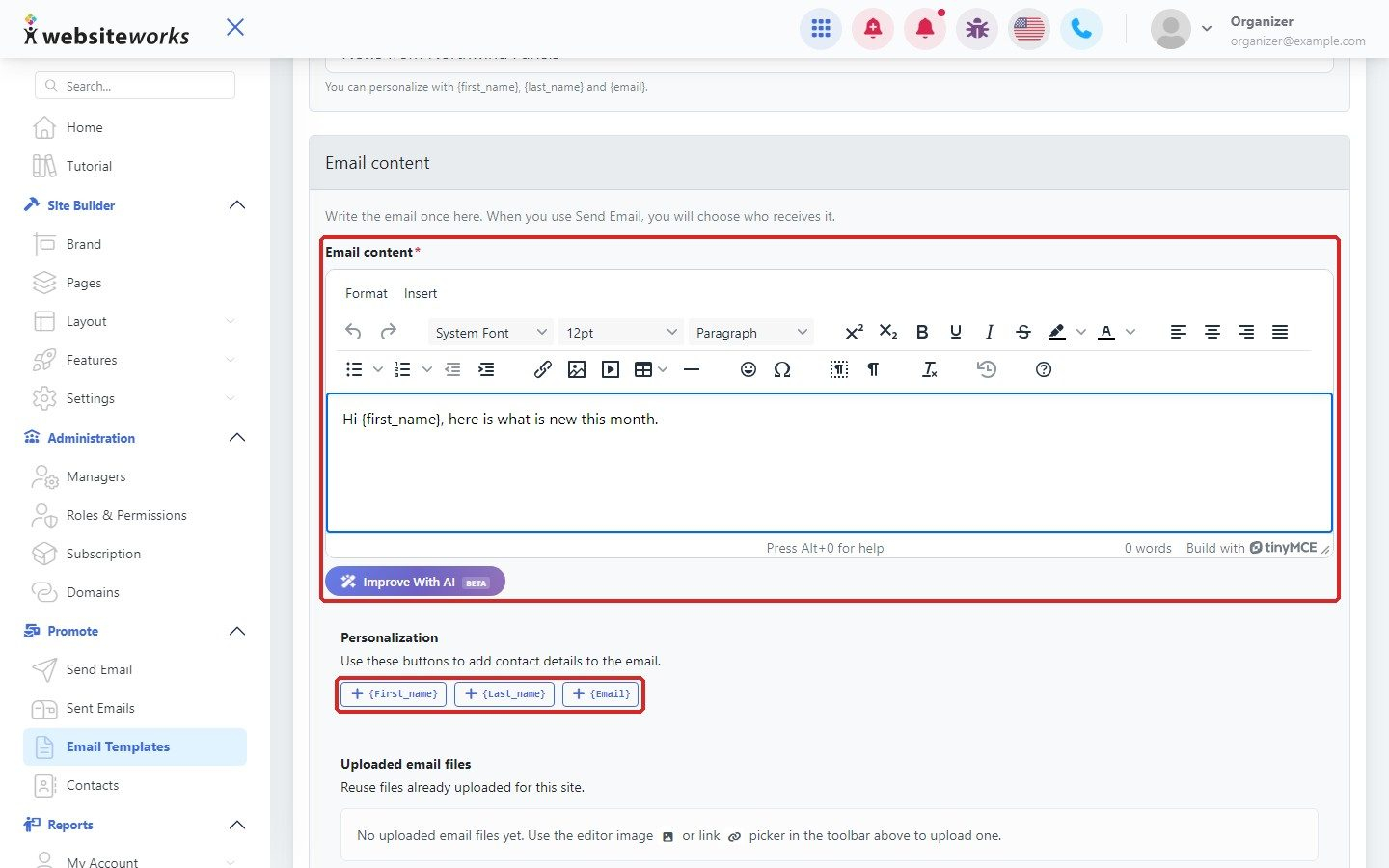
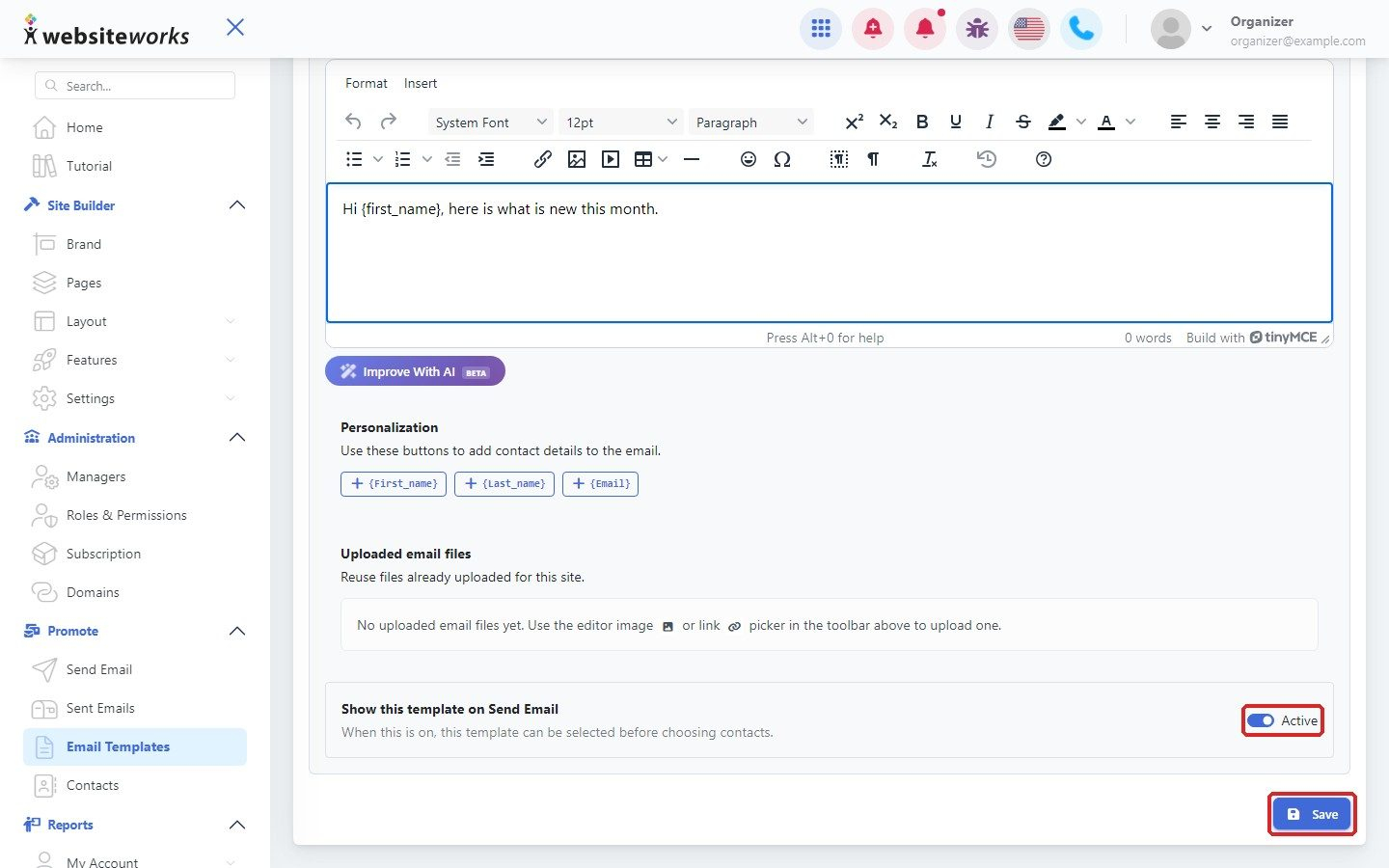
Write your message under Email content. You can click Improve With AI for help with the wording. Under Personalization, click {First_name}, {Last_name} or {Email} to add each contact's details to the email.
Step 4: Save the template
Keep Active on so the template can be chosen on Send Email, then click Save.
Step 5: Find your templates
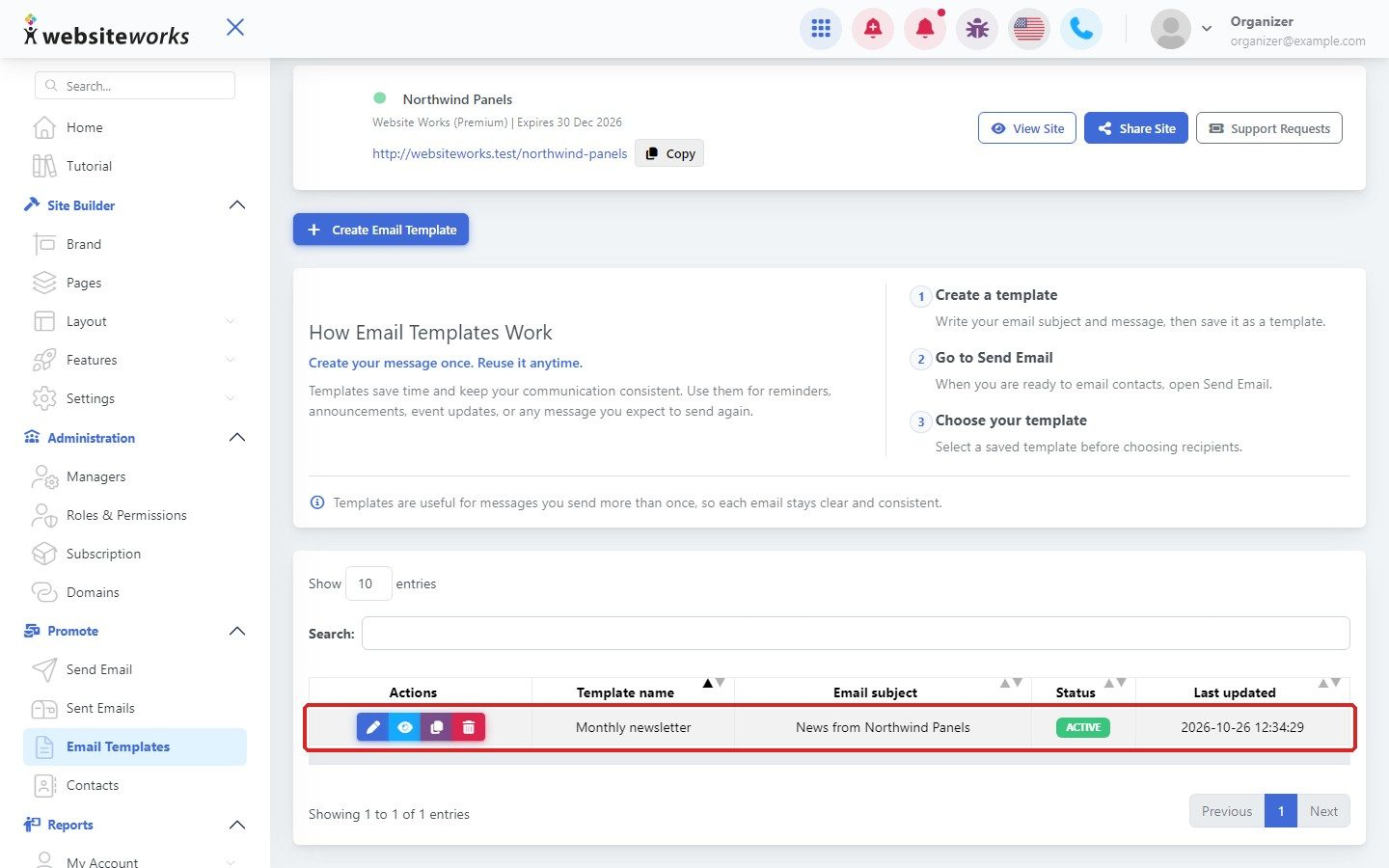
Your templates are listed on the Email Templates page. Use the buttons in the Actions column to edit, preview, duplicate or delete a template.