

Need help with your website? Invite a manager. A manager gets their own login to your dashboard, and their role decides what they can do. You can change their role or remove them at any time.
Step 1: Open Managers
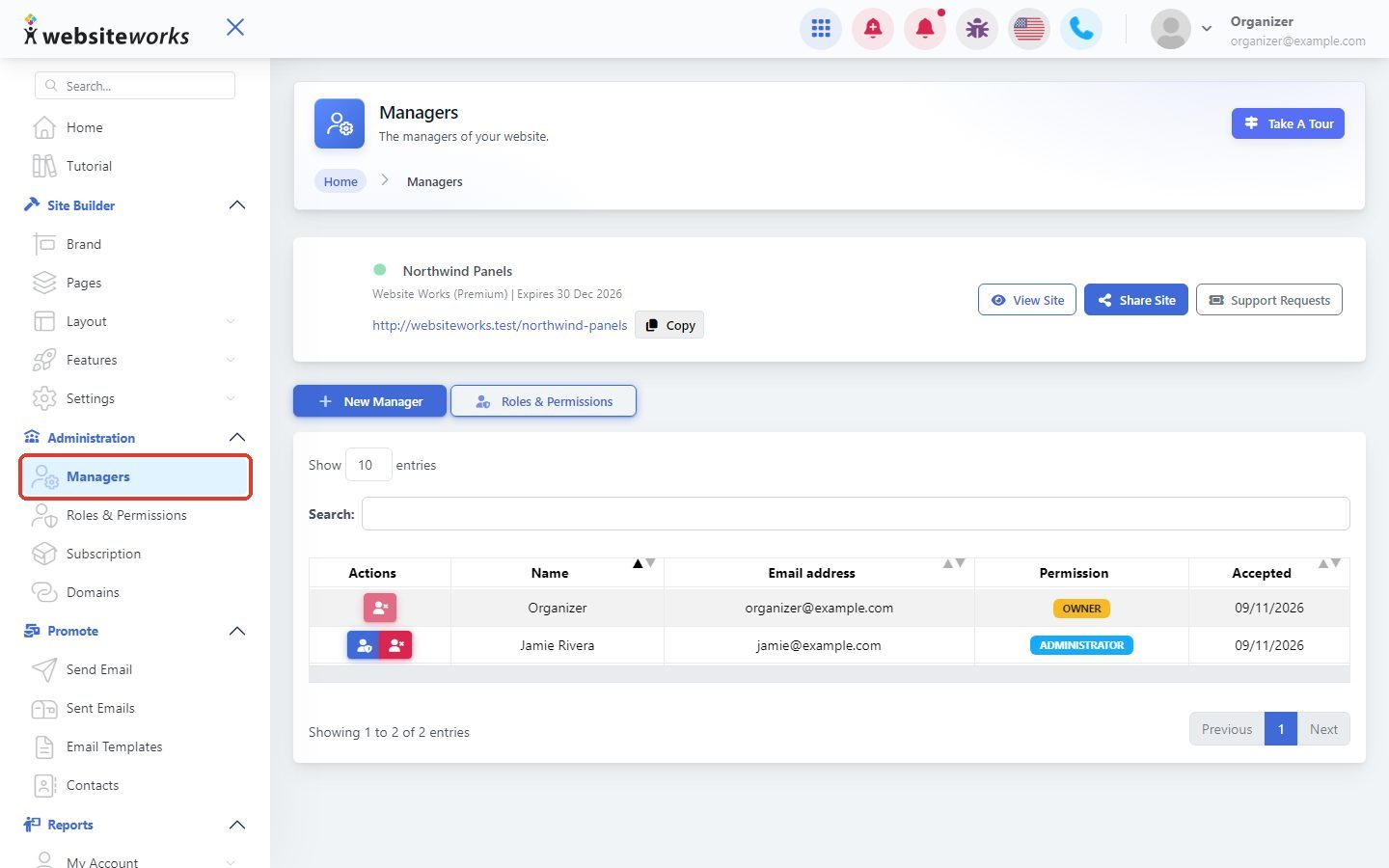
In the menu, under Administration, click Managers.
Step 2: See who already has access
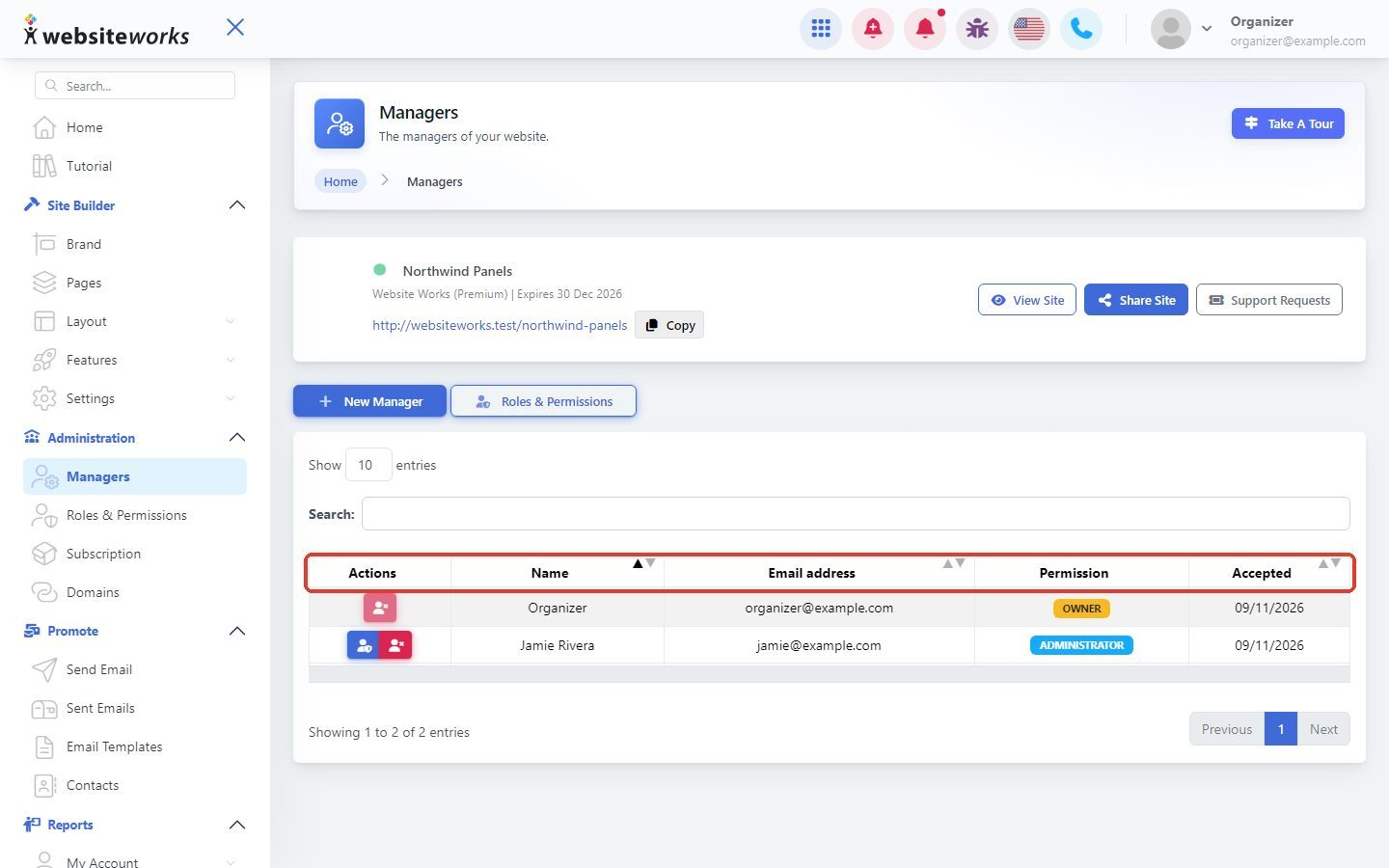
The list shows everyone who can manage your website, with their Name, Email address, Permission (their role) and the date they Accepted the invitation.
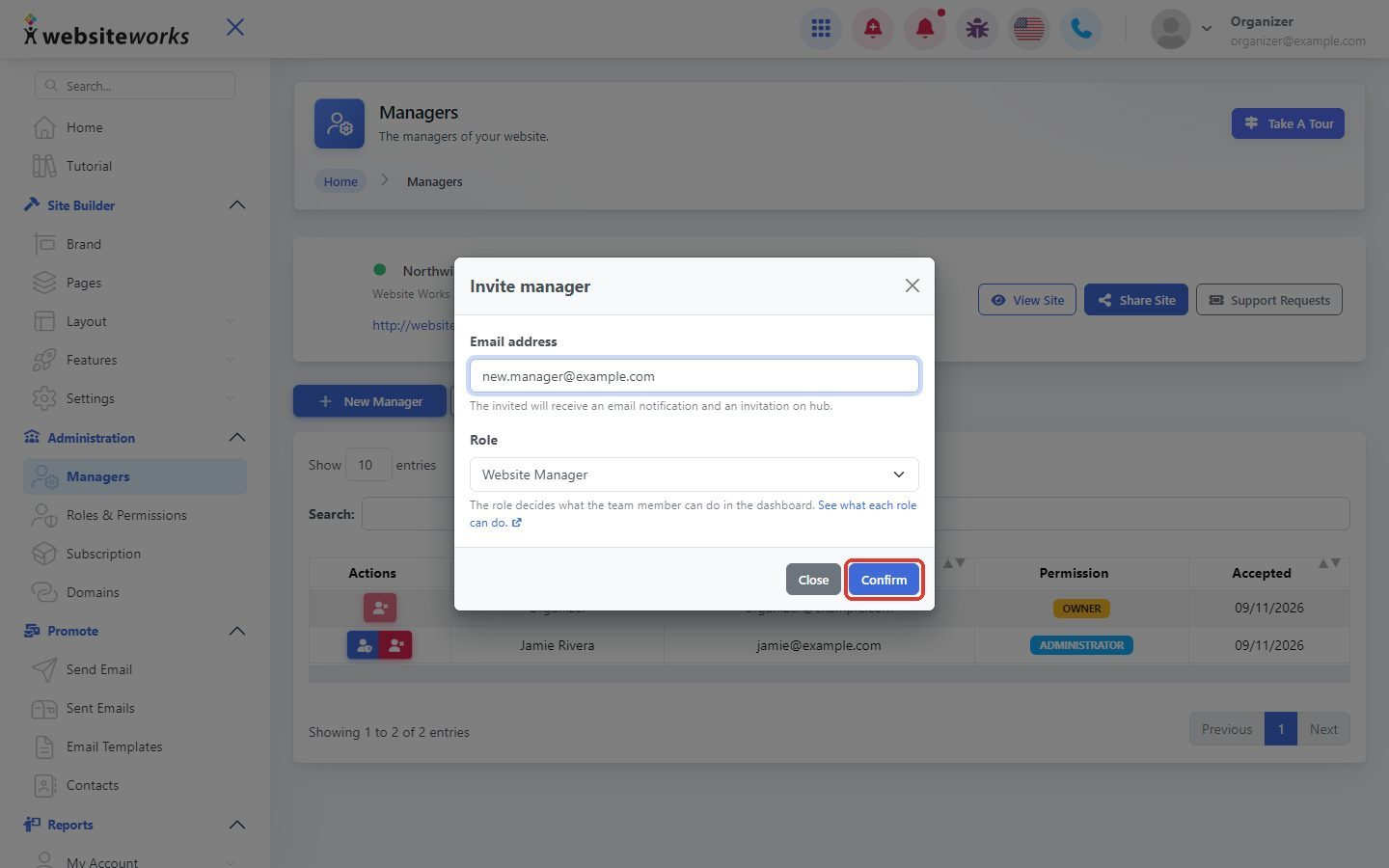
Step 3: Invite a new manager
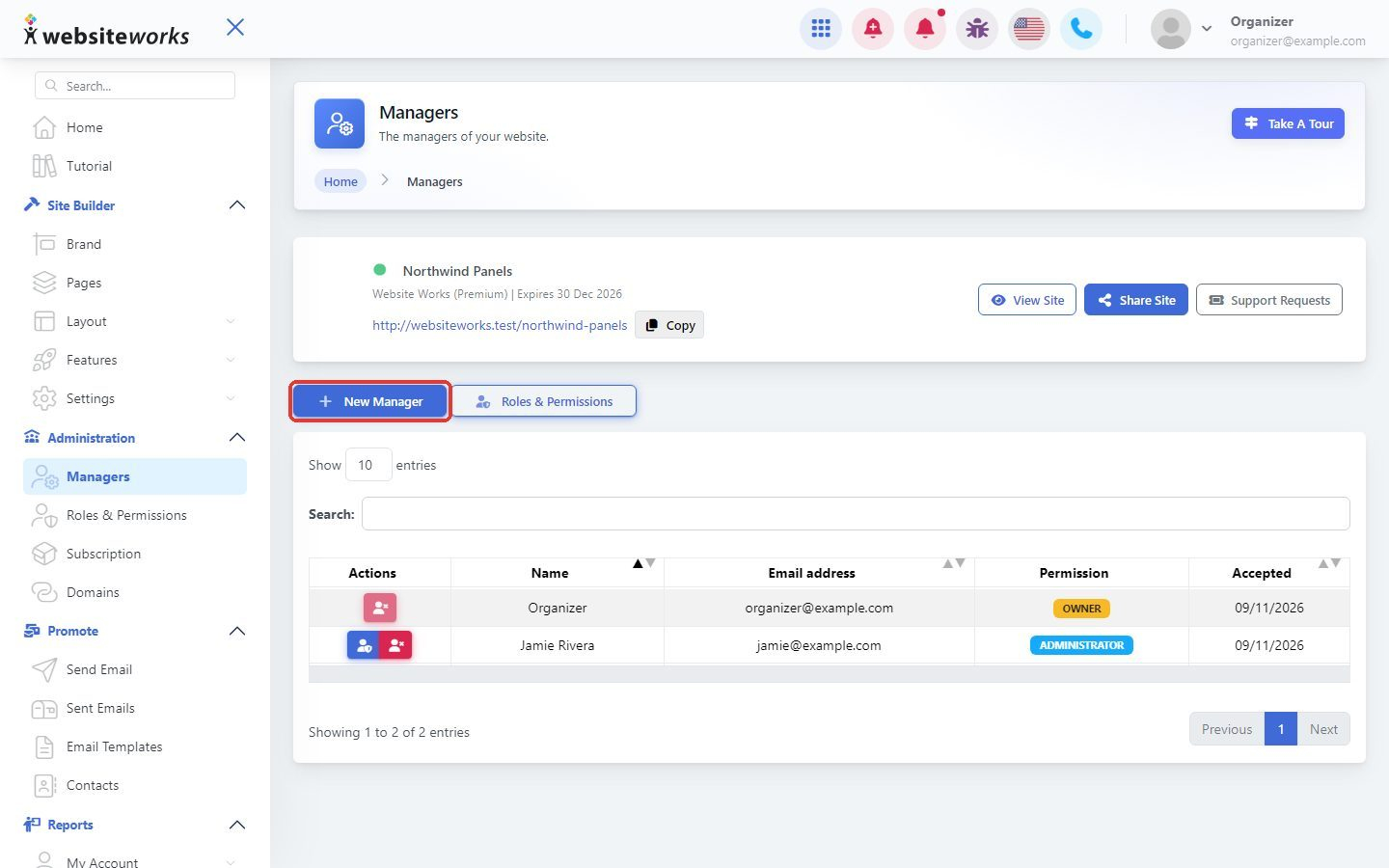
Click New Manager.
Step 4: Enter their email and choose a role
In the Invite manager window:
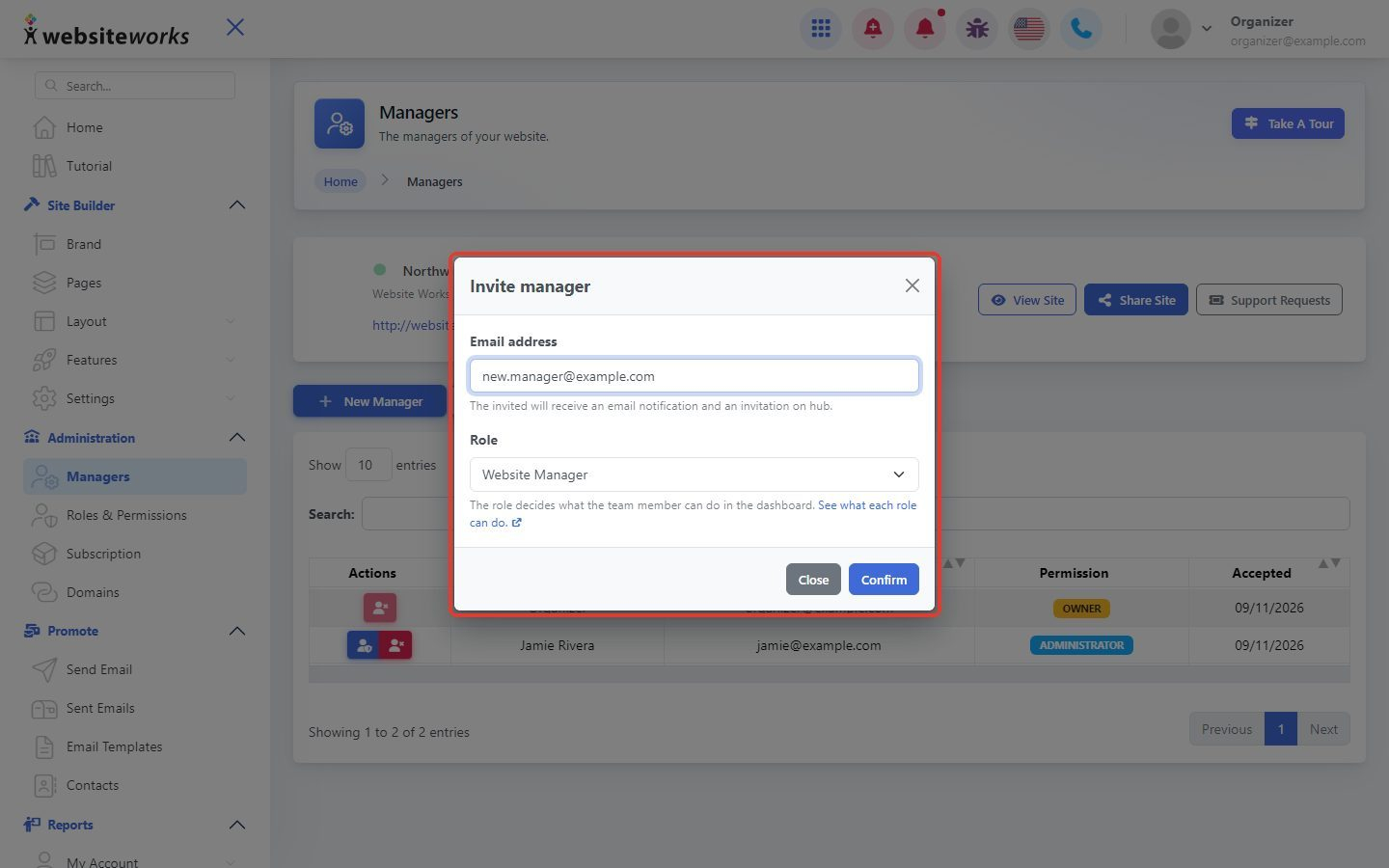
- Email address: the email of the person you want to invite. They will receive an email notification and an invitation.
- Role: choose Administrator, Website Manager, Marketing, Support or Viewer, or one of your own custom roles. Click See what each role can do to compare them.
Not sure which role to pick? See Setting roles and permissions.
Step 5: Send the invitation
Click Confirm. The person gets an email with the invitation. Once they accept it, they can log in and help with your website.
Step 6: Change a role or remove a manager
Use the buttons in the Actions column next to a manager:
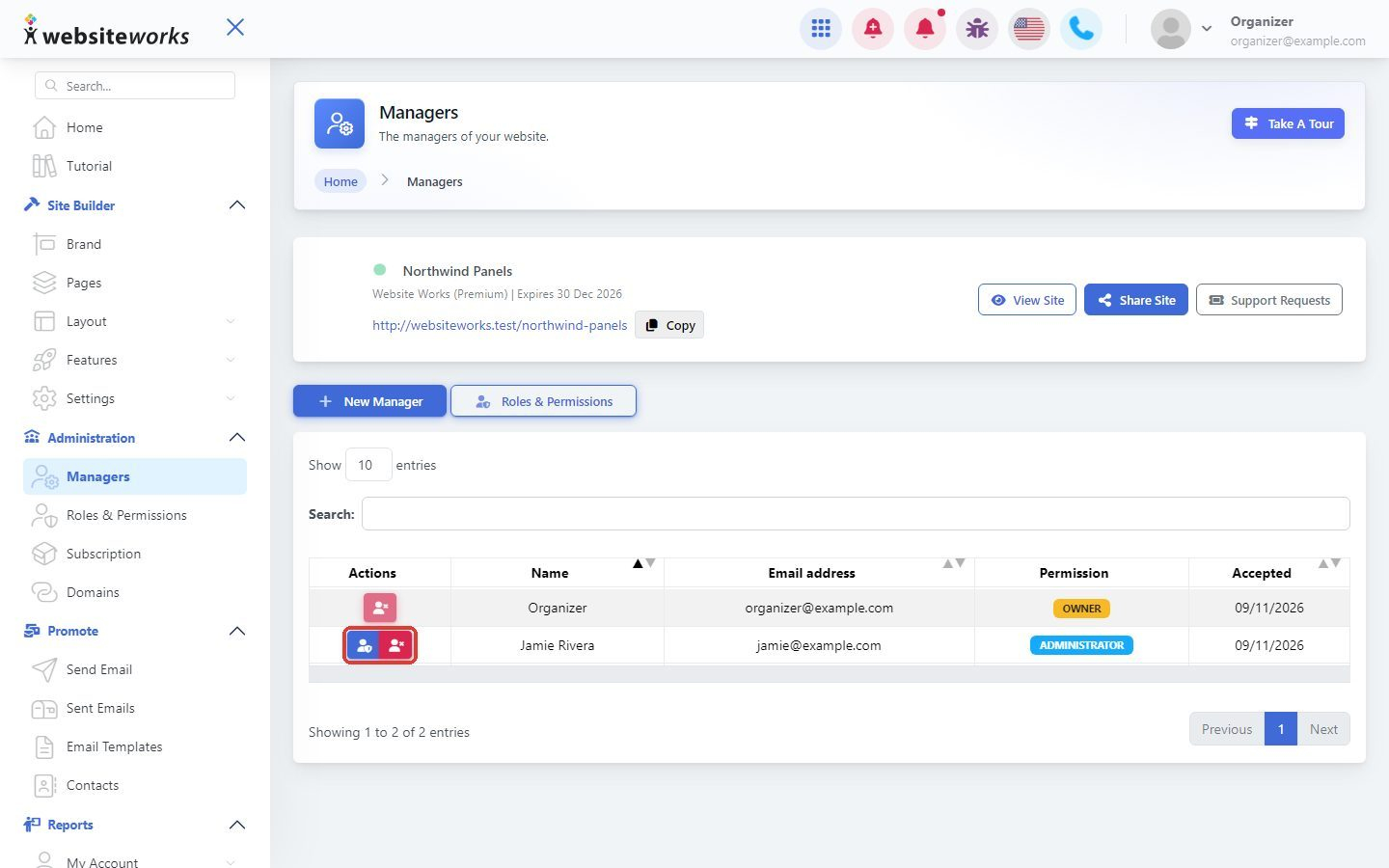
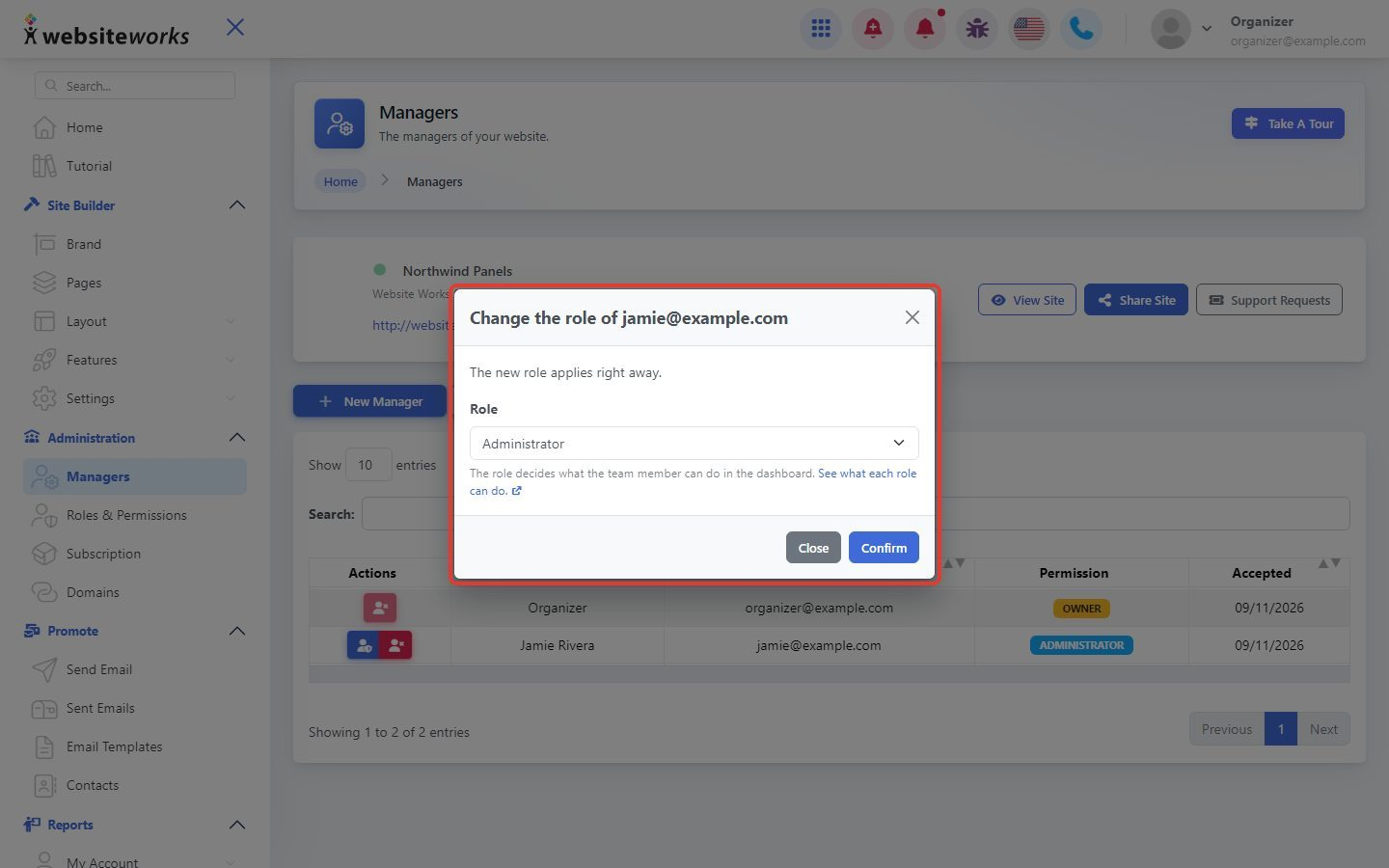
- Change role: pick a new role and click Confirm. The new role applies right away.
- Revoke: removes the manager. They will lose their access to the dashboard.
Step 7: Pick the new role
When you click Change role, the Change the role of window opens. Choose the new Role and click Confirm.
Tip: As the website owner, you always keep full access to your dashboard.