

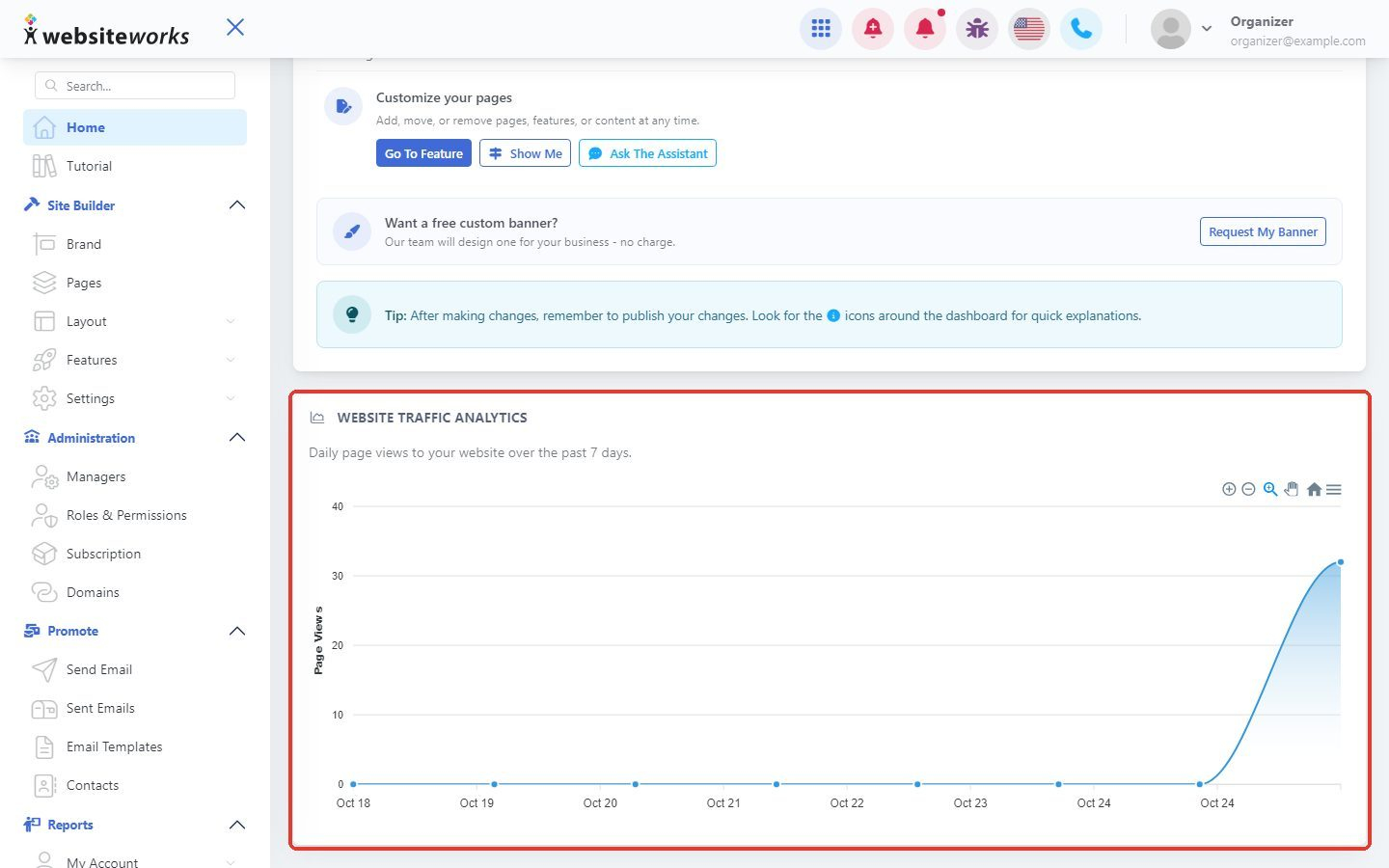
Want to know if people are visiting your website? Your dashboard home shows a Website Traffic Analytics chart with your daily page views for the past 7 days. This chart is part of the Premium plan.
Step 1: Find the traffic chart
Click Home in the menu, then scroll down to Website Traffic Analytics. Each point on the line is one day. The higher the line, the more pages your visitors viewed that day.
Step 2: See the numbers for one day
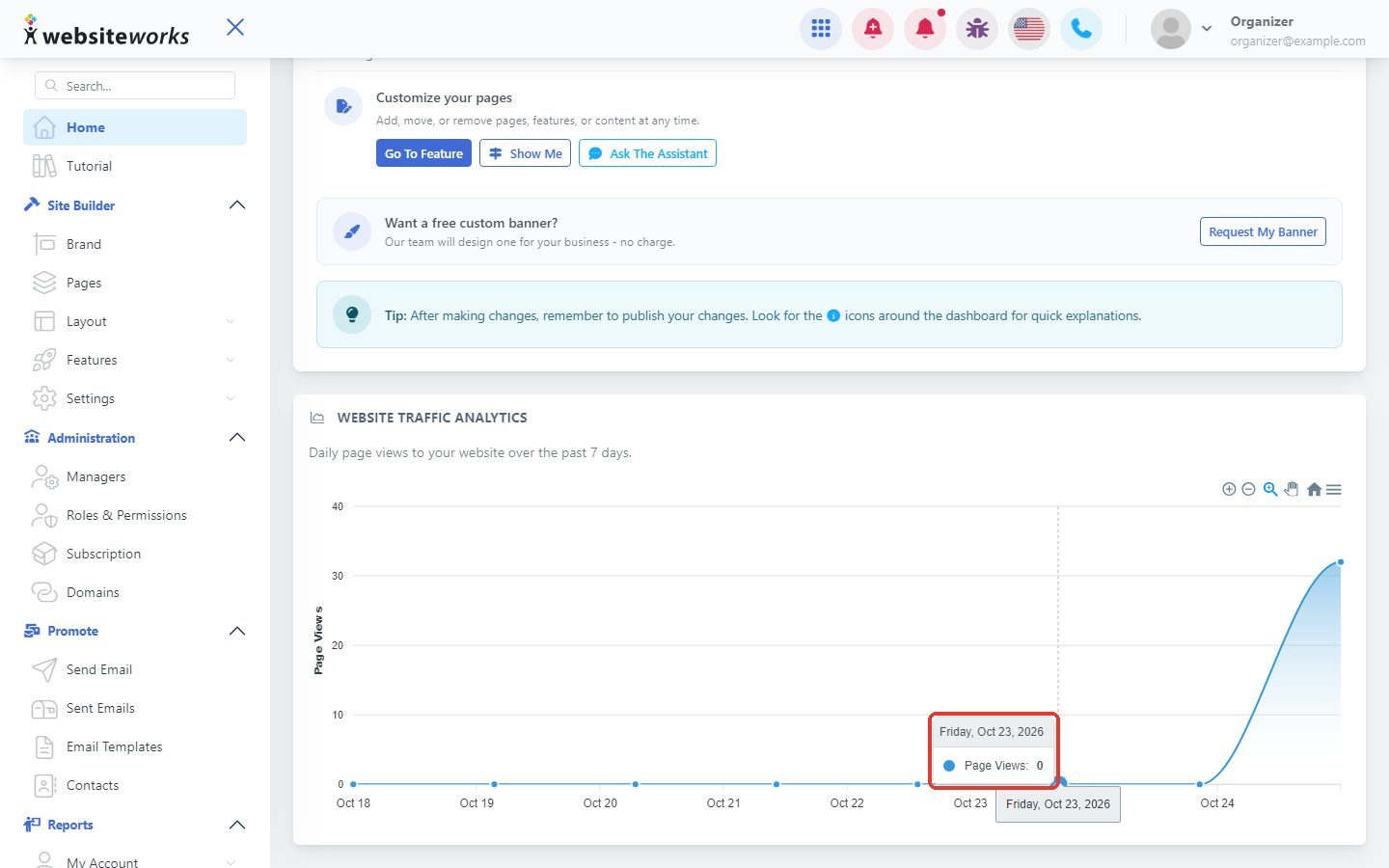
Move your mouse over a point on the line. A small box shows the date and the number of Page Views for that day.
Step 3: Download the chart
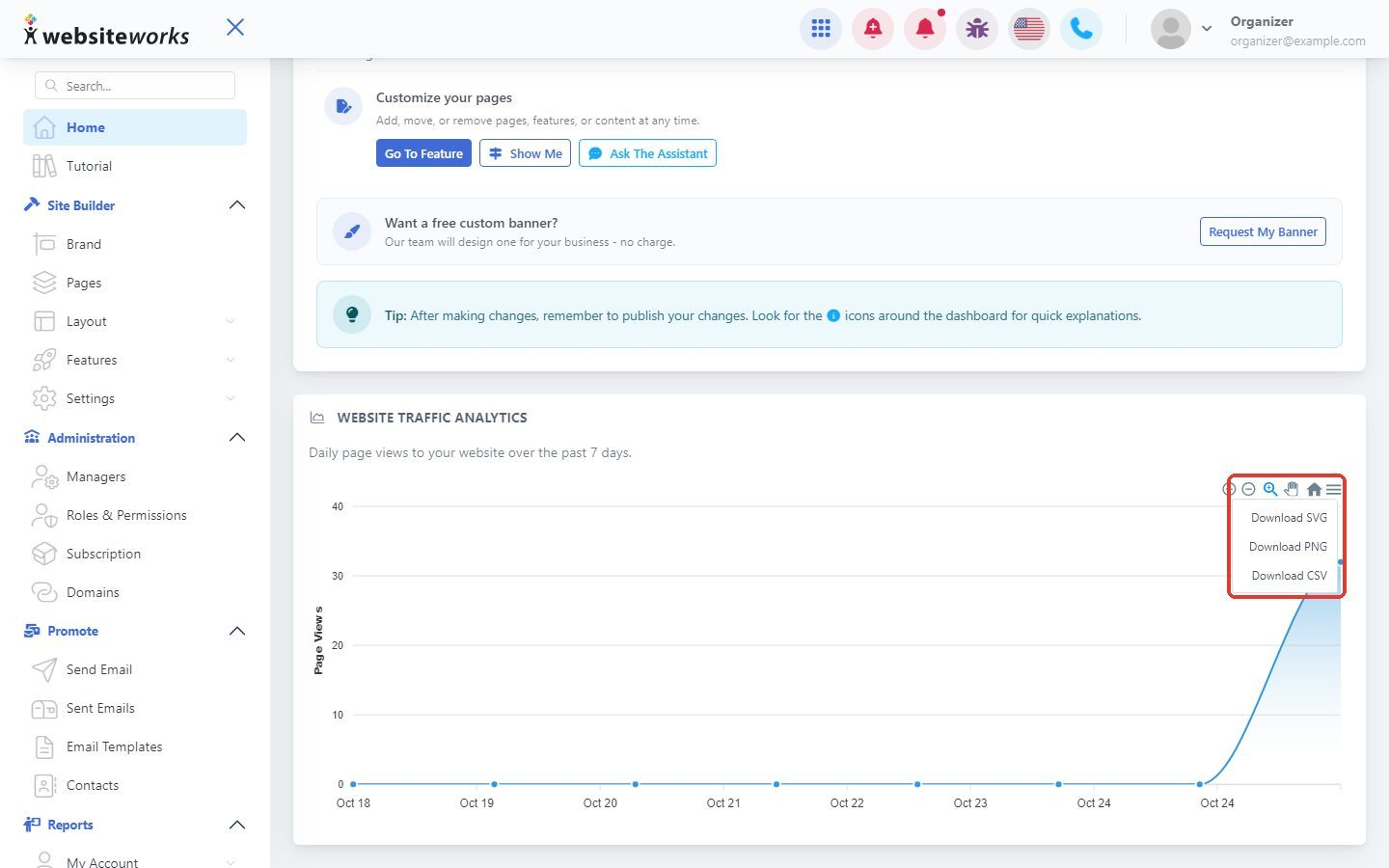
Click the menu icon at the top right of the chart, then choose Download SVG or Download PNG for a picture, or Download CSV for the numbers in a spreadsheet. You can also use the small icons there to zoom in and out.
Tip: Page views go up after you share your website. Copy your site address with the Copy or Share Site buttons at the top of the dashboard and send it to your customers.