

Your plan decides which features your website has. On the Subscription page you can see your current plan, compare durations and subscribe.
Step 1: Open Subscription
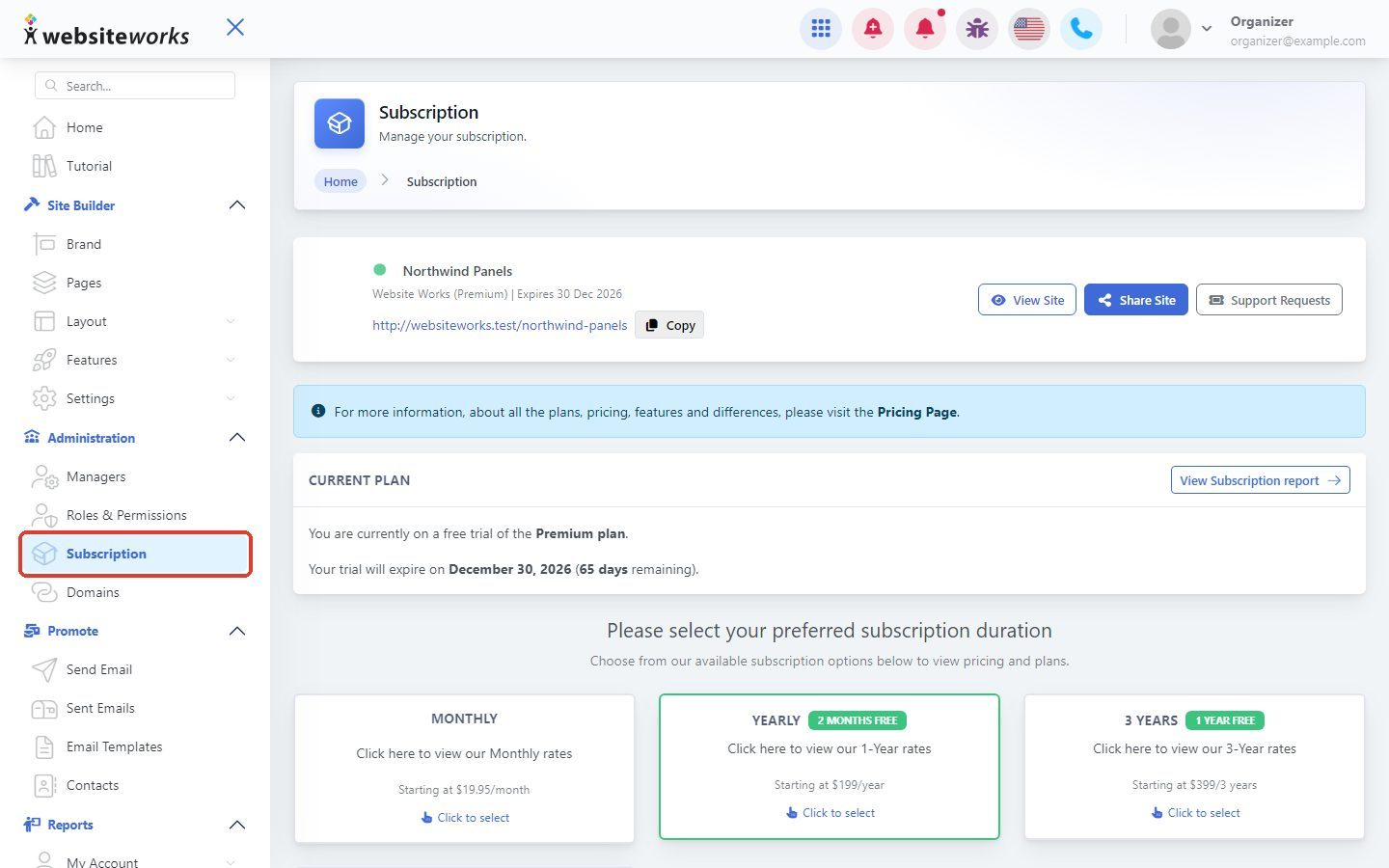
In the menu, under Administration, click Subscription.
Step 2: Check your current plan
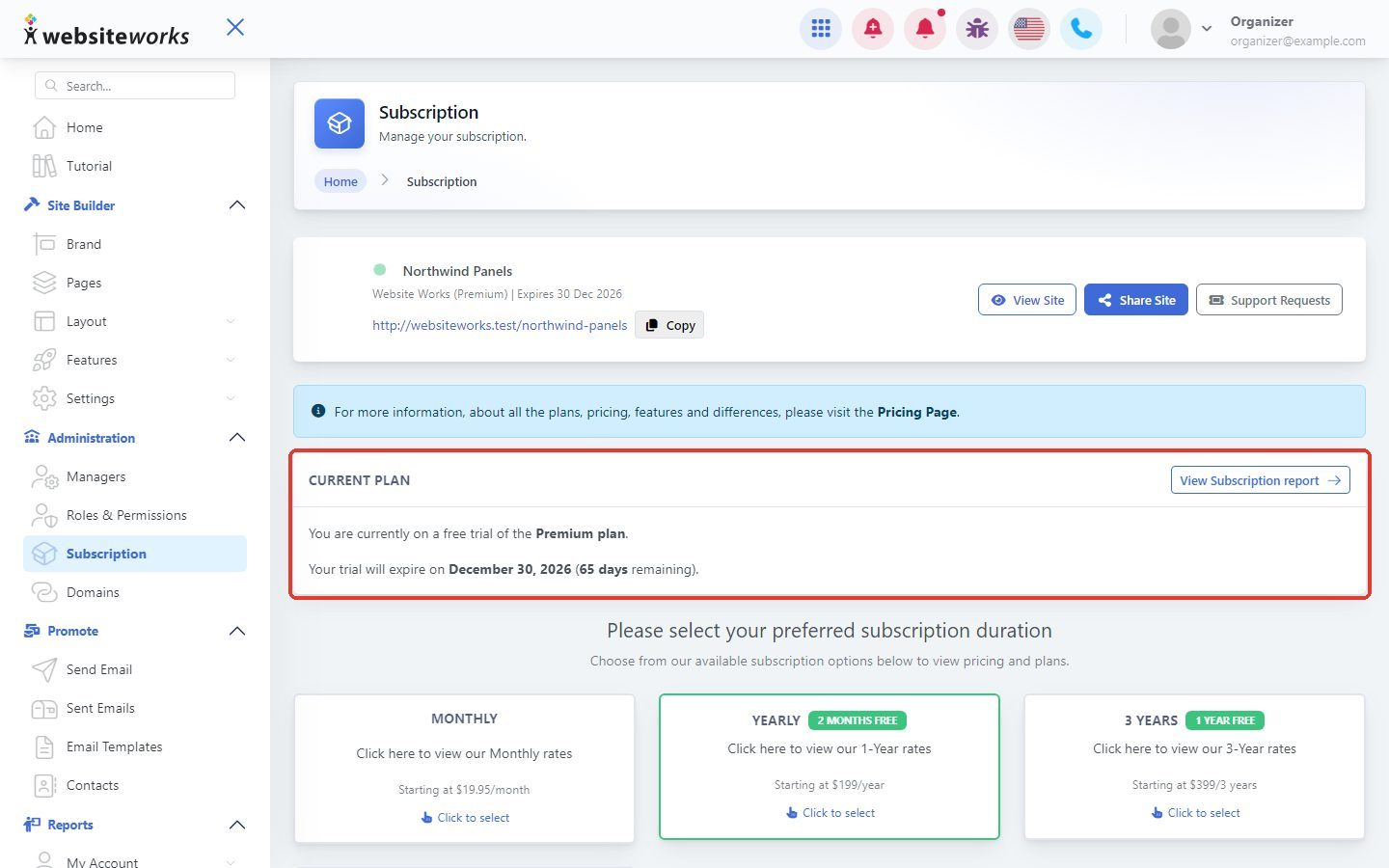
The Current Plan box shows which plan you're on. If you're on a free trial, it also shows the day your trial ends. Click View Subscription report to see your past payments.
Step 3: Compare the plans
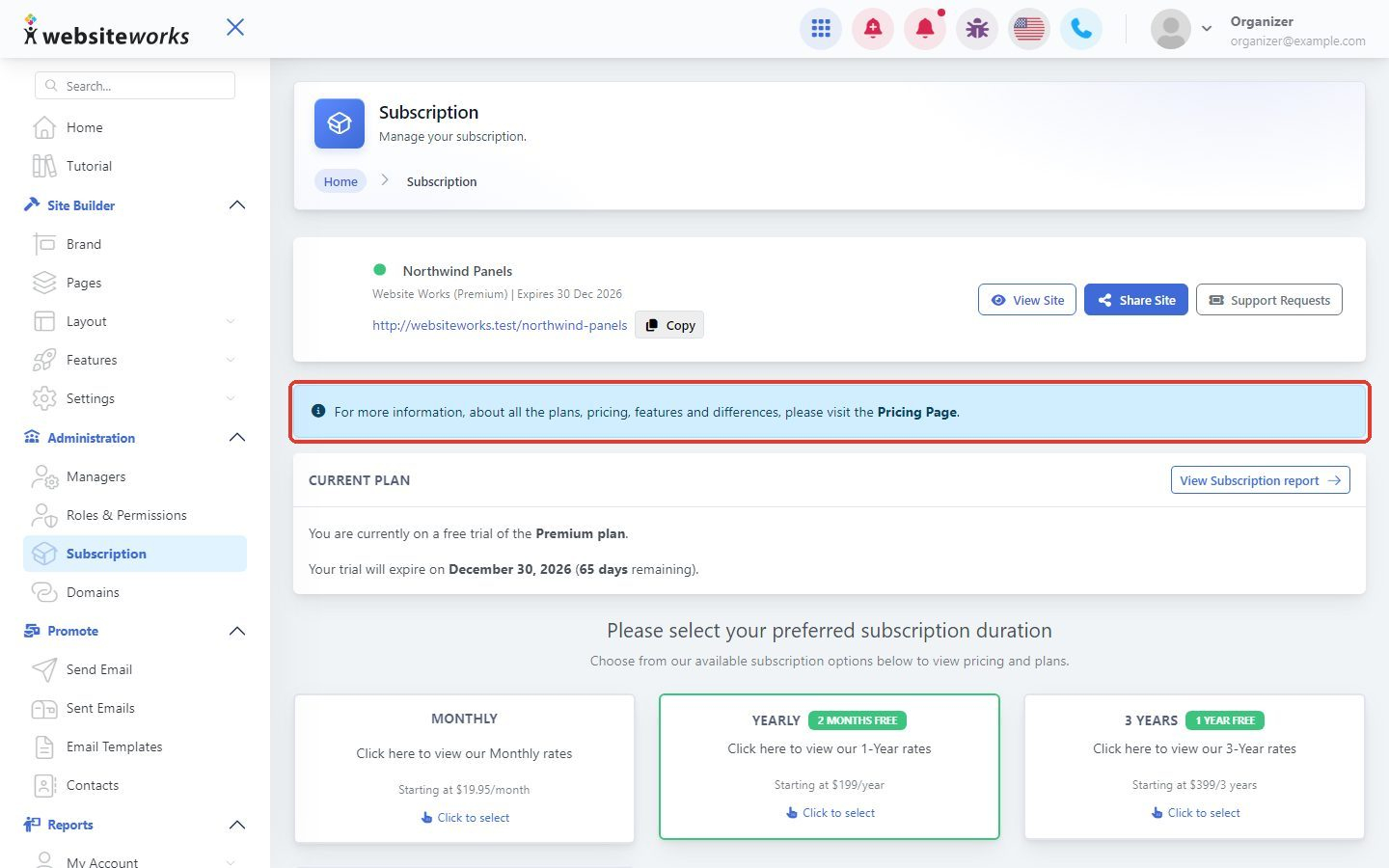
To see everything each plan includes, click the Pricing Page link in the blue box at the top.
Step 4: Choose how often you pay
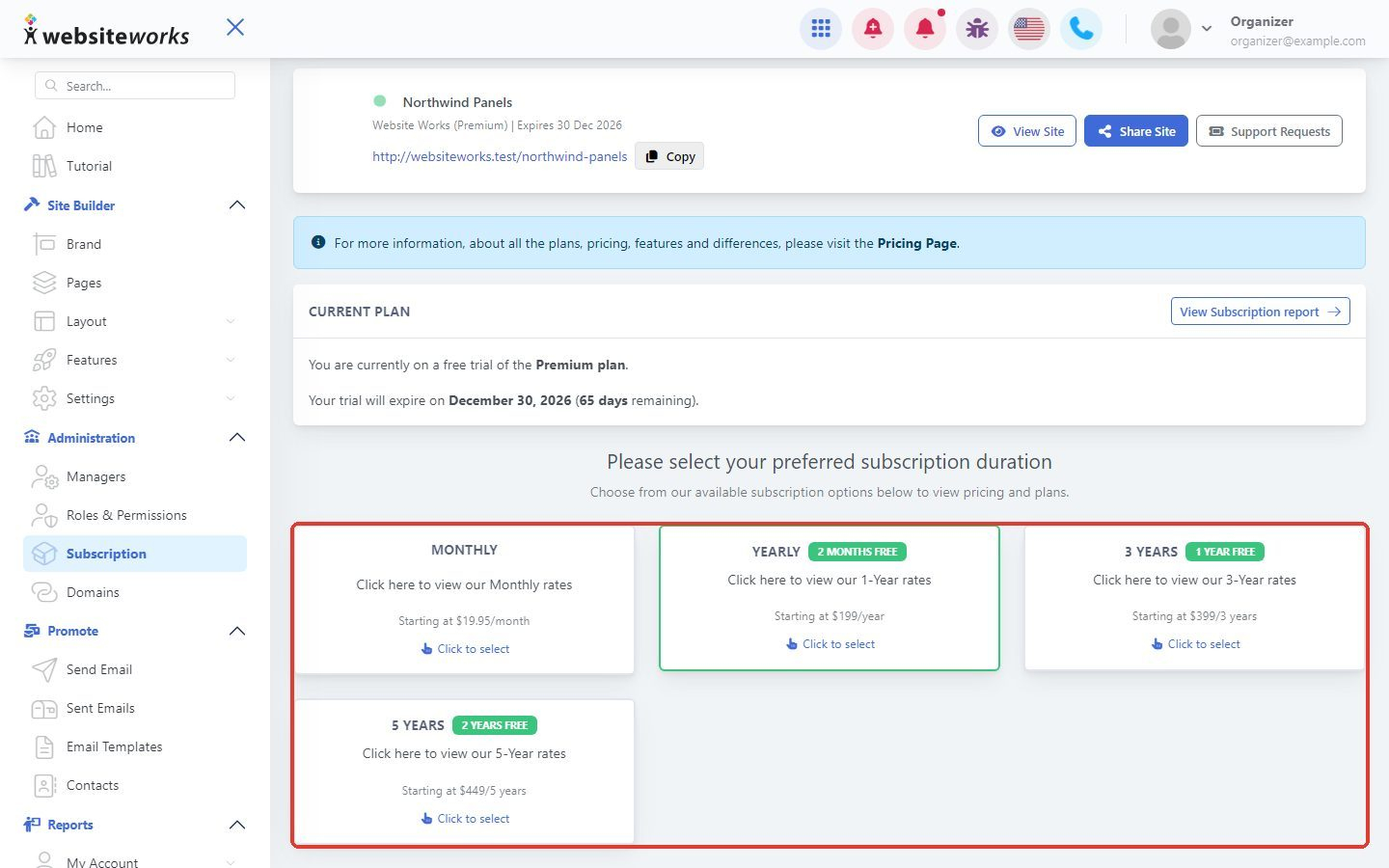
Under Please select your preferred subscription duration, pick Monthly, Yearly, 3 Years or 5 Years and click Click to select. Longer durations save you money: Yearly gives you 2 months free, 3 Years gives you 1 year free and 5 Years gives you 2 years free.
Step 5: Confirm your choice
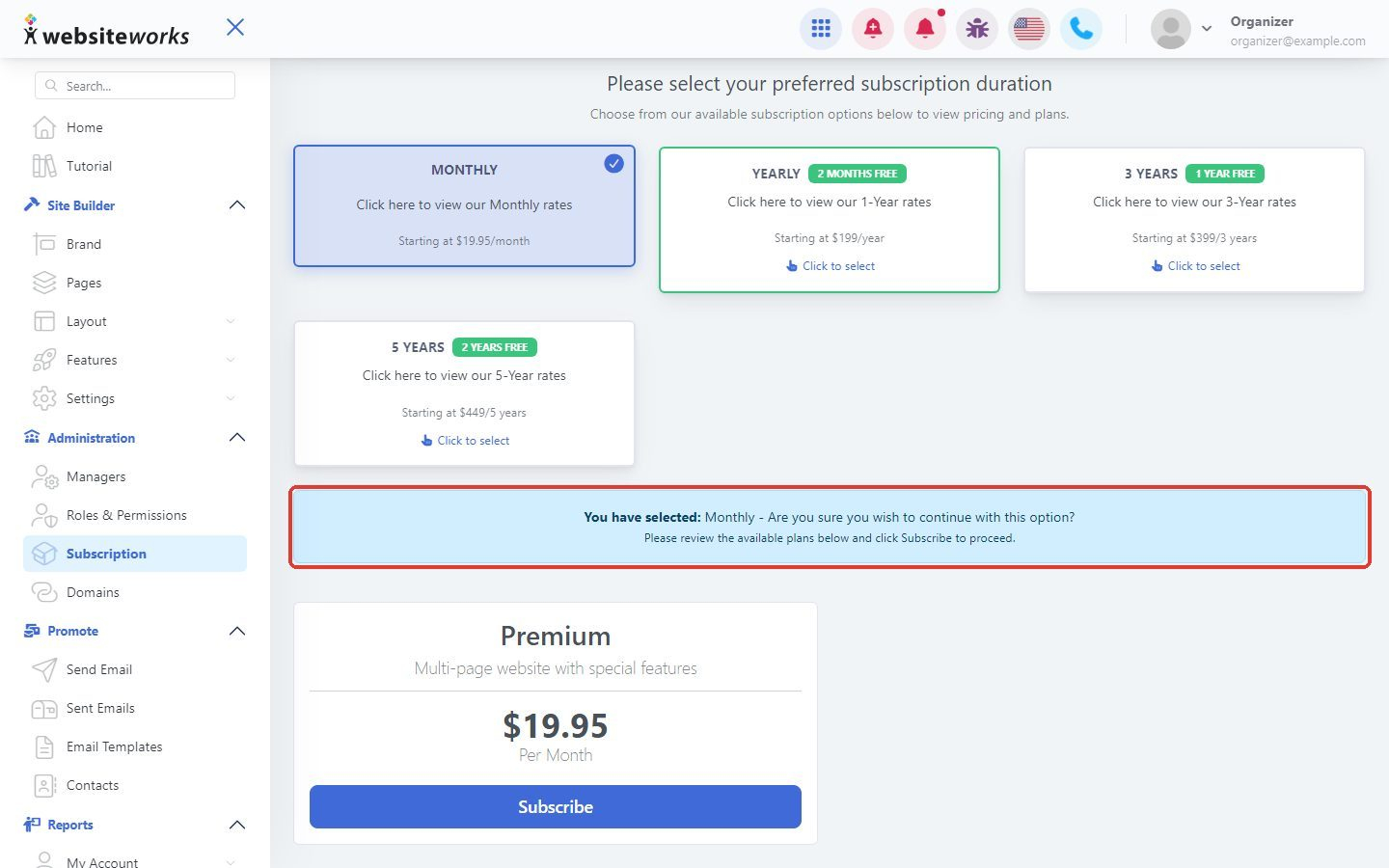
A message shows the duration you picked, for example You have selected: Monthly. Want a different one? Just click another duration.
Step 6: Subscribe
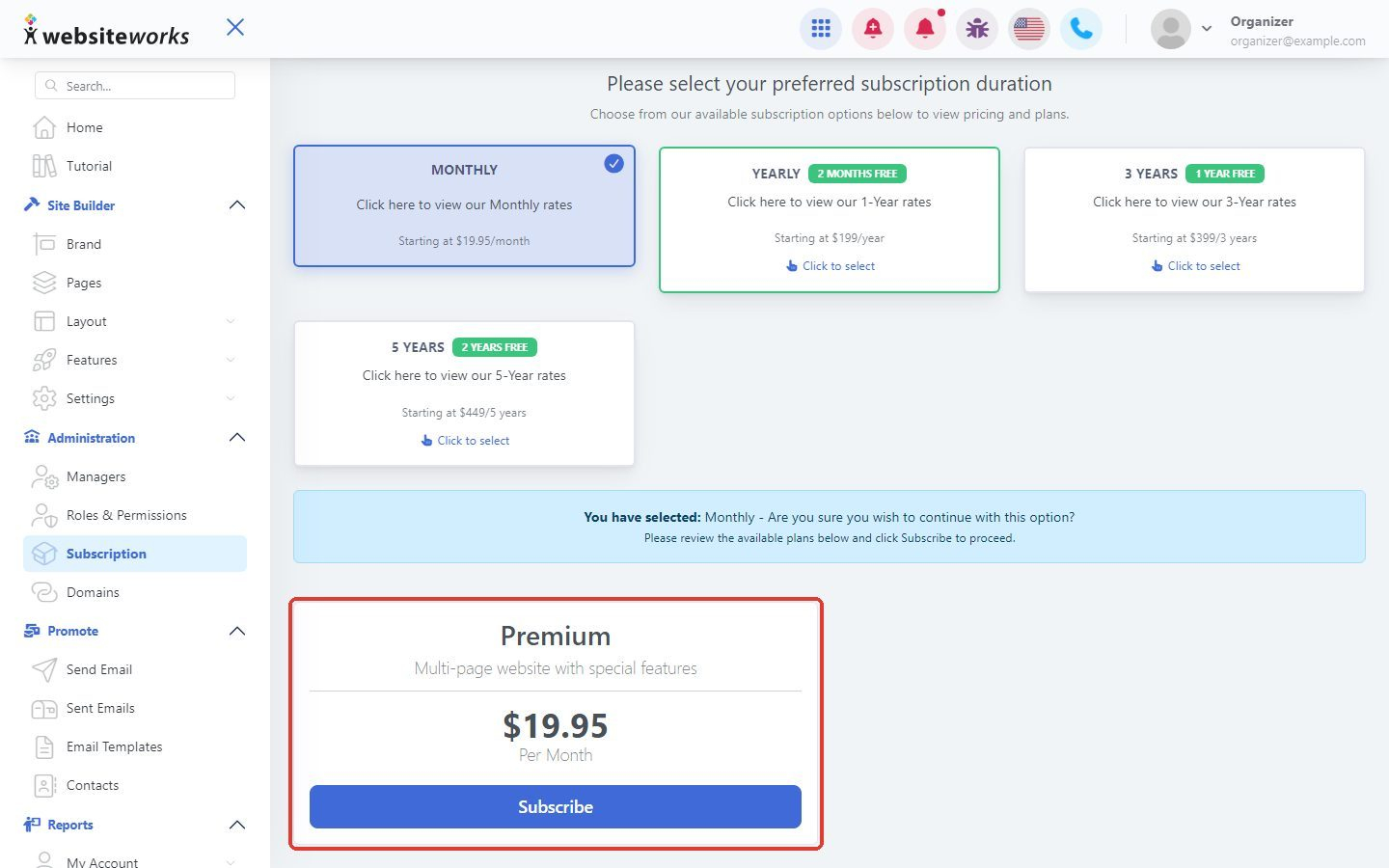
Review the plan below and click Subscribe. You'll go to a secure payment page to enter your card details. Your plan starts as soon as the payment goes through.
Changing a plan you already pay for
If you already have a subscription, the Subscription page shows a Manage Subscription button instead. Click it to change your plan, update your card or change your auto-renewal. You can also contact our support team for help.
Good to know:
- If you see Subscription Past Due!, your last payment didn't go through. Click Manage Subscription to update your card.
- Your custom domain is not included in your subscription. To renew it, go to Administration > Domains.
- If you cancel, your plan stays active until the end of the current billing period.