

Need a copy of a payment for your records? Your subscription payments and domain purchases are listed in the My Account reports.
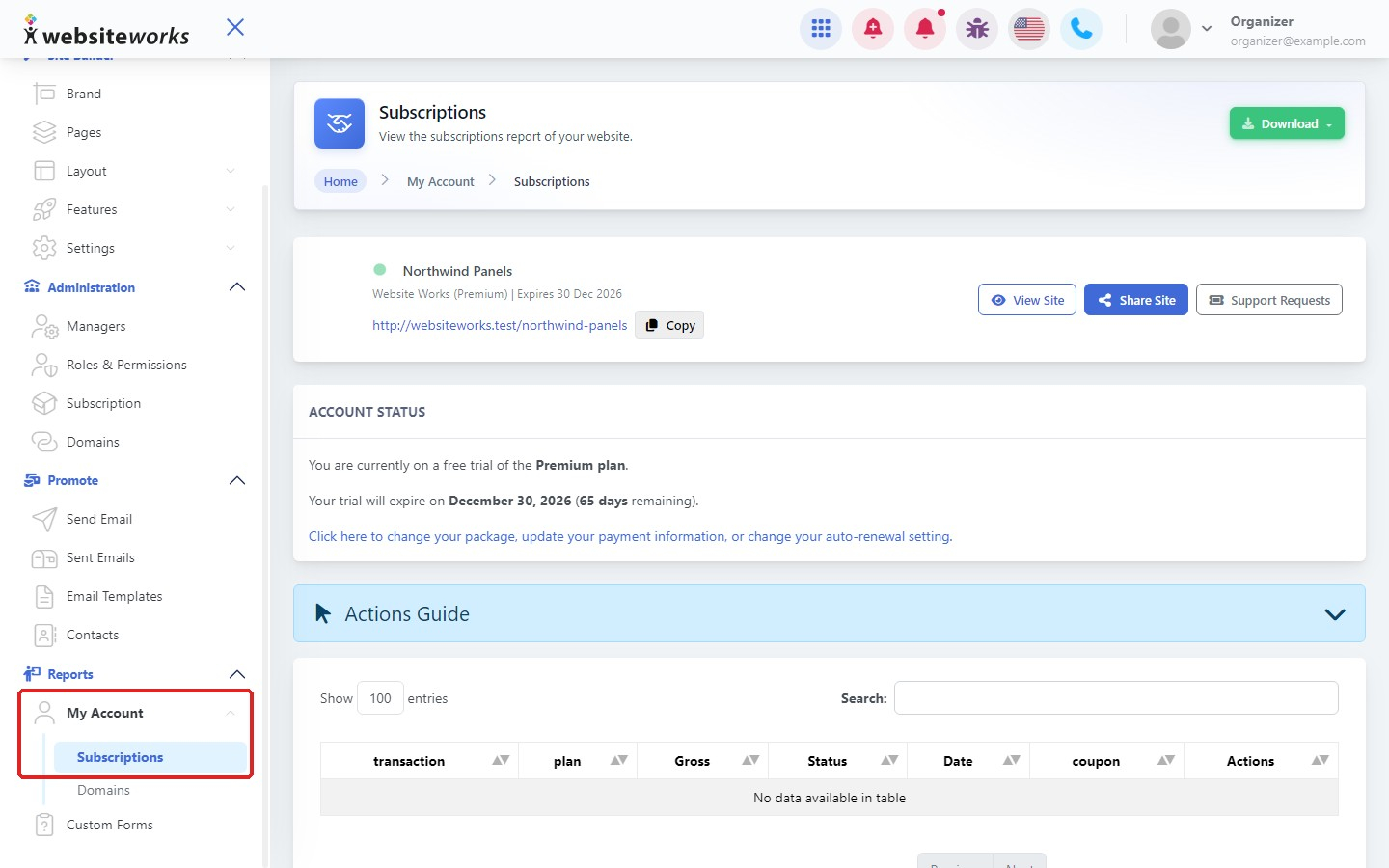
Step 1: Open your account reports
In the menu, under Reports, click My Account, then Subscriptions.
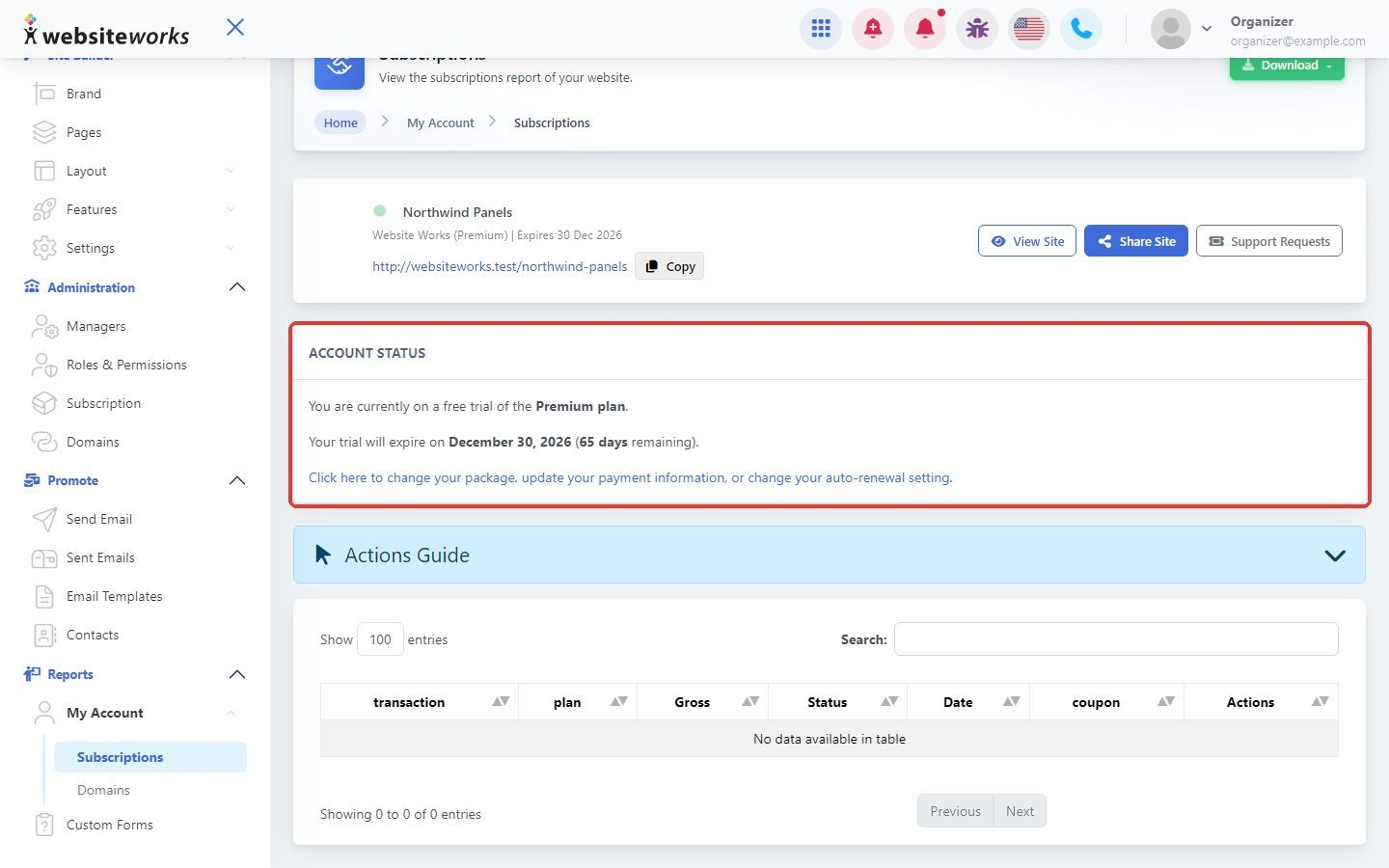
Step 2: Check your account status
The Account Status box shows your current plan. To change your plan, update your payment information or change your auto-renewal, click the link in this box.
Step 3: Find a payment
The table lists each payment with its transaction number, plan, Gross amount, Status, Date and any coupon used. Use Search to find a payment.
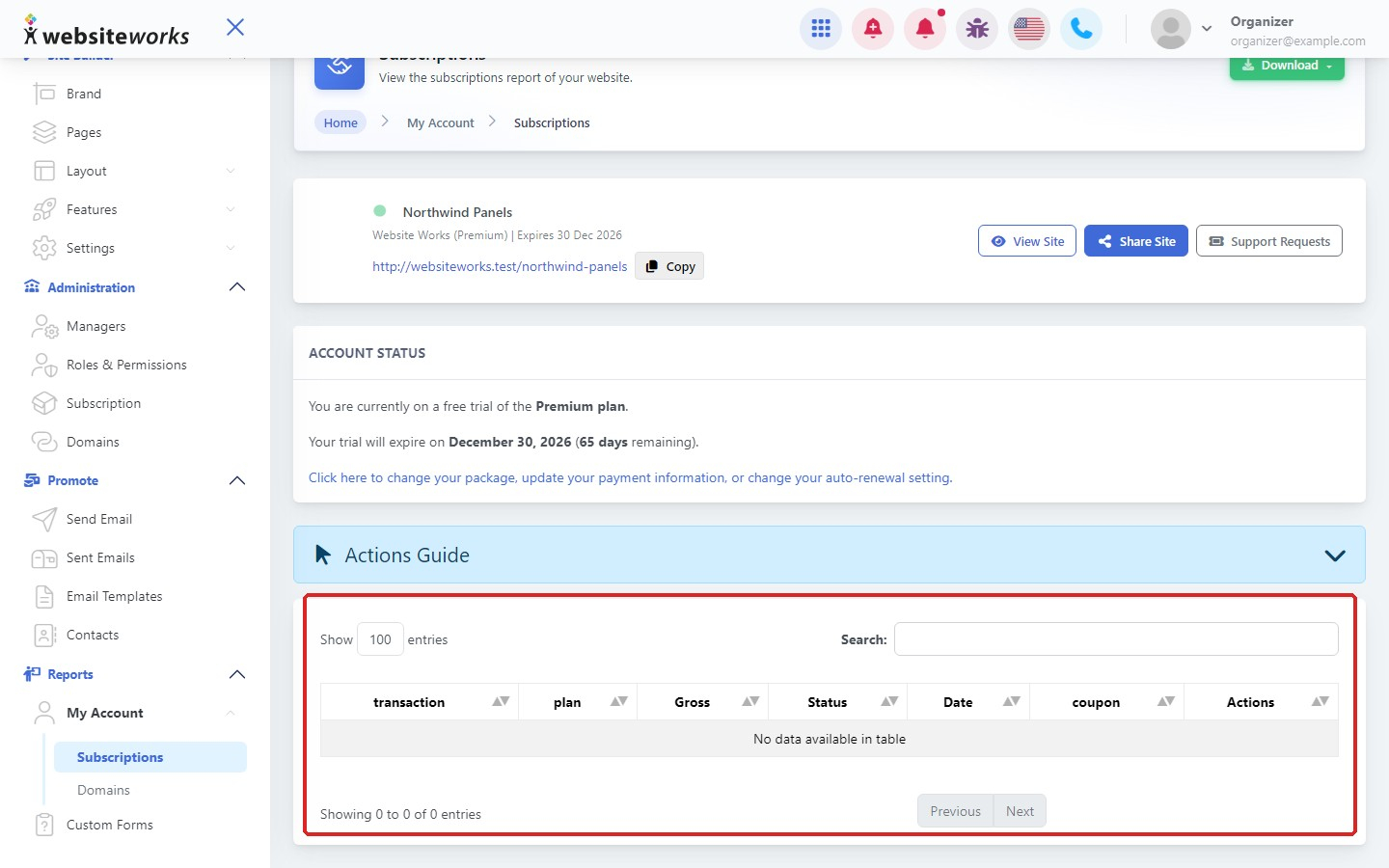
Need the receipt again? Click Resend Receipt in the Actions column of a successful payment and we'll email it to you. Click Actions Guide to see what each button does.
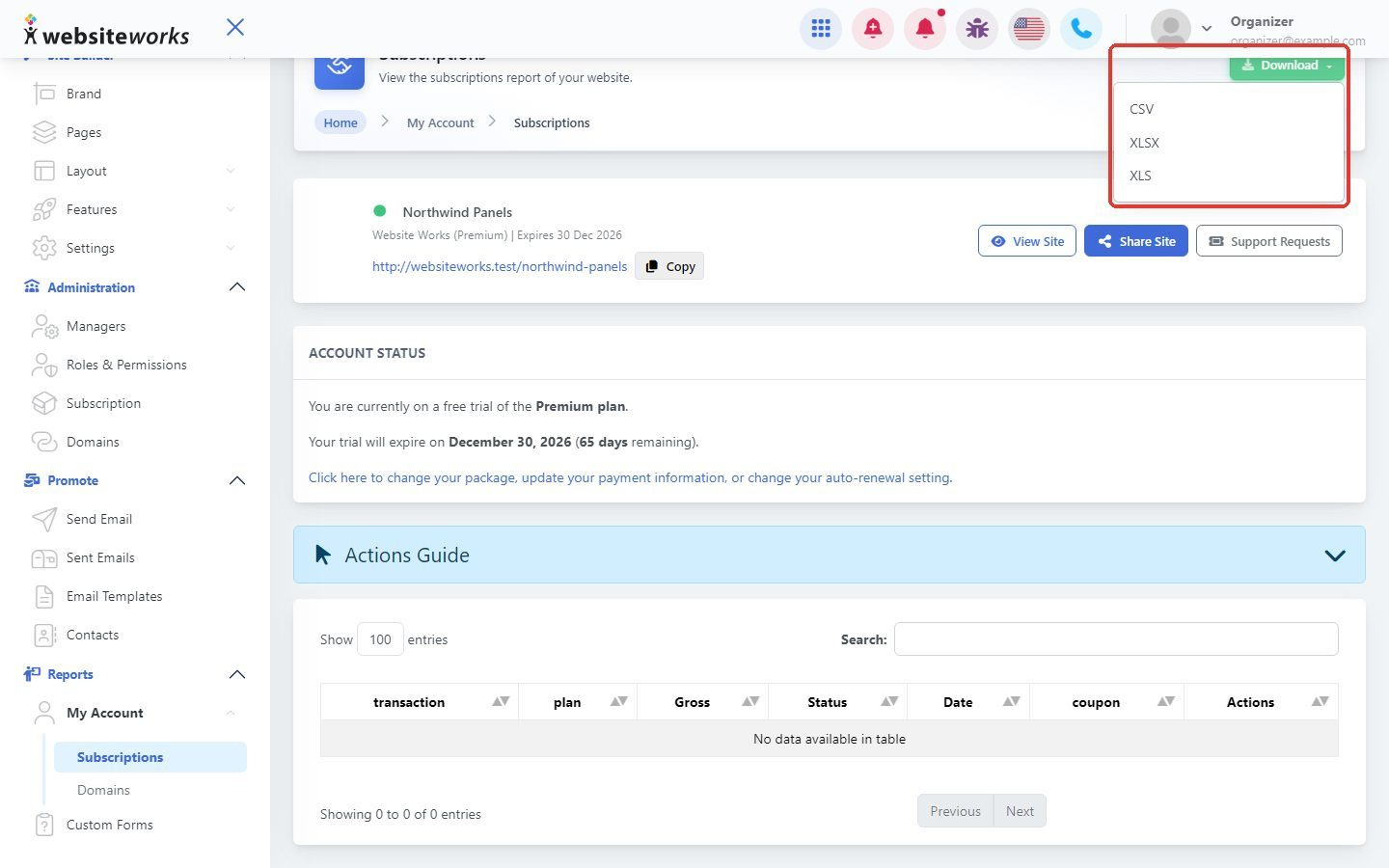
Step 4: Download the list
Click Download at the top right and choose CSV, XLSX or XLS to open your payments in a spreadsheet.
Step 5: See your domain purchases
Under Reports > My Account, click Domains. The table lists each domain purchase or renewal with its Transaction number, Domain, Status, Gross amount, Duration and Date. Click Download to save the list.

Tip: If a table says No data available in table, there are no payments of that type yet, for example while you're still on your free trial.