

Made changes but your website still looks the same? Here's what to check.
Step 1: See your unpublished changes
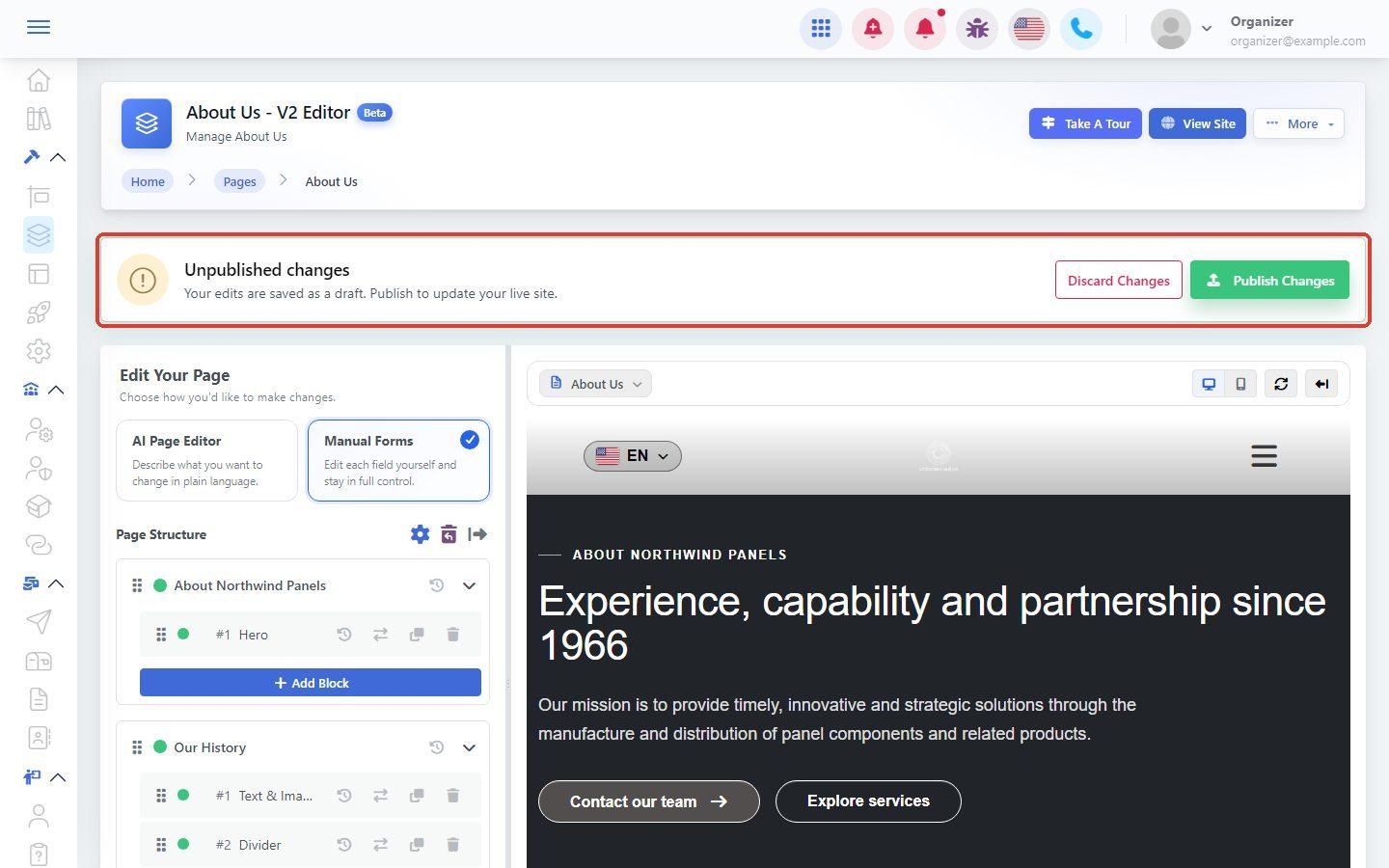
When you edit a page, your edits are saved as a draft first. Your visitors don't see them until you publish. When you have unpublished edits, a bar at the top of the editor says Unpublished changes.
Step 3: Publish your changes
Click Publish Changes to update your live site.
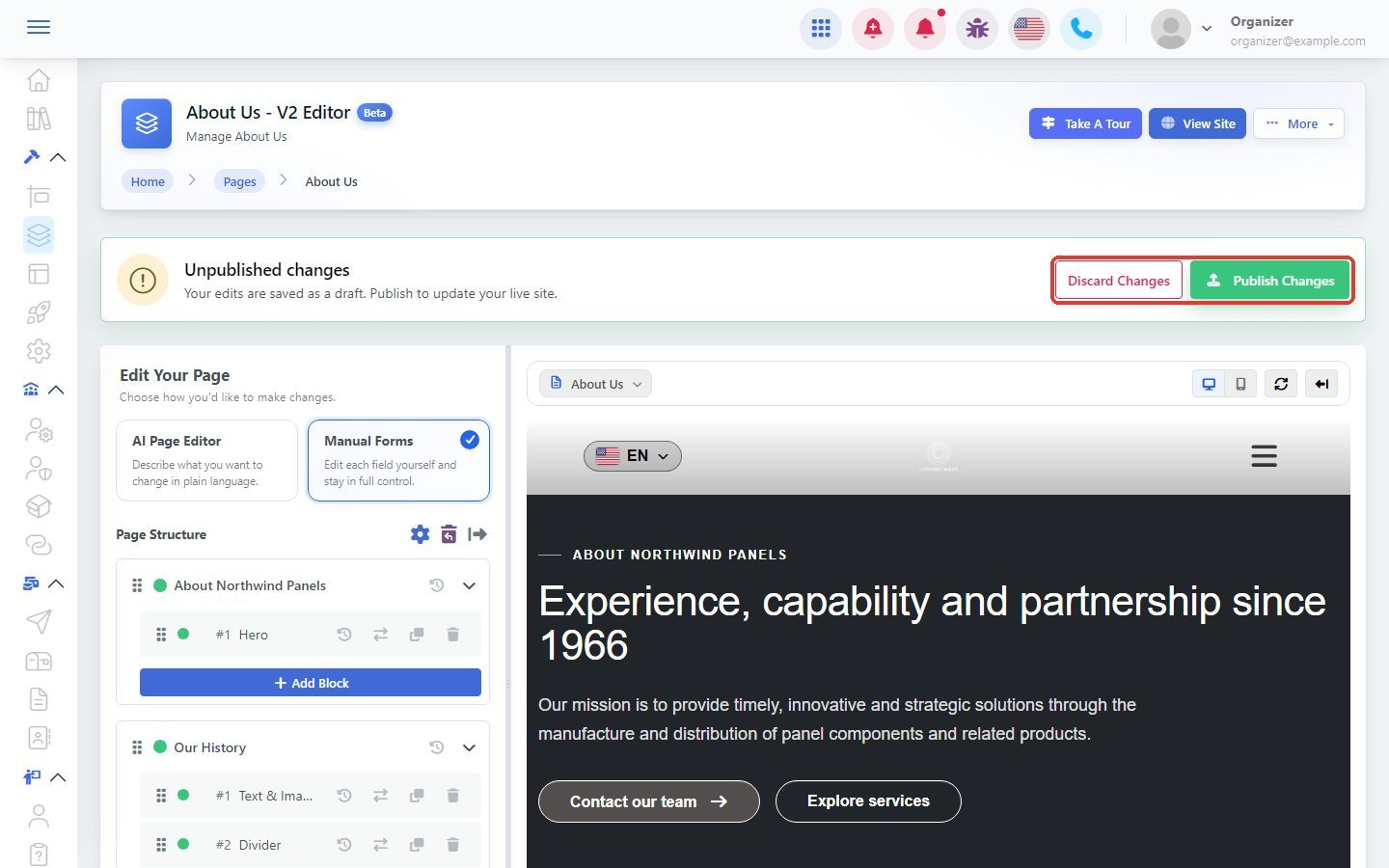
You'll see the message All changes have been published and are now live. Click Discard Changes only if you want to throw away your draft.
Step 3: Check that your website is online
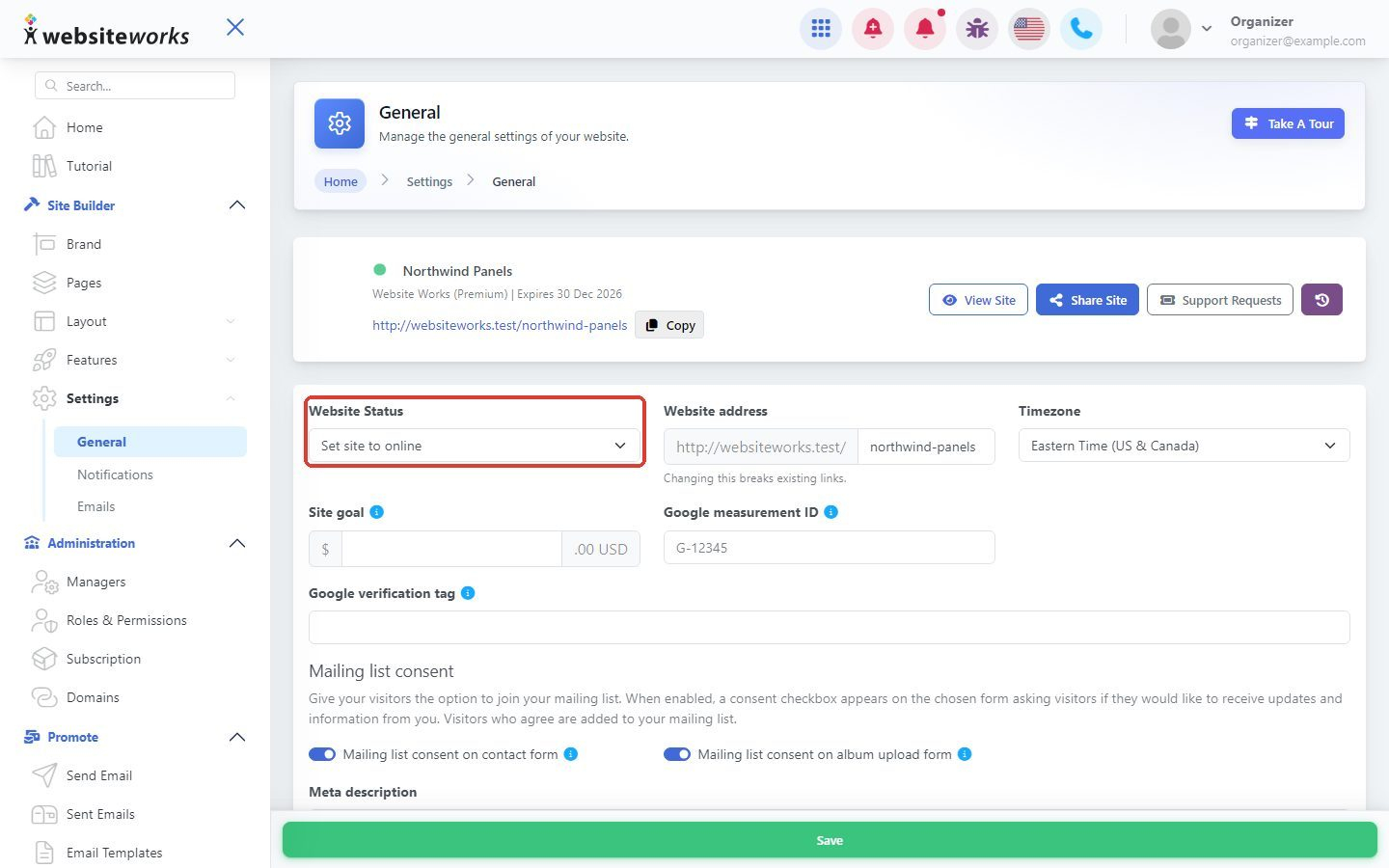
In the menu, click Settings, then General. Under Website Status, make sure Set site to online is selected. If it says Set site to offline, visitors can't see your website. Change it to online and click Save.
Step 4: Reload the page in your browser
Your browser may be showing an older copy of the page. Reload it with Ctrl + F5 (Windows) or Cmd + Shift + R (Mac), or open your website in a private or incognito window. On a phone, close the tab and open your website again.
Step 5: Check the page you're looking at
Make sure you're looking at the same page you edited, and in the same language if your website has more than one. If you just connected a custom domain, it can take some time before it works. See My custom domain isn't working yet.
Still not showing after these steps? Contact our support team and tell us which page you changed.