

Found something in WebsiteWorks that doesn't work the way it should? You can report it to our team without leaving your dashboard. Your report goes straight to the WebsiteWorks team, along with the page you were on when you opened the form.
Before you start
- Have a screenshot of the problem ready. The bug report form requires one.
- If you can, try it once more and note the exact steps that make the problem happen.
Step 1: Click the bug icon
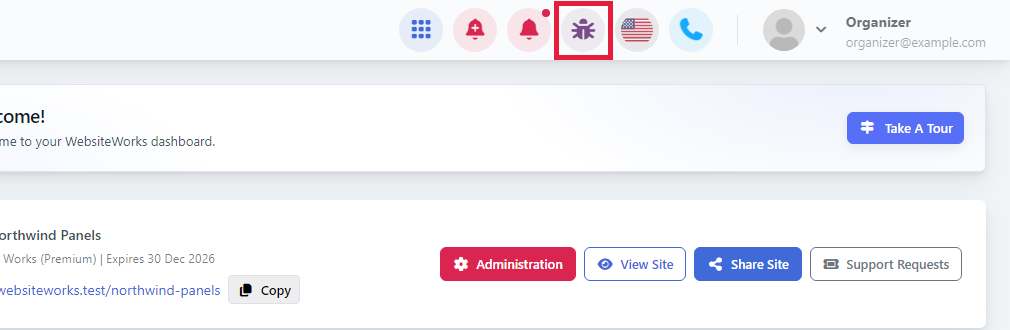
Go to the page where the problem happened. In the top bar of your dashboard, click the bug icon (its tooltip says Send feedback).
Step 2: Choose Report A Bug
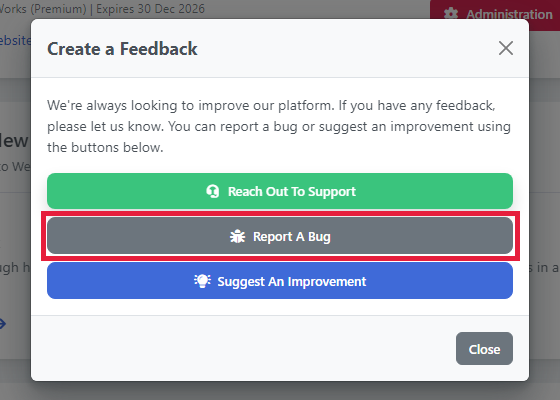
The Create a Feedback window opens. Click Report A Bug.
Step 3: Give your report a subject
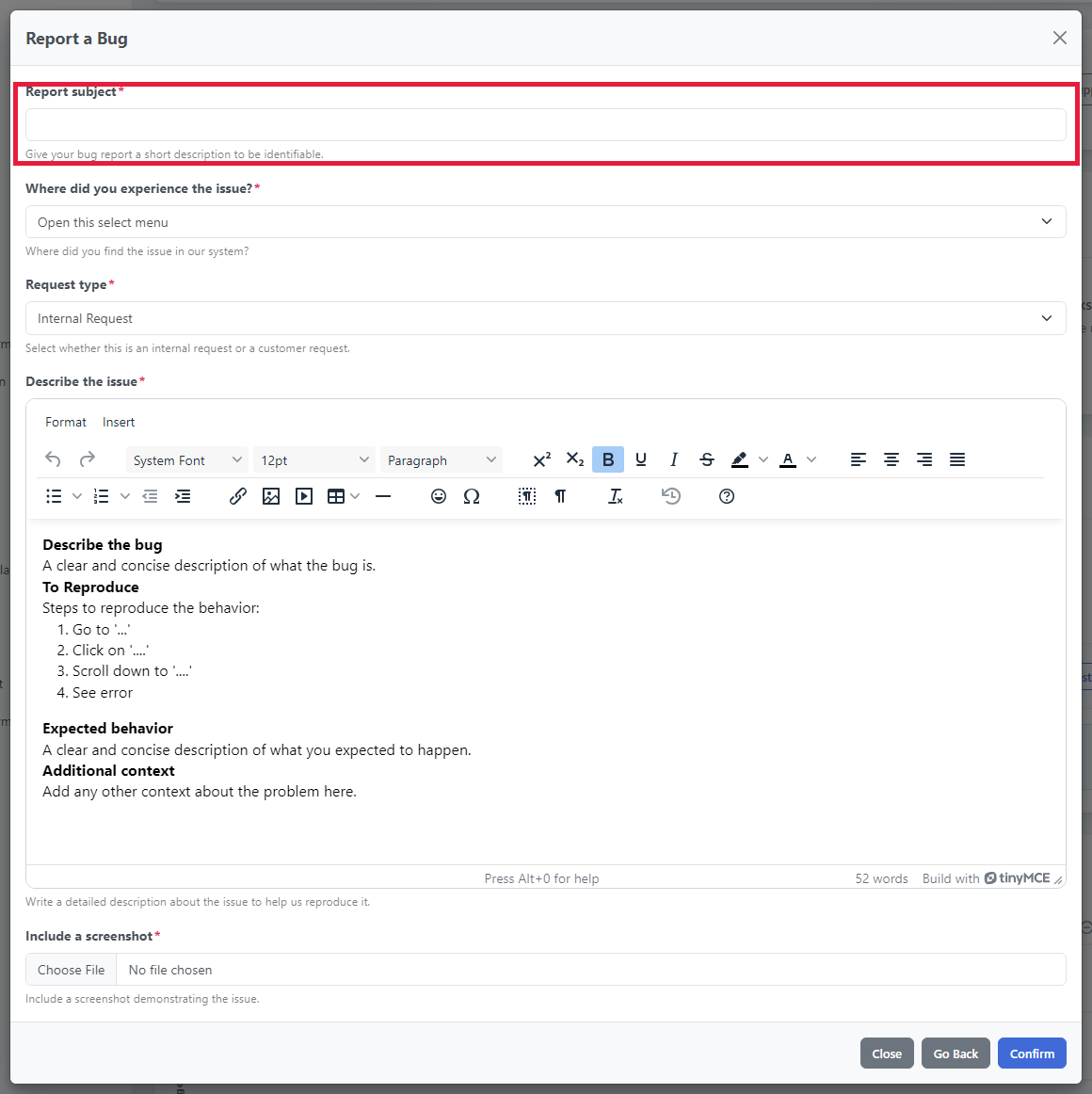
In Report subject, write a short title that sums up the problem, for example "Ticket price not saving on the Tickets page".
As you type, the form may show help articles that match your subject. Check them first: one of them might already solve your problem.
Step 4: Say where it happened
In Where did you experience the issue?, choose Organizer Dashboard, Participant Dashboard or Your public site.
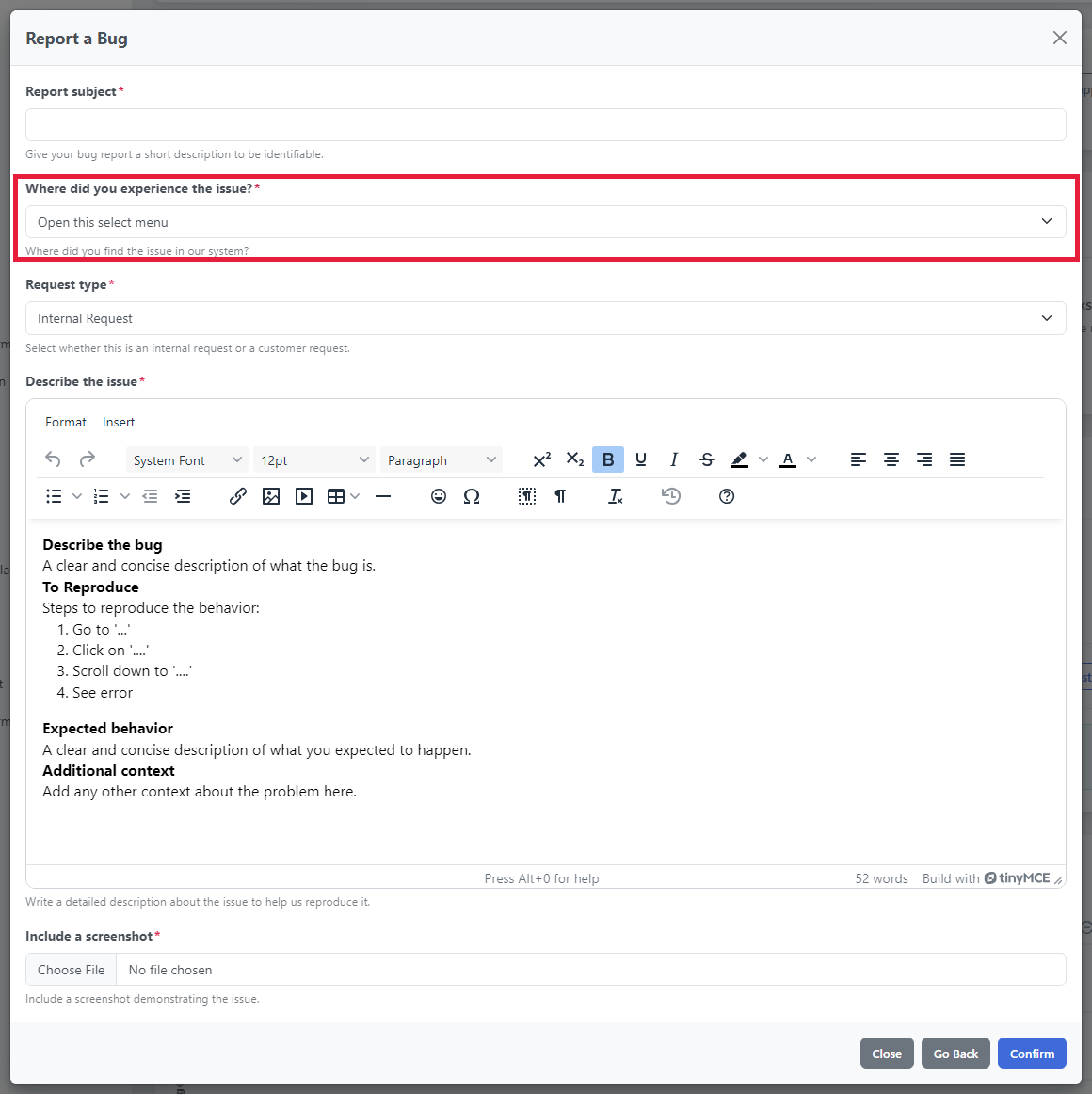
The form also shows a Request type menu. You can leave it as it is.
Step 5: Describe the issue
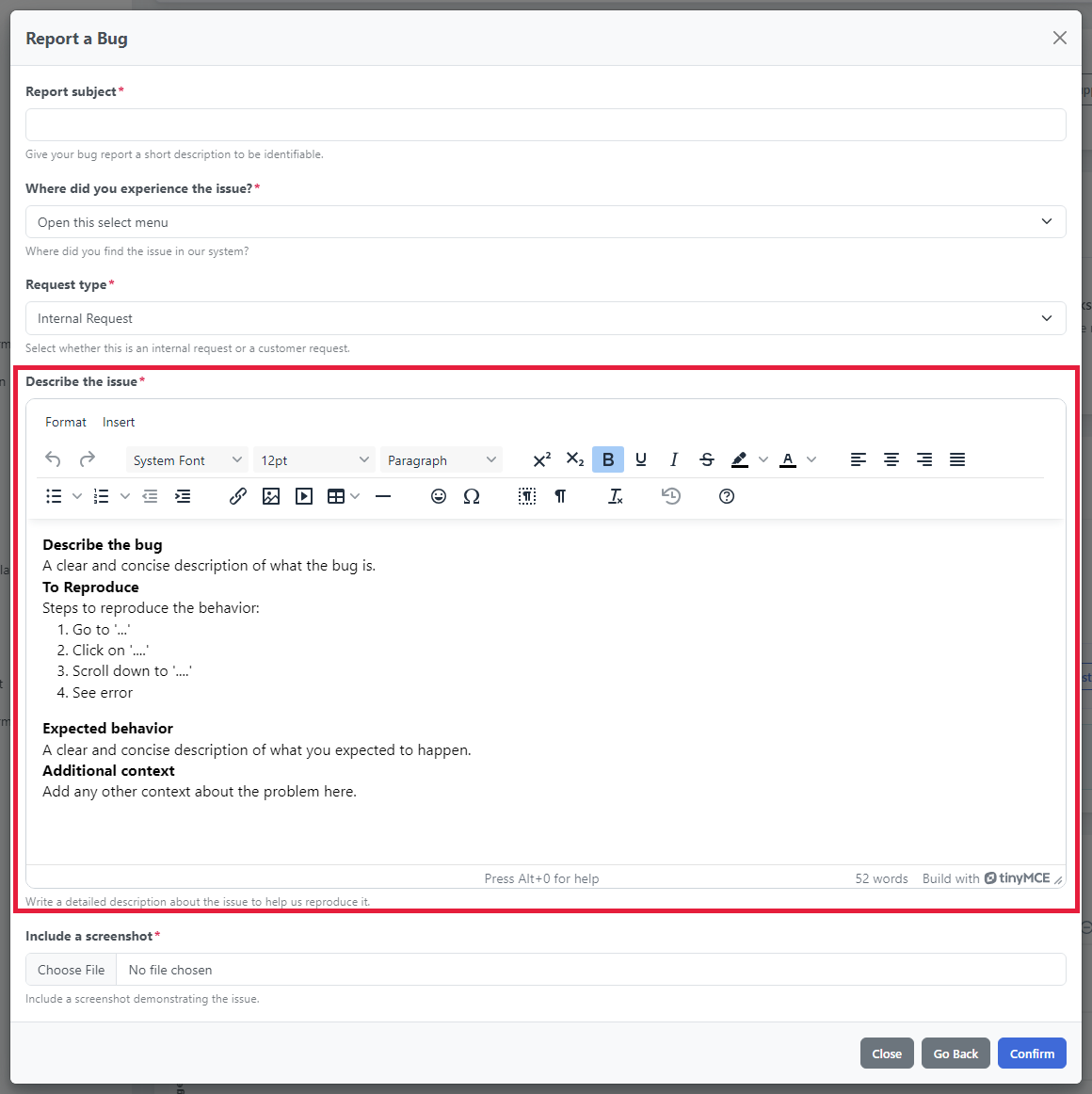
The Describe the issue box already contains a short template. Replace the sample text under each heading:
- Describe the bug: what went wrong.
- To Reproduce: the steps that make it happen (Go to..., Click on..., See error).
- Expected behavior: what you expected to happen instead.
- Additional context: anything else that might help.
Step 6: Add a screenshot
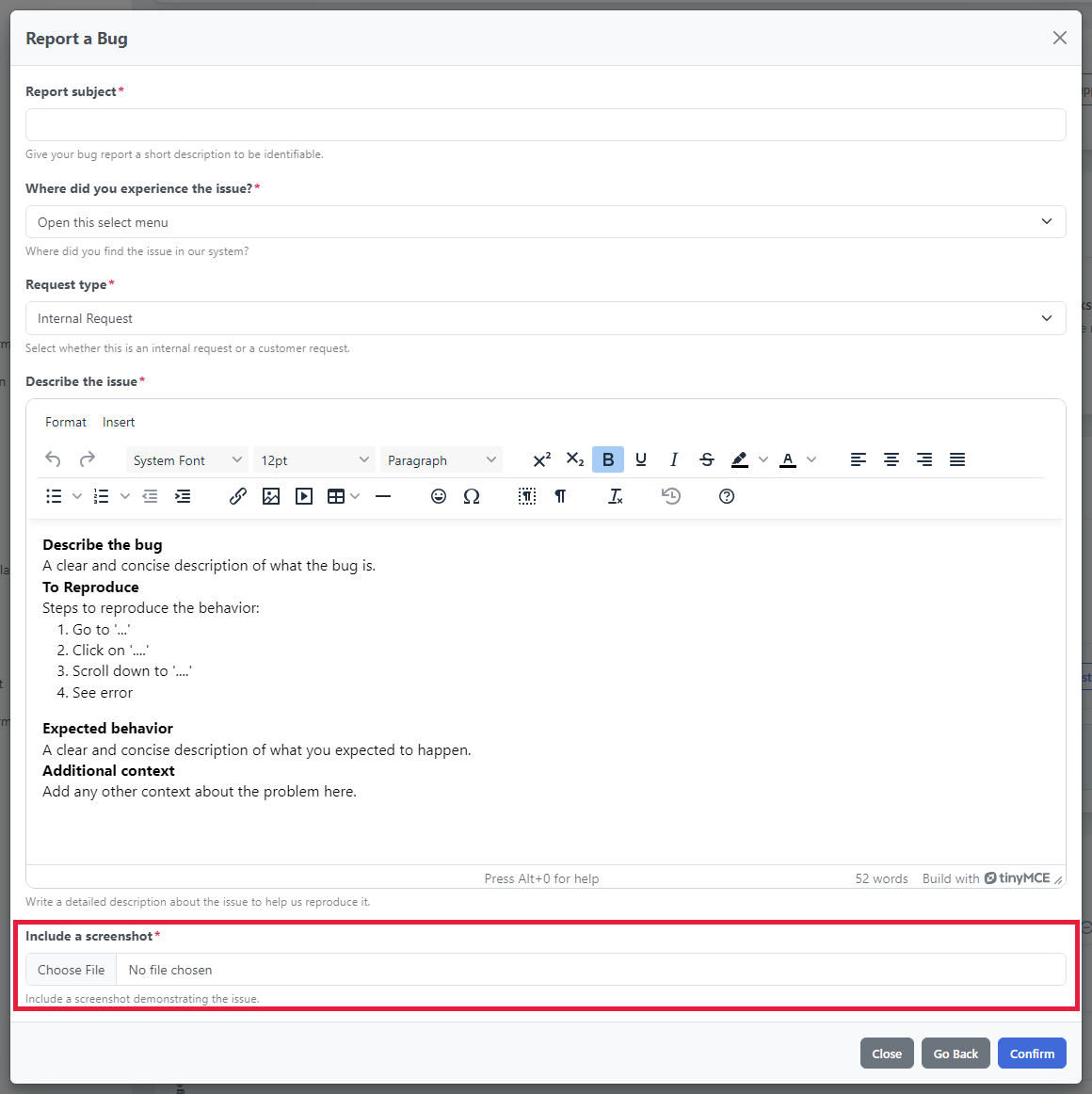
Under Include a screenshot, click Choose File and pick an image that shows the problem. This field is required for bug reports, and the image can be up to 2 MB.
Step 7: Send your report
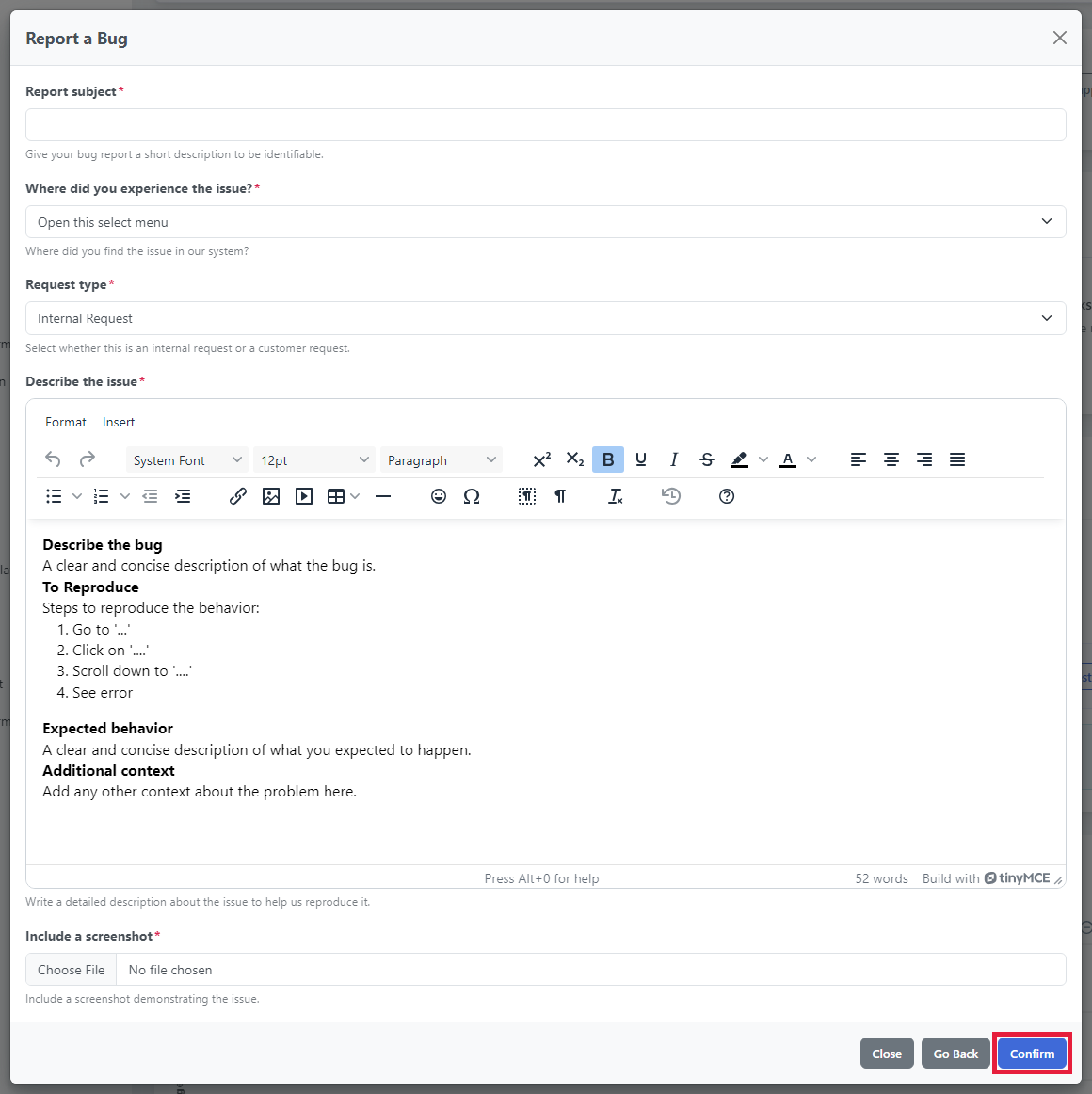
Click Confirm. You'll see the message Feedback created successfully. To change the type of message instead, click Go Back.
Tips for a bug report we can fix fast
- Open the form from the page with the problem. The report records the page you were on, which helps us find it quickly.
- Give exact steps. List each click from the start so we can make the problem happen ourselves.
- Say what you expected and what you got. Copy any error message word for word.
- Show it. A screenshot of the whole screen, including the error, is the most helpful.
- Add the details that matter. Mention your browser and device, and whether the problem happens every time or only sometimes.
- One problem per report. Send separate reports for separate bugs.
Need help with something else?
For a question rather than a bug, choose Reach Out To Support in the same window. To share an idea, see our article on suggesting an improvement.