

The AI Page Editor lets you change a page of your WebsiteWorks website by describing what you want in plain language, for example "add a section", "rewrite the intro" or "change the button colours". The AI makes the change in your draft and shows it in the live preview, so you can check it before anything goes live.
Open the page you want to change
1. Go to Pages
From your dashboard, open Site Builder in the menu on the left and click Pages.
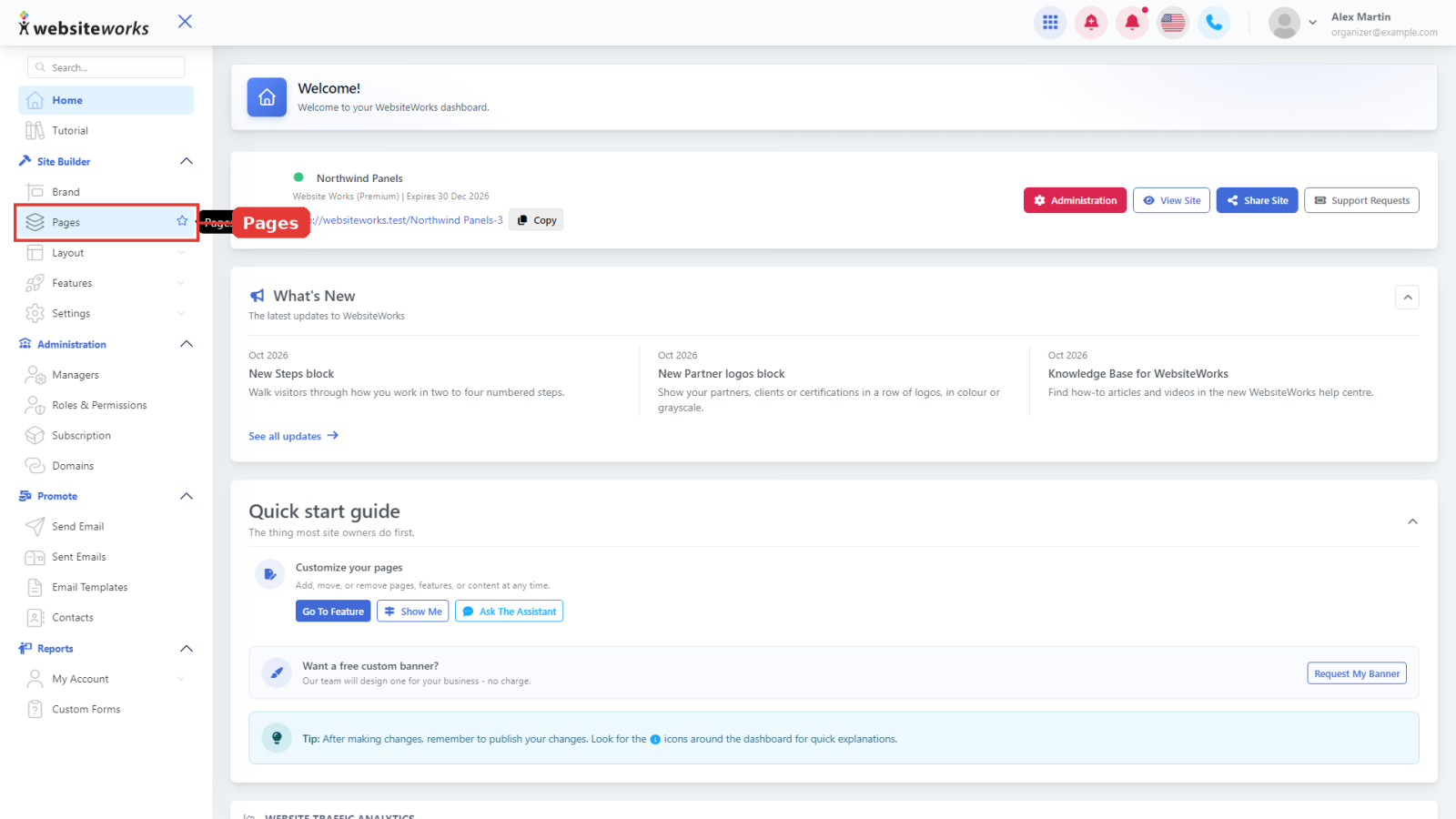
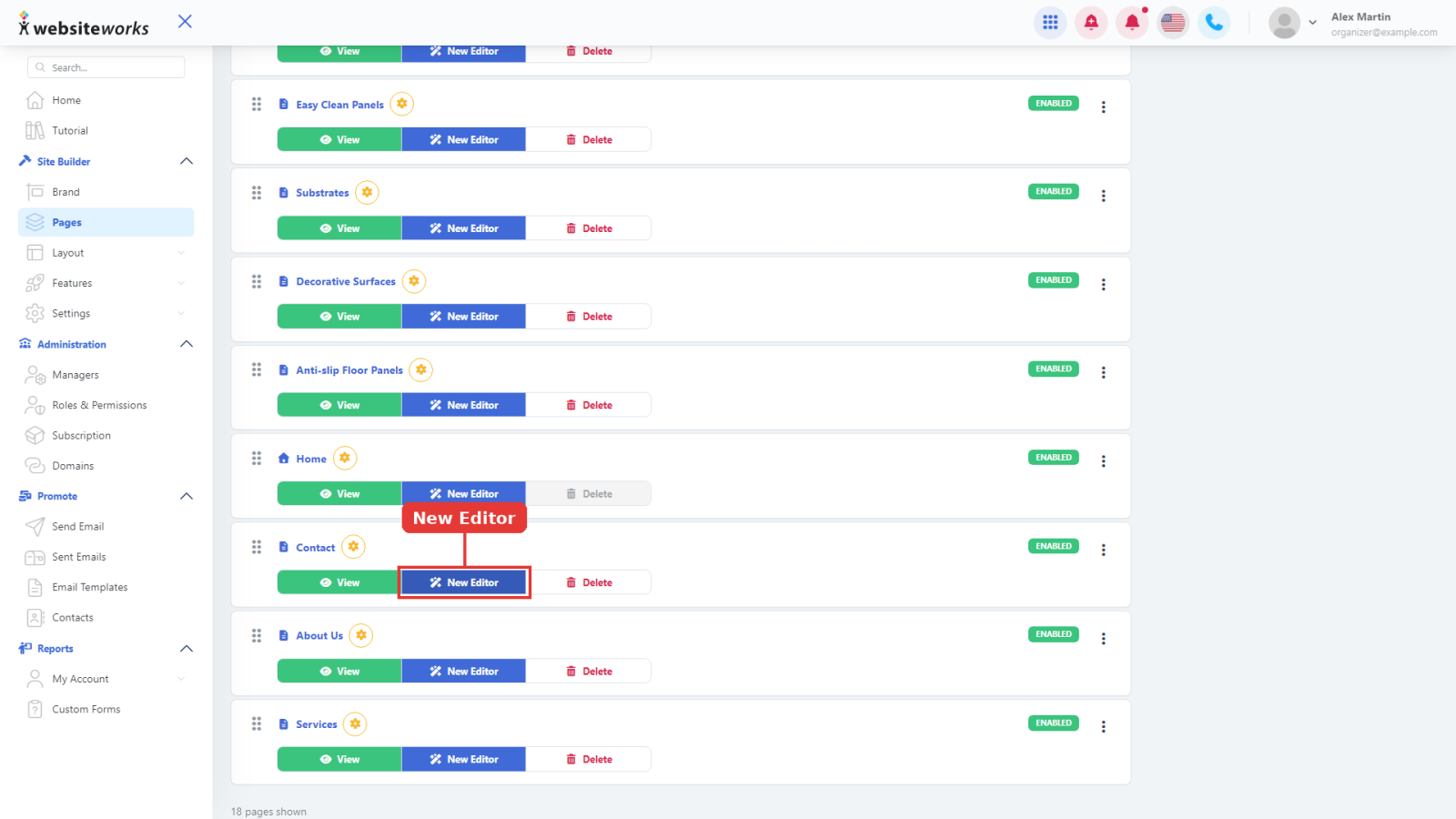
2. Click New Editor
Find the page you want to change and click New Editor on its row. The page opens in the editor, with a live preview of your page on the right.
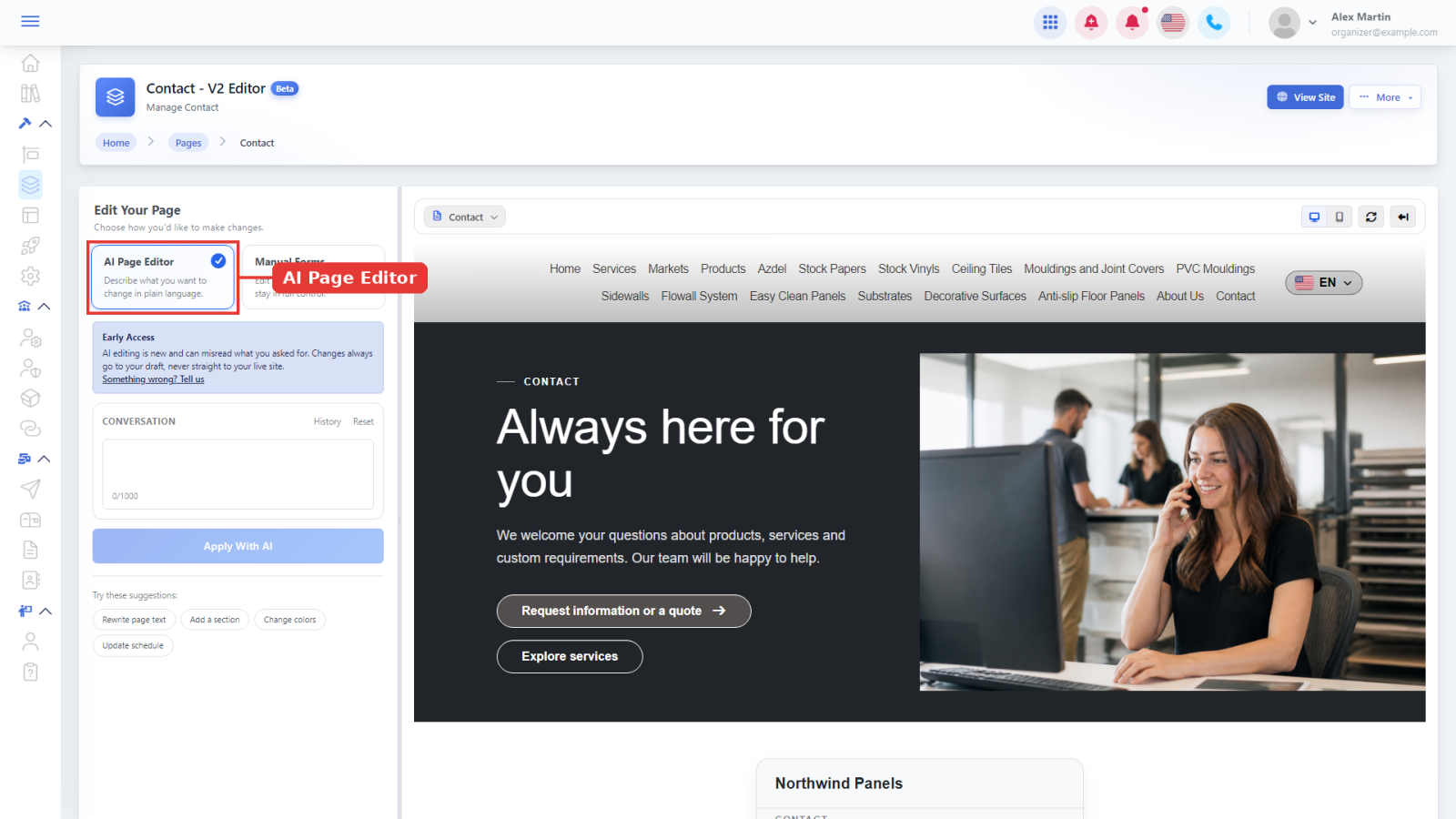
3. Choose AI Page Editor
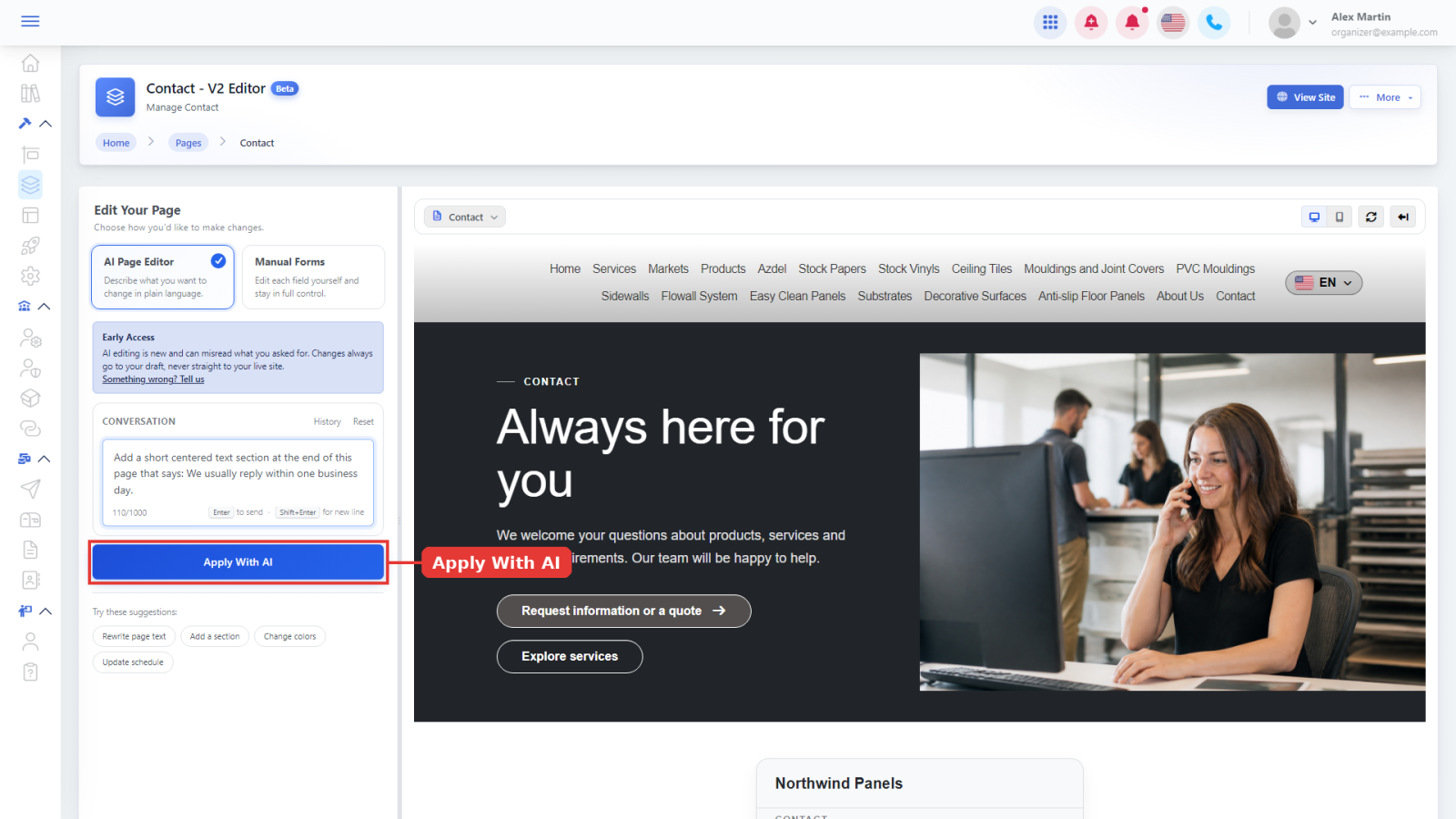
Under Edit Your Page, click AI Page Editor ("Describe what you want to change in plain language"). To edit the fields yourself instead, choose Manual Forms.
Ask the AI for a change
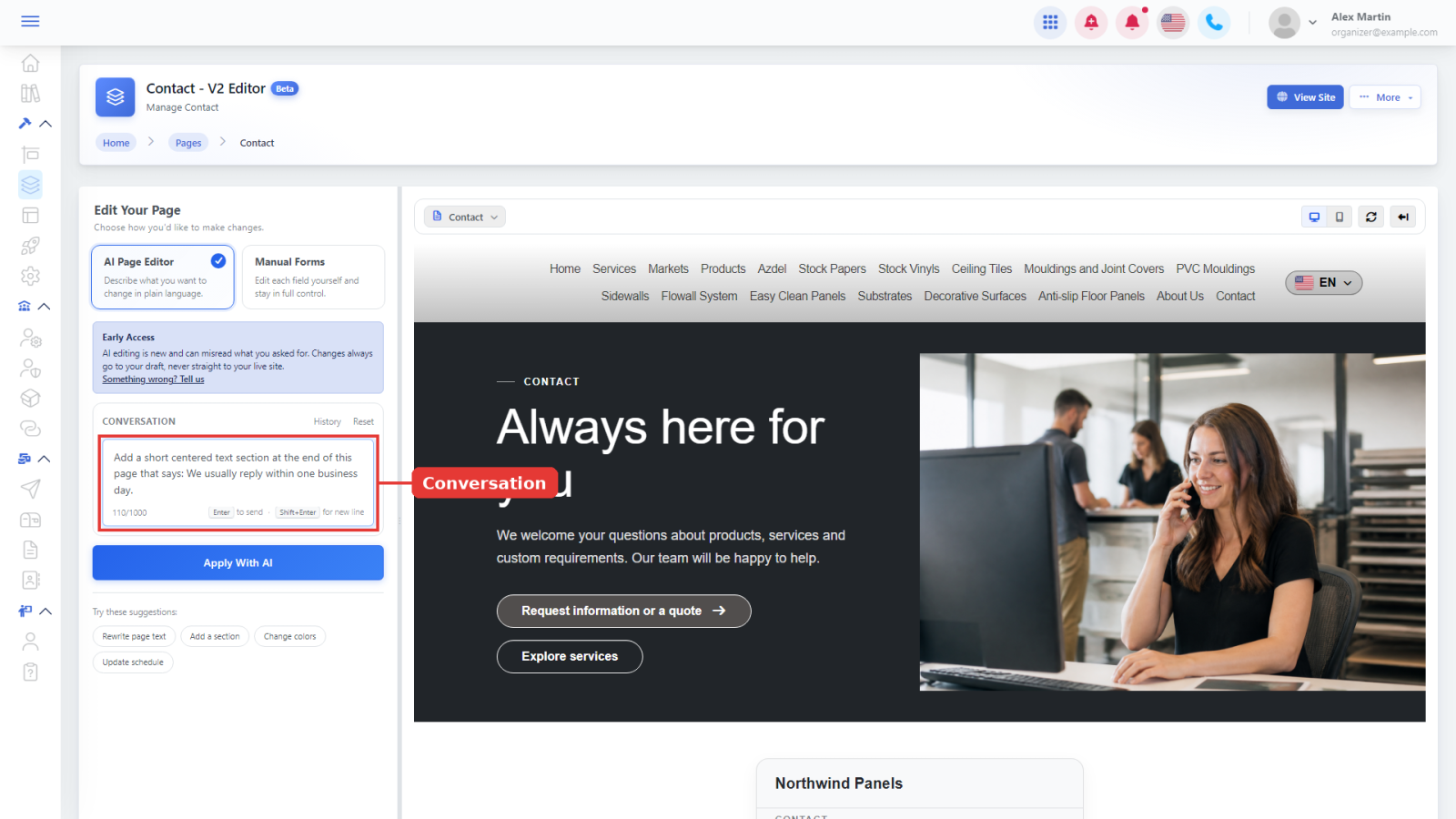
4. Describe your change
In the Conversation box, type what you want in plain words, for example: "Add a short centered text section at the end of this page that says: We usually reply within one business day." You can type up to 1,000 characters. Not sure where to start? Click one of the suggestions under the box: Rewrite page text, Add a section, Change colors or Update schedule.
5. Click Apply With AI
Click Apply With AI, or press Enter (Shift+Enter adds a new line). It takes a few seconds.
Tip: If the AI needs more detail, it explains its plan and asks you a question first. Answer it in the Conversation box, for example "Yes, go ahead.", and click Apply With AI again.
6. Check the result
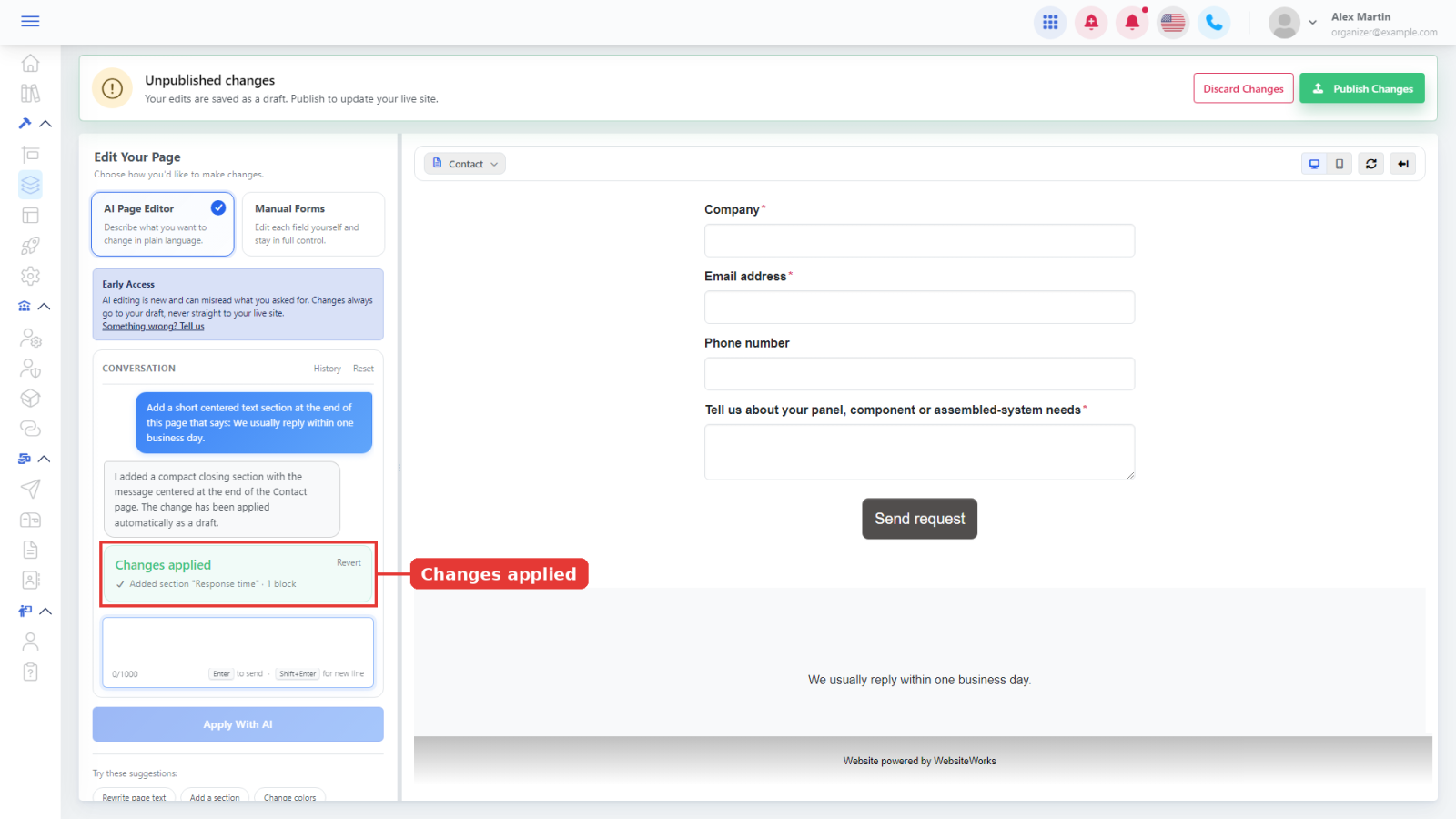
The AI explains what it did and a Changes applied card lists what changed (here: Added section "Response time" · 1 block). The preview on the right shows your page with the change. You can type a follow-up request to adjust it.
Publish or undo the change
7. Publish when you are happy
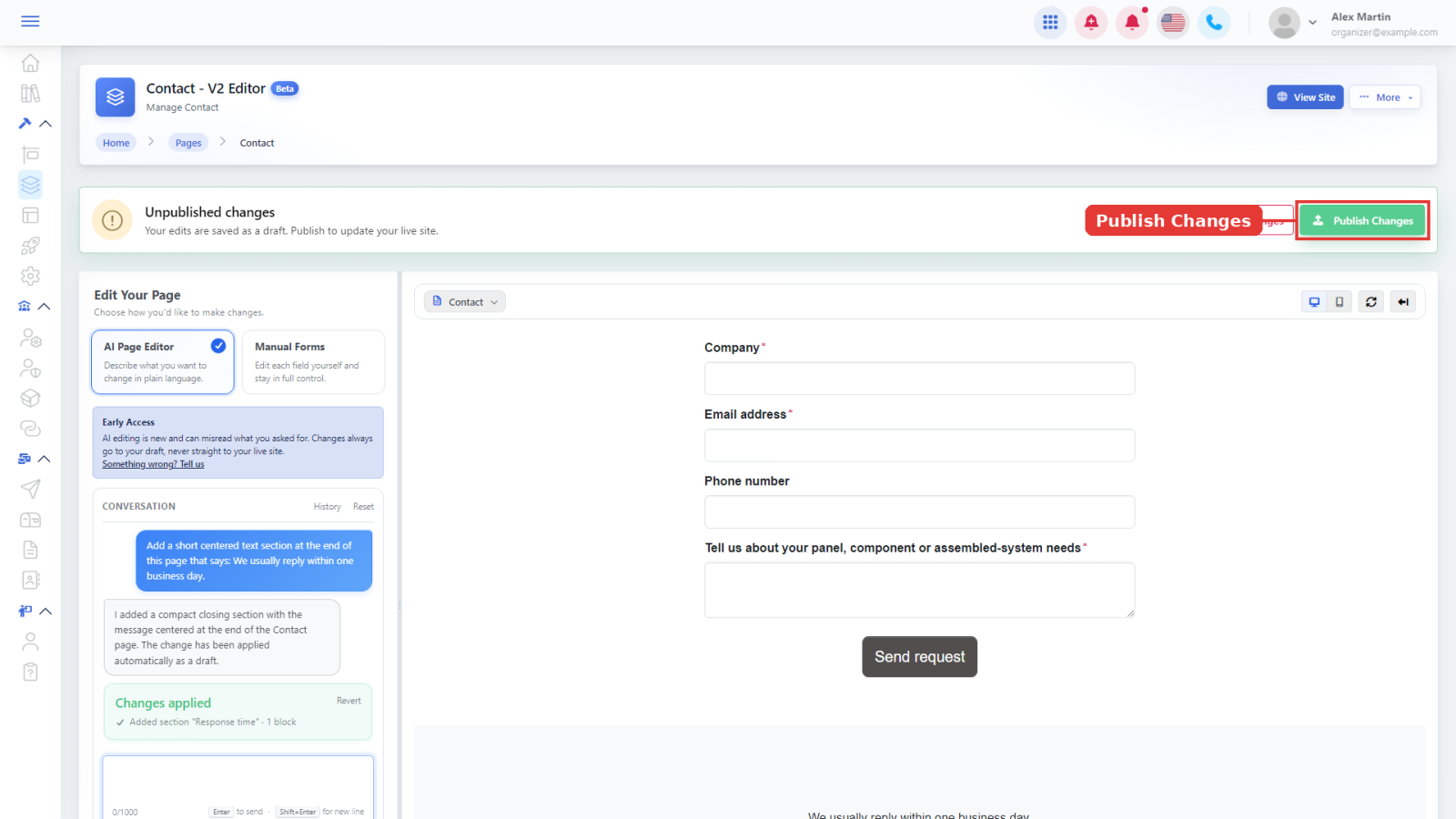
AI changes are saved to your draft, never straight to your live site. The Unpublished changes bar at the top reminds you. Click Publish Changes to make them live, or Discard Changes to drop all your draft edits.
8. Not what you wanted? Click Revert
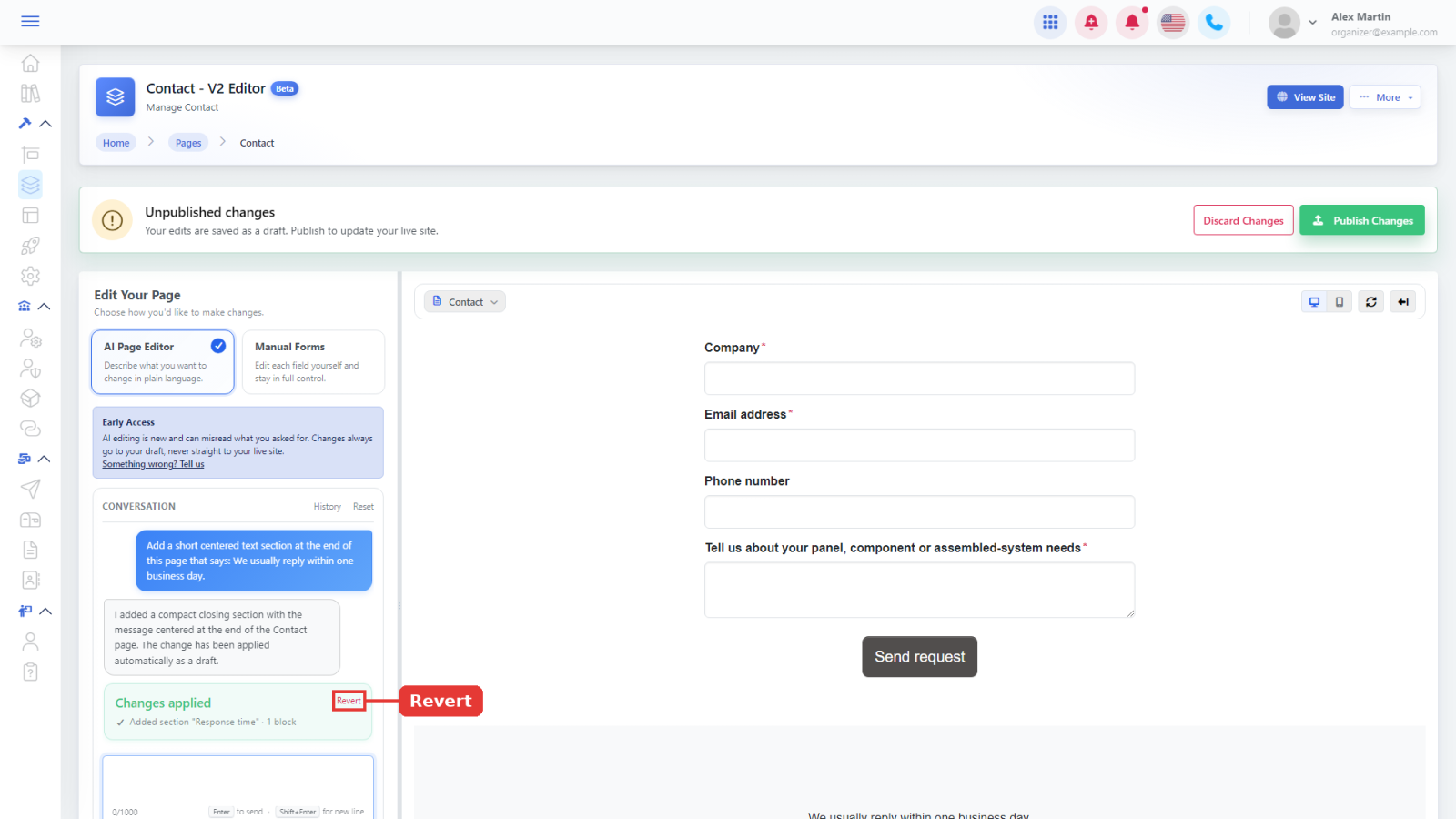
Click Revert on the Changes applied card to undo that AI change. Your page goes back to how it was before the request.
Good to know
- Be specific: name the section, the text or the colour you want. One change per request works best.
- Want to change one block? Click it in Manual Forms first, then switch back to AI Page Editor: a Selected block chip shows the AI which block you mean.
- You can attach a picture with Upload image (JPEG, PNG or GIF, up to 10 MB).
- Click History to see earlier conversations, or Reset to start a new one.
- AI editing is new (Early Access) and can misread a request. If something goes wrong, click Something wrong? Tell us in the editor.
- To make the same change on every page at once, see How to edit multiple pages with AI.