

With the AI Page Editor for all pages, you describe a change once, such as "make all buttons dark blue", and the AI makes it on every page of your WebsiteWorks website. The changes are saved as drafts so you can review them, then publish them all at once or undo them.
Open the AI Page Editor for all pages
1. Go to Pages
From your dashboard, open Site Builder in the menu on the left and click Pages.
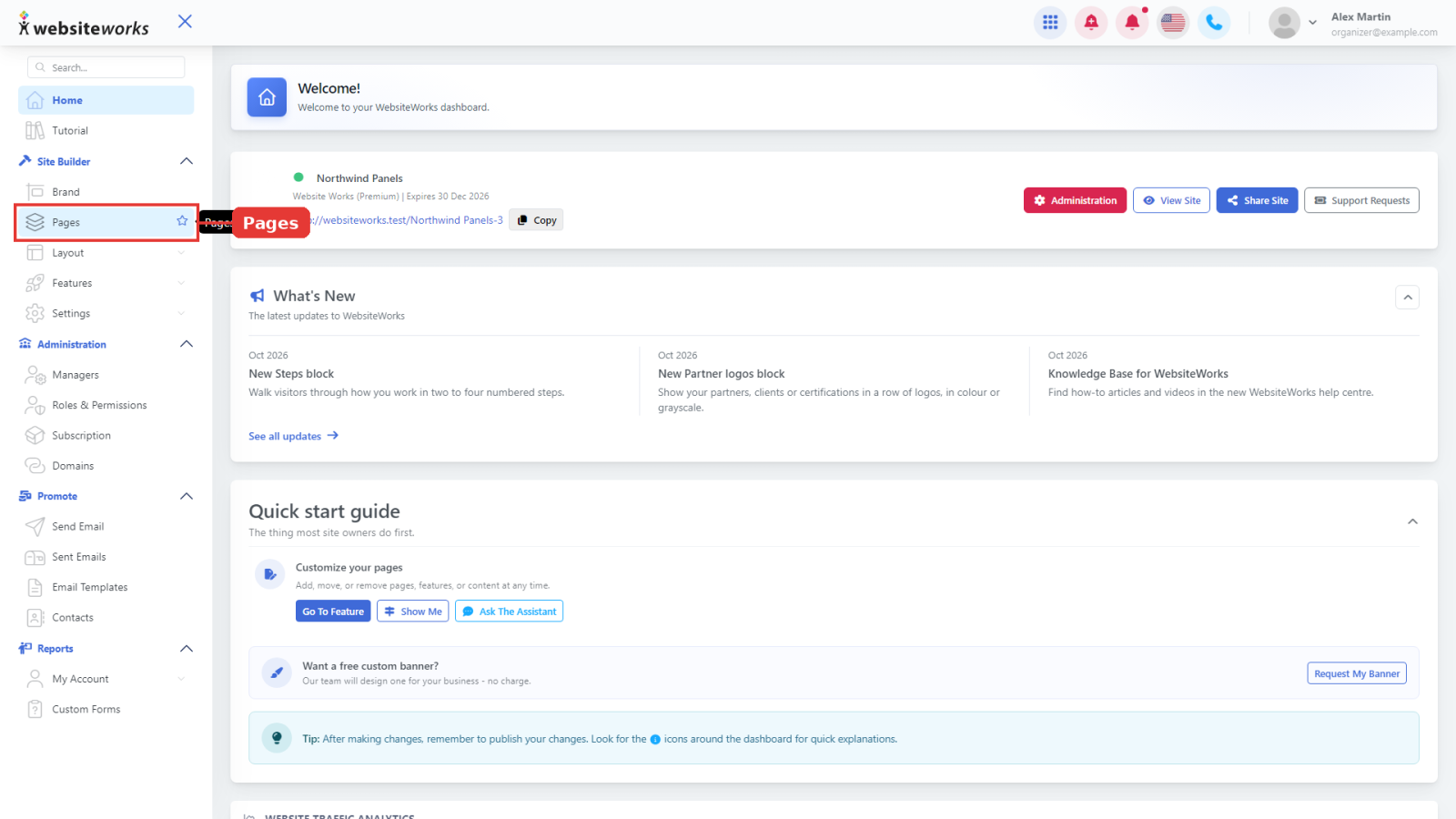
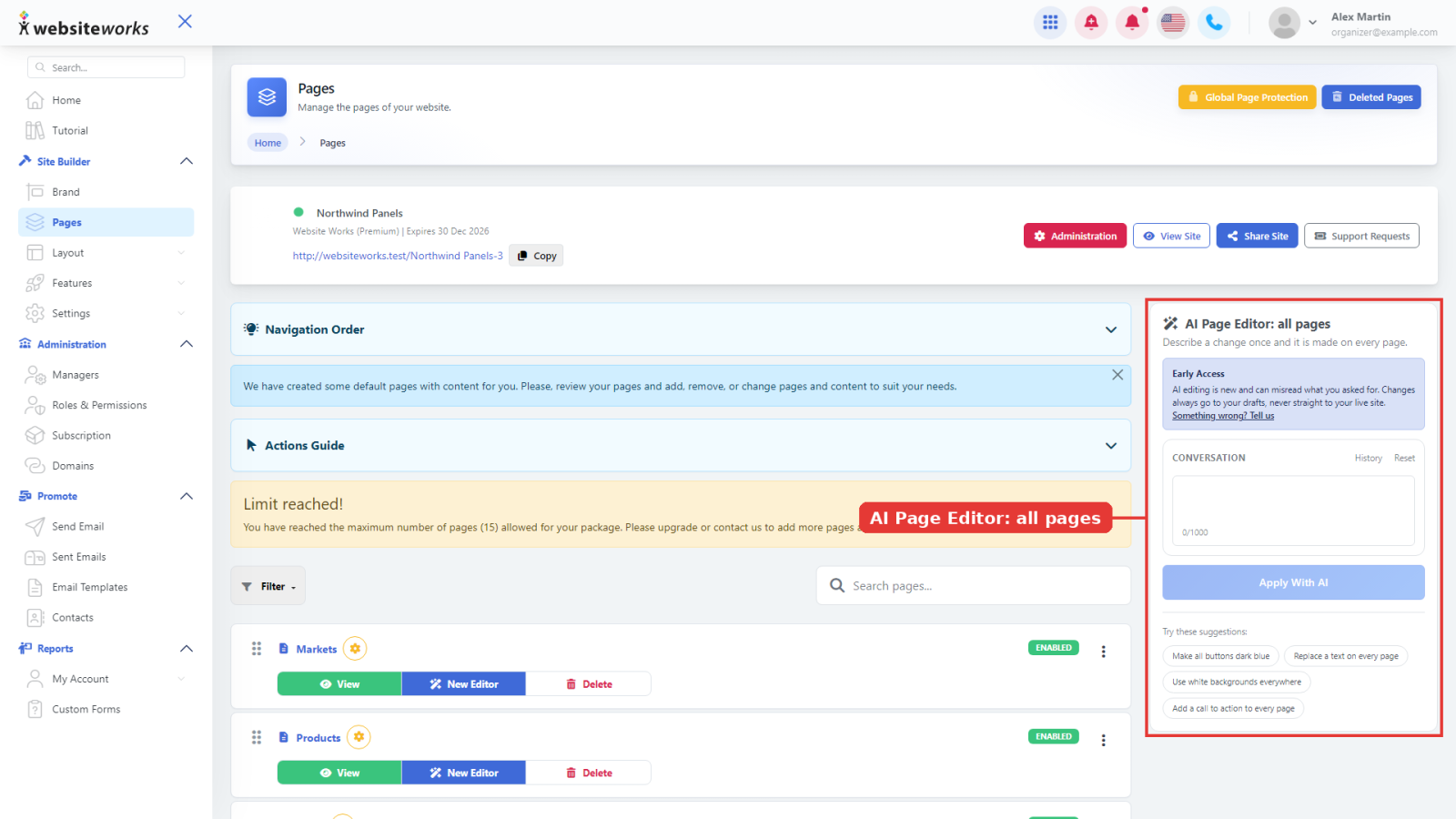
2. Find the AI Page Editor: all pages panel
On the right of your page list is the AI Page Editor: all pages panel: "Describe a change once and it is made on every page."
Describe your change
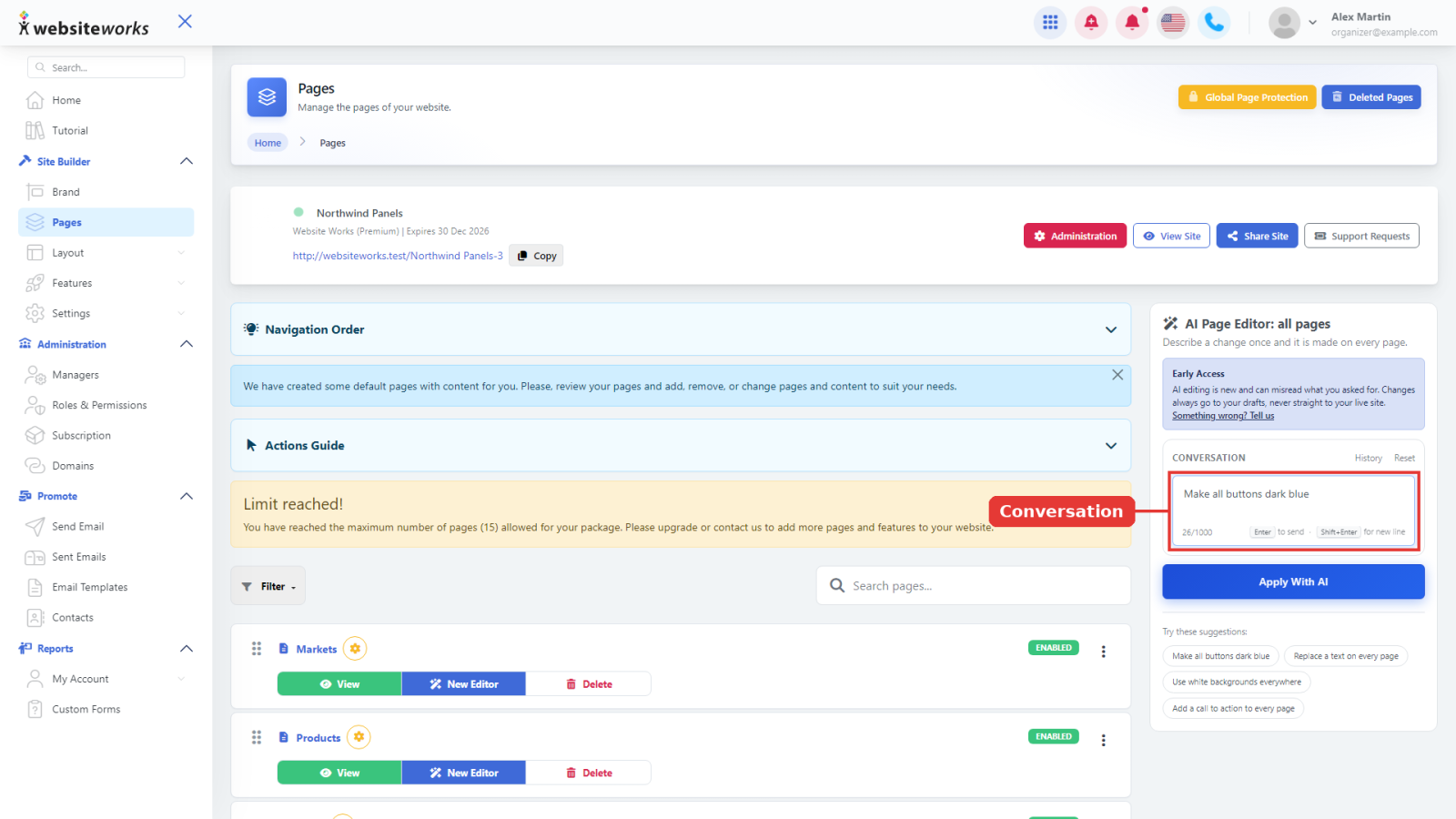
3. Type your change
In the Conversation box, describe the change you want on every page, for example "Make all buttons dark blue". You can also click a suggestion: Make all buttons dark blue, Replace a text on every page, Use white backgrounds everywhere or Add a call to action to every page. To change only some pages, name them in your request.
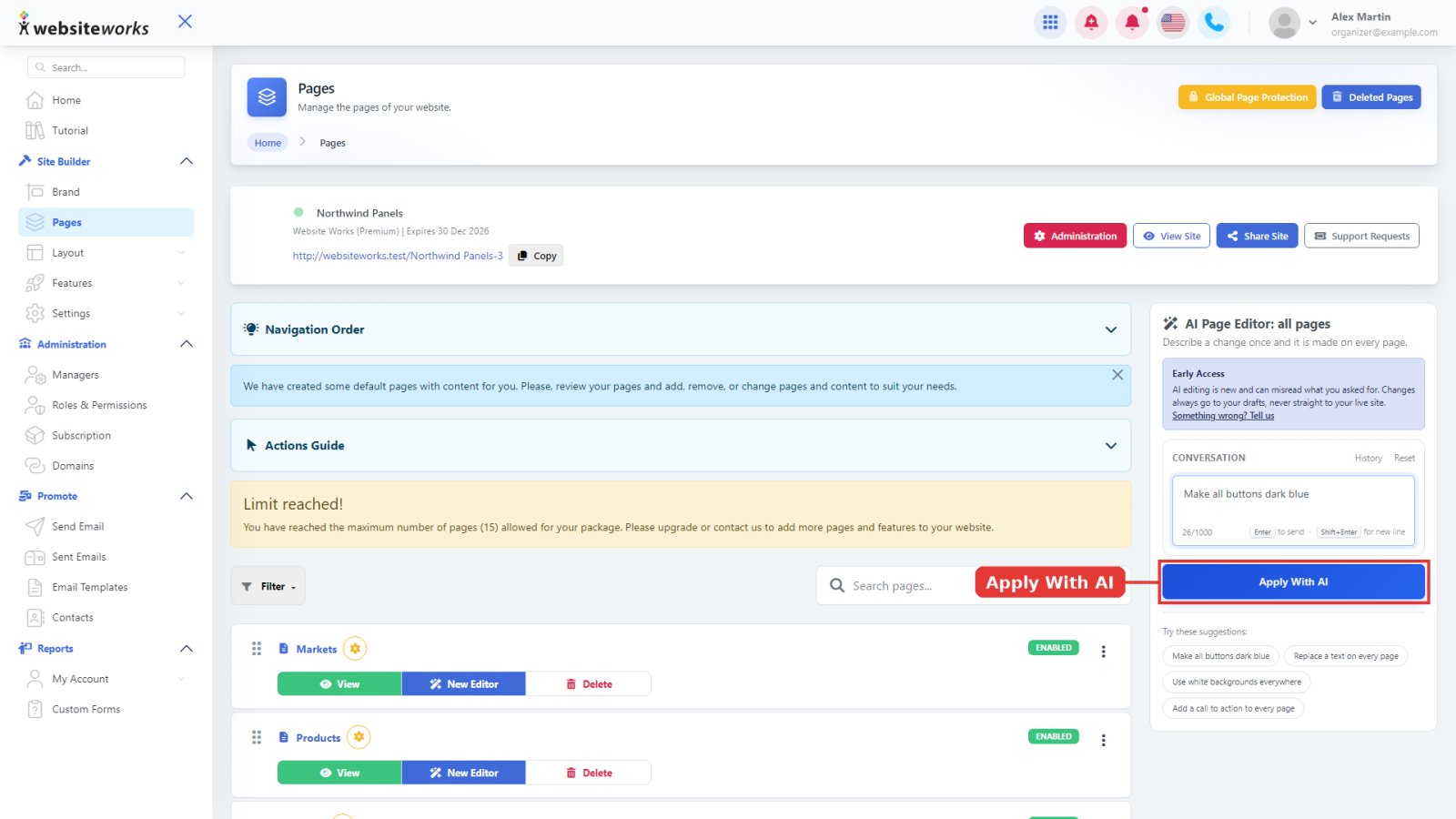
4. Click Apply With AI
Click Apply With AI. The AI confirms what it will do. If it needs more detail, it asks you a question first: answer it and click Apply With AI again.
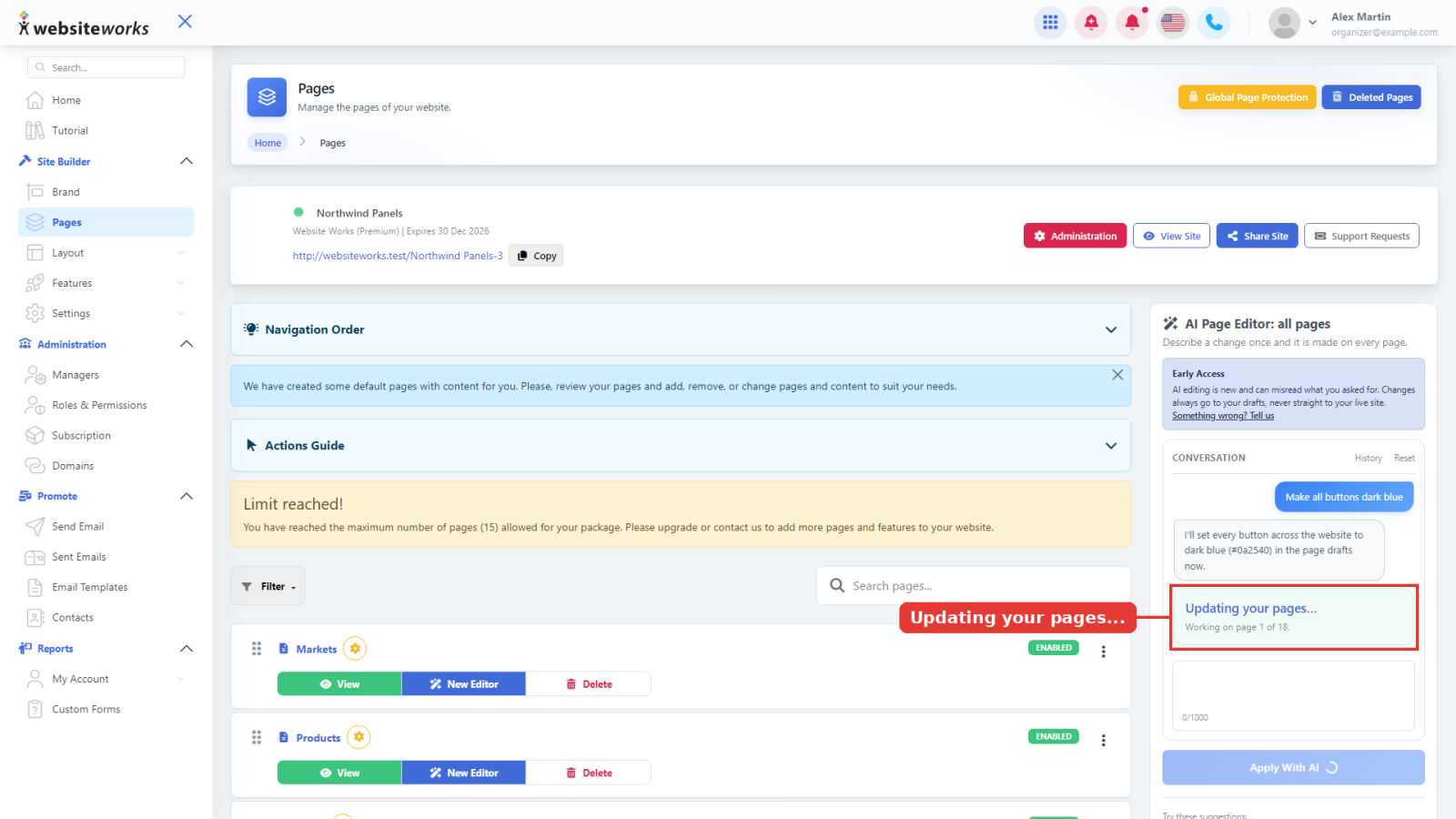
5. Wait while your pages are updated
The panel shows Updating your pages... and which page it is working on. You can keep working; only one site-wide change can run at a time.
Review, publish or undo
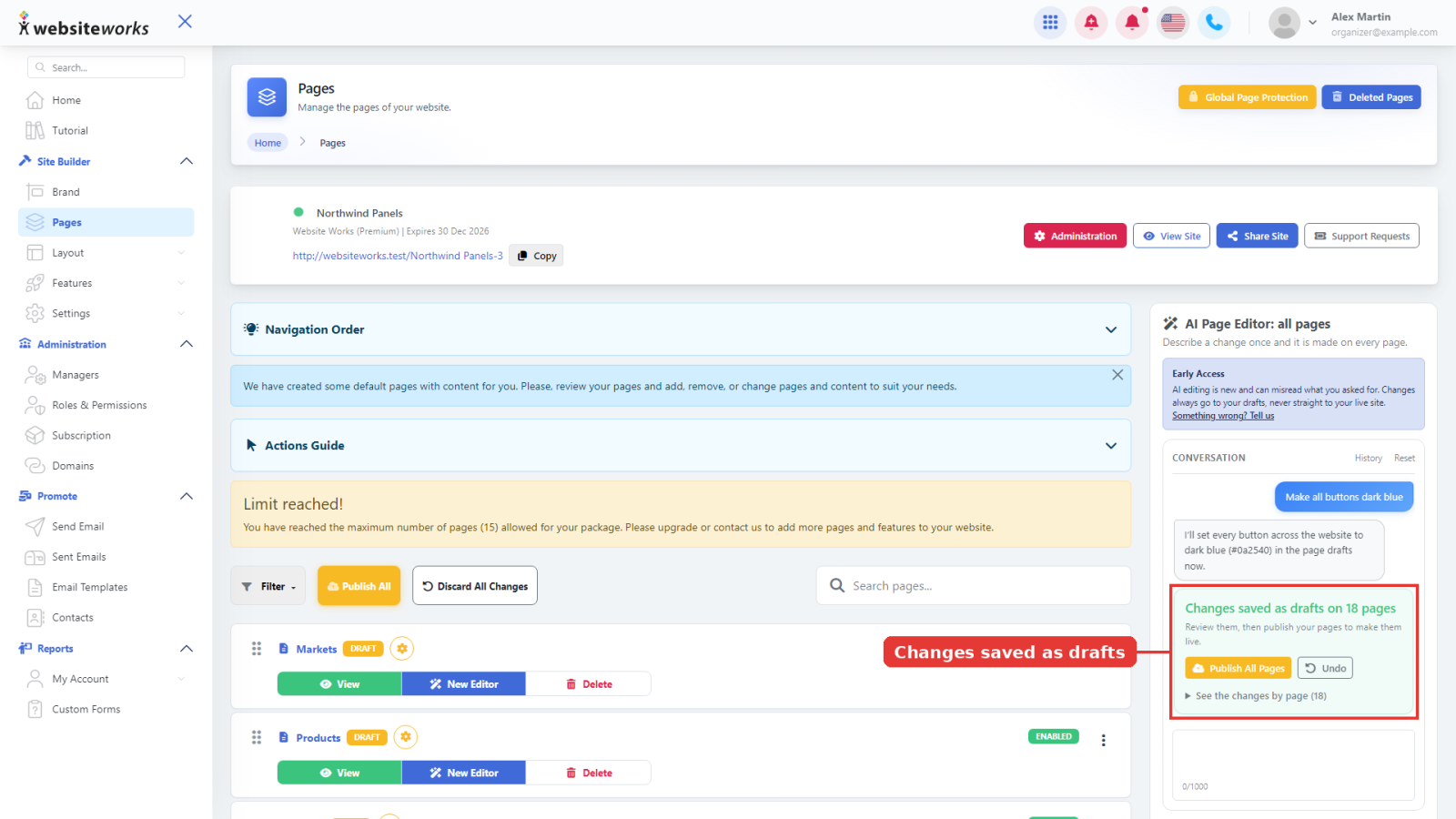
6. Check the result
When it is done, the panel shows Changes saved as drafts on N pages. Nothing is live yet: review your pages first.
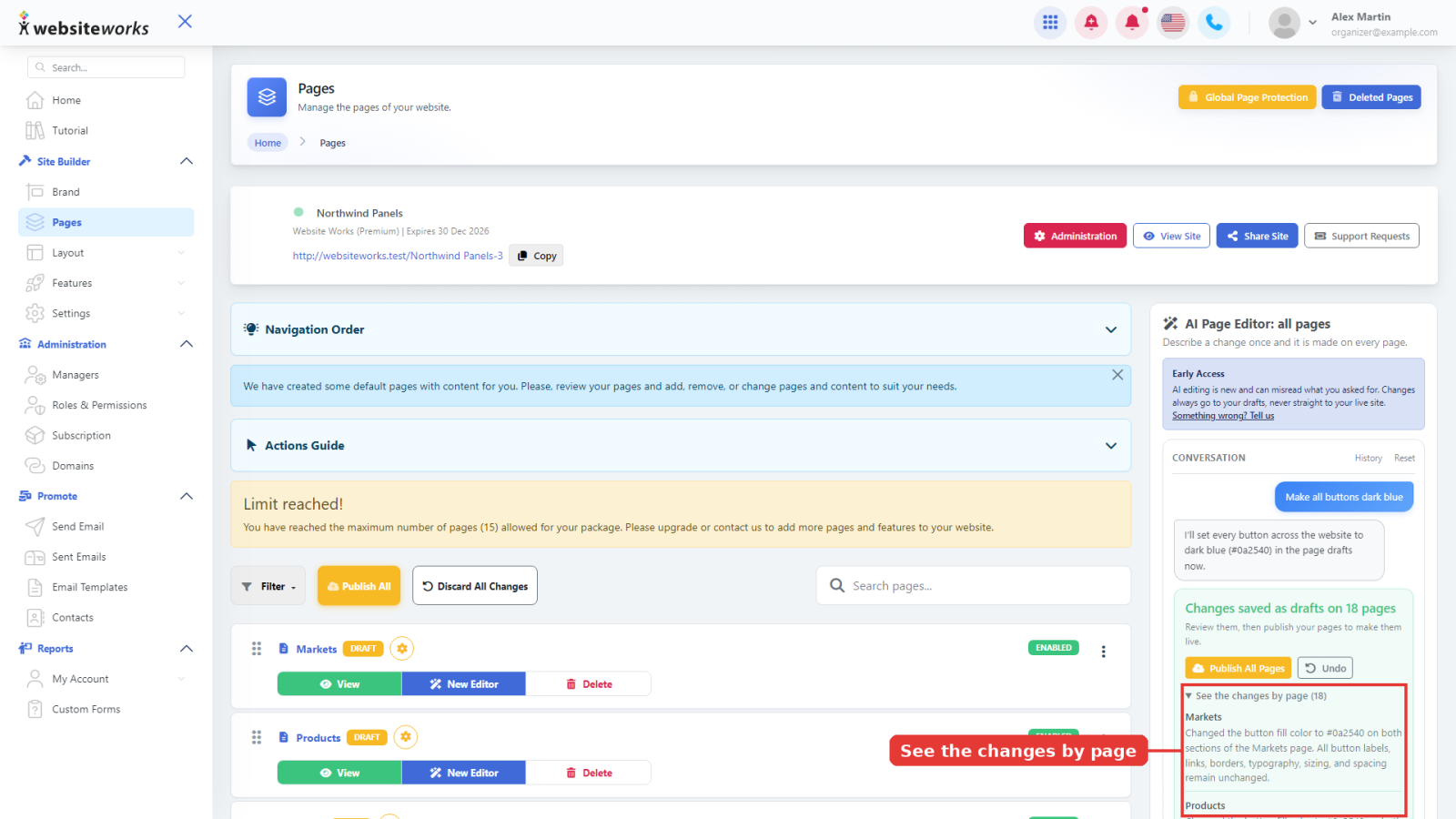
7. See what changed on each page
Click See the changes by page to list each changed page and what was done on it. Open a page with New Editor to look at it in the preview.
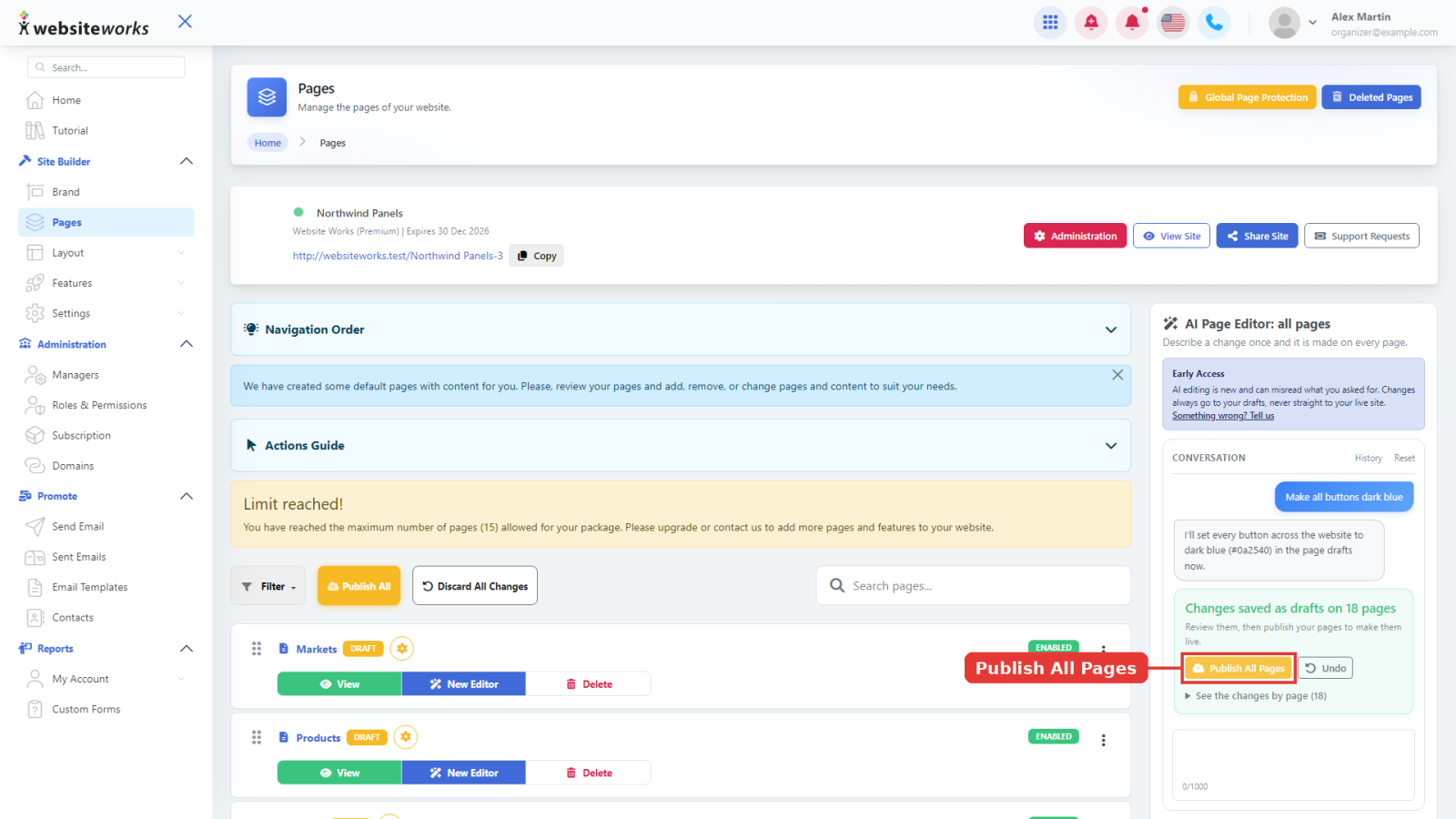
8. Publish all pages
When you are happy, click Publish All Pages to make the changes live on your website.
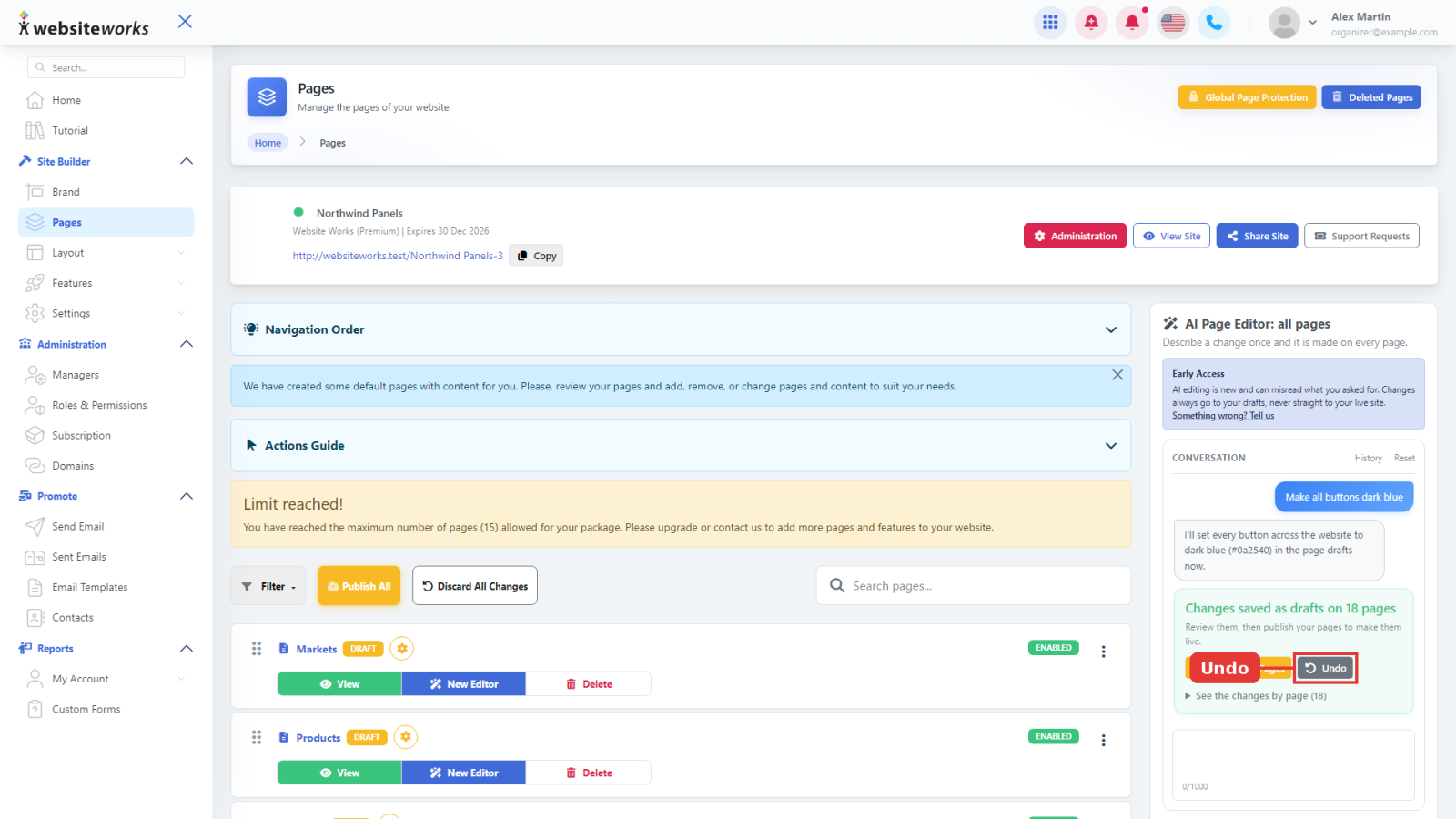
9. Not what you wanted? Click Undo
Click Undo, then confirm with OK in the message "Undo these changes on every page? Any edit or publish made to those pages since then is undone too." Every page goes back to how it was before the request.
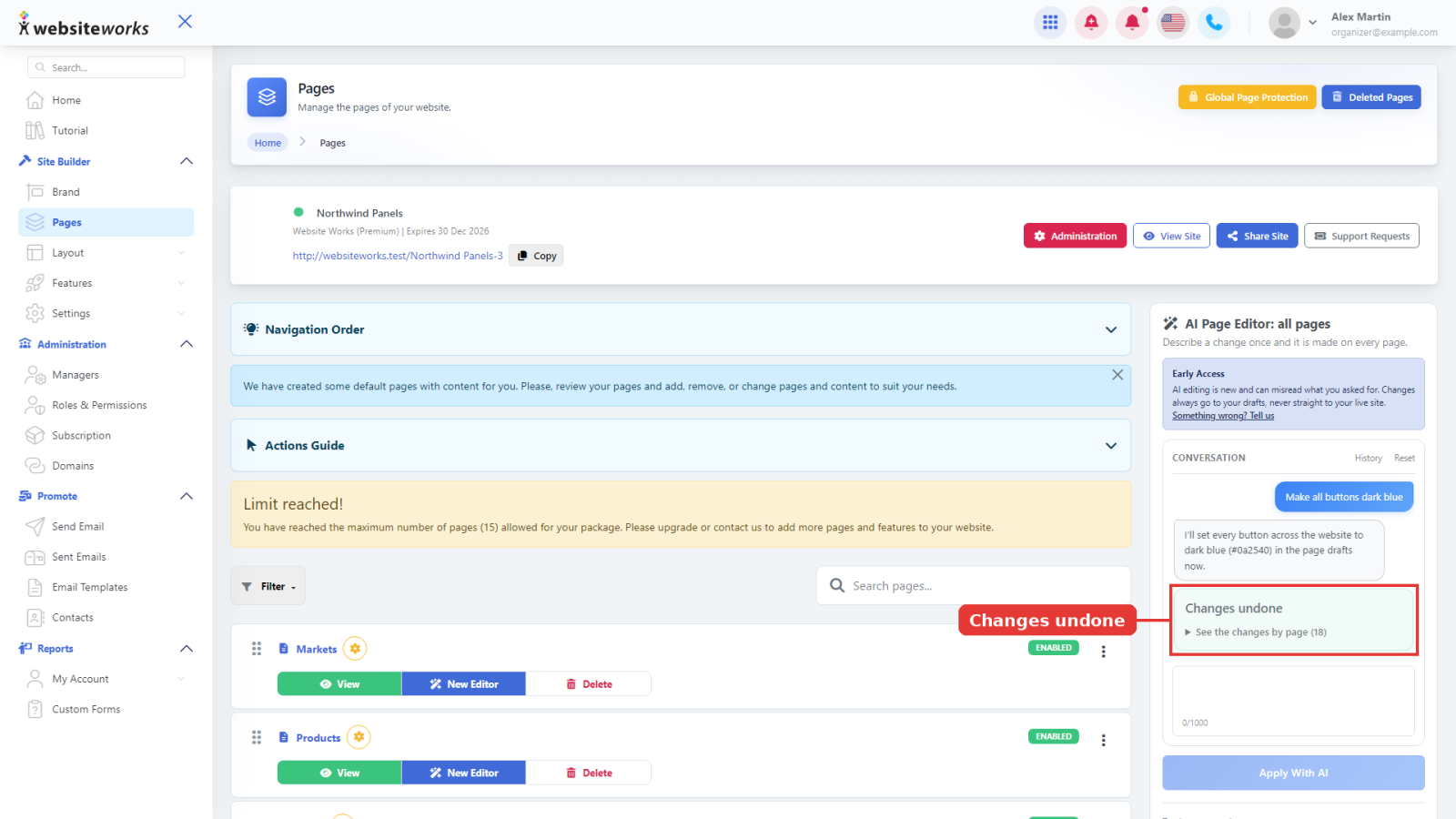
10. Changes undone
The panel shows Changes undone.
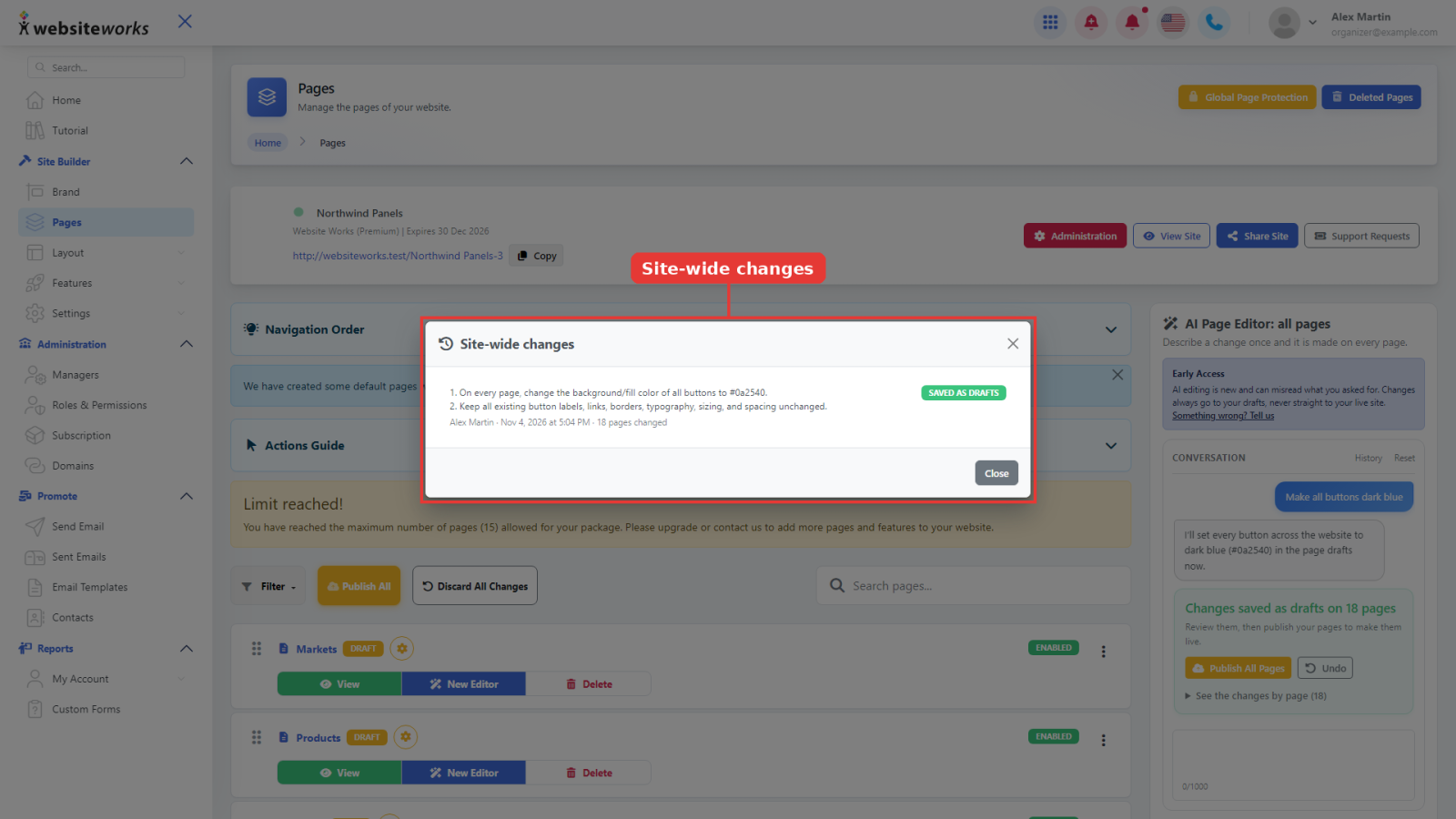
11. See past site-wide changes
Click History above the Conversation box to open Site-wide changes: each request, who made it, when, how many pages changed and its status (for example Saved as drafts or Undone).
Good to know
- Cart and payment pages are left alone unless you name them in your request.
- Changes always go to your drafts, never straight to your live site.
- Requests can be up to 1,000 characters. Be specific about what should change and where.
- To change a single page, use the AI Page Editor inside that page (see How to use the AI Page Editor).
- AI editing is new (Early Access) and can misread a request. If something goes wrong, click Something wrong? Tell us.