
This guide walks you through the first things to do on your new WebsiteWorks website: add your name and logo, change the text on a page, publish it and look at the result.
Step 1: Open the Quick start guide
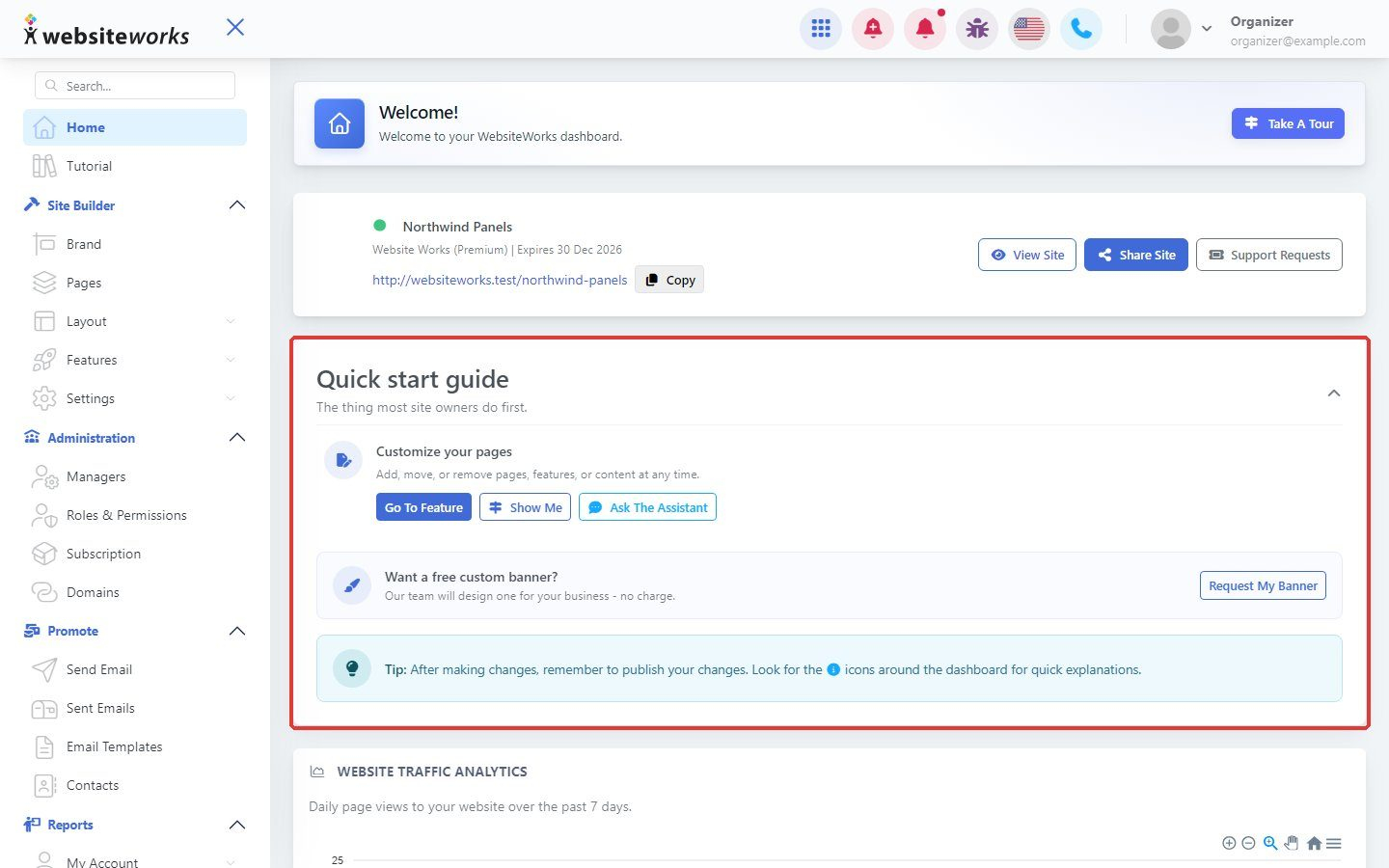
Sign in to your dashboard. The Home page shows the Quick start guide with the most useful first steps.
Step 2: Add your site title and logo
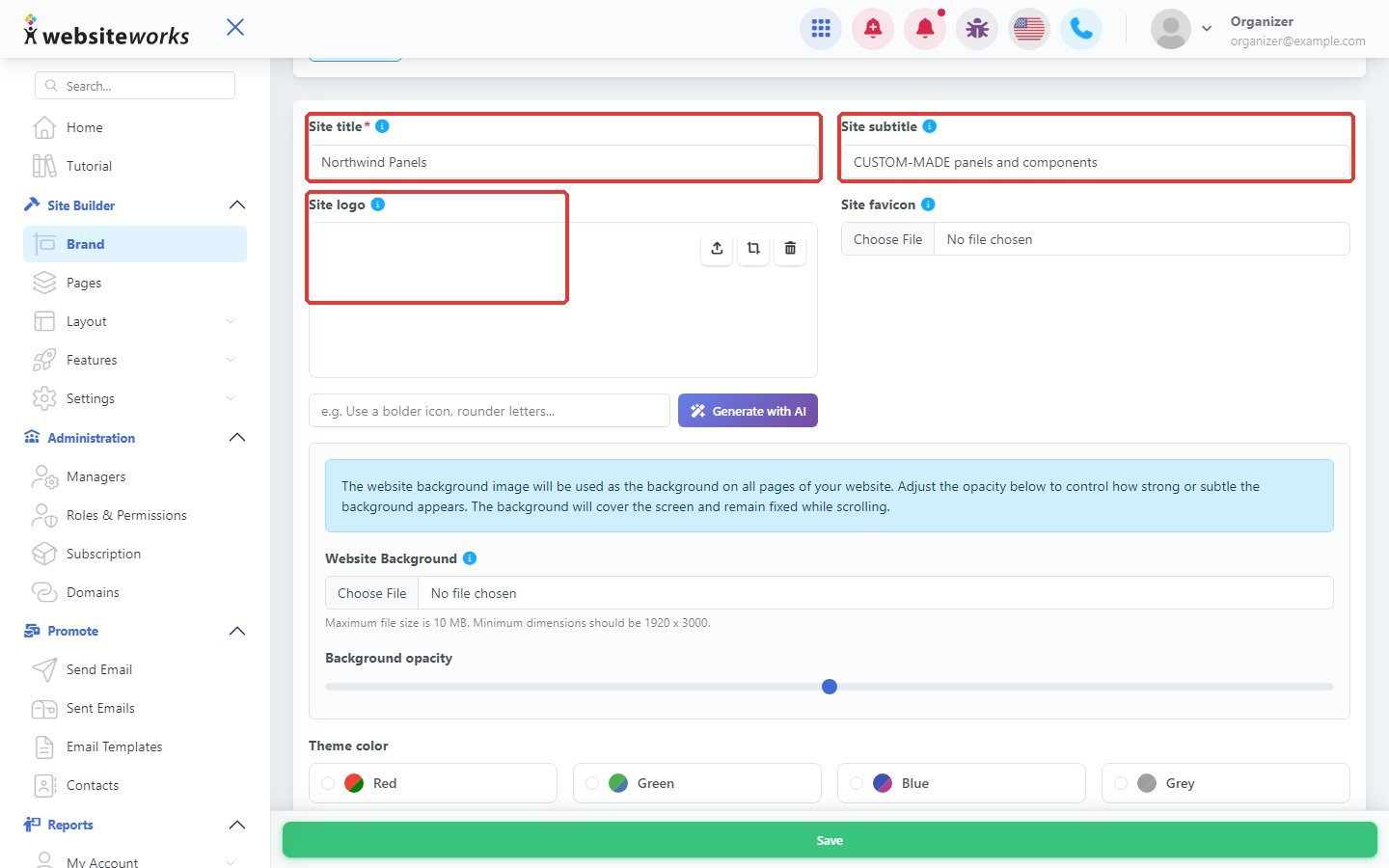
In the menu, click Brand. Enter your Site title and Site subtitle, then upload your Site logo. Click Save at the bottom of the page.
Step 3: Open a page in the editor
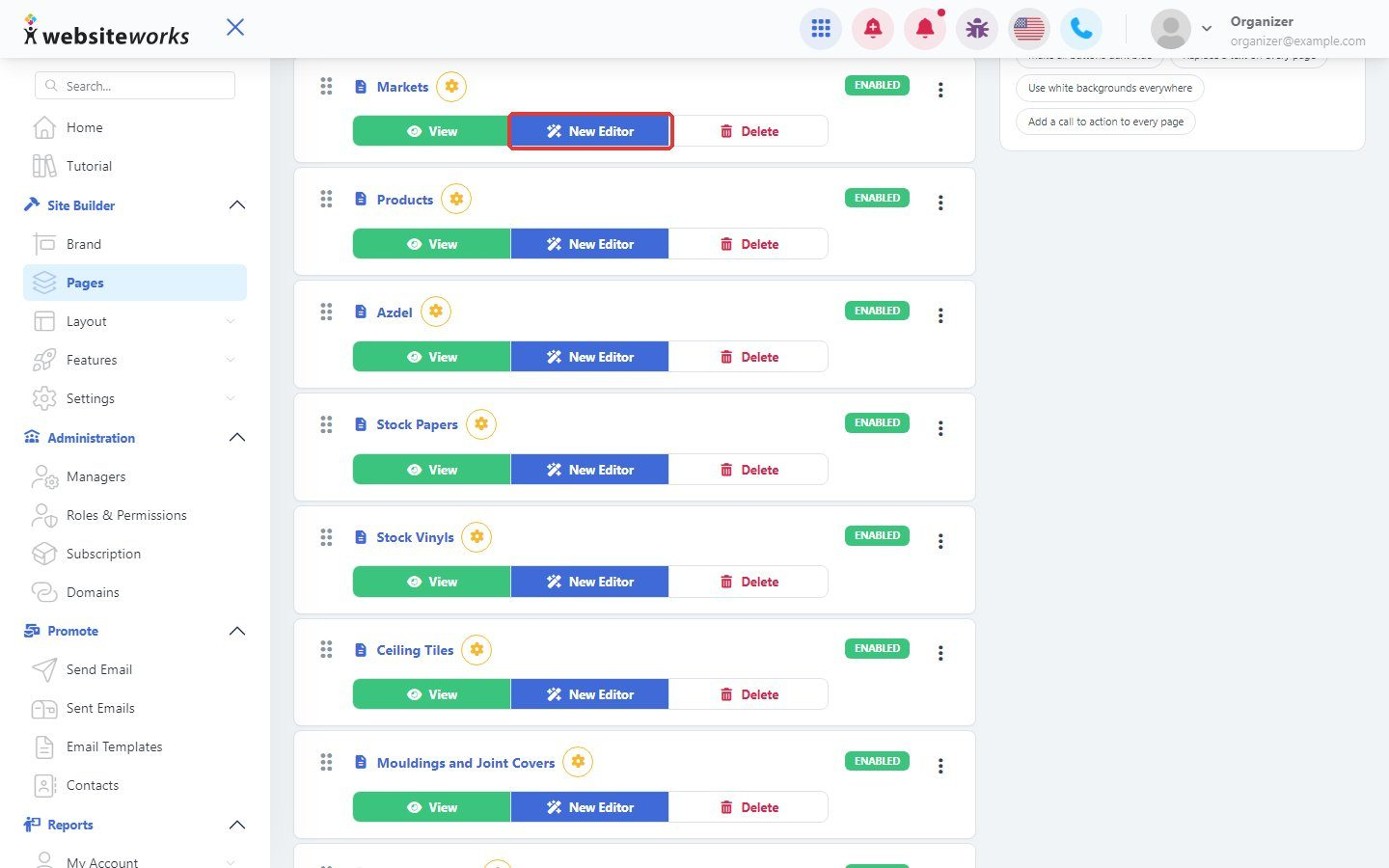
In the menu, click Pages. Next to the page you want to change, click New Editor.
Step 4: Choose Manual Forms and pick a block
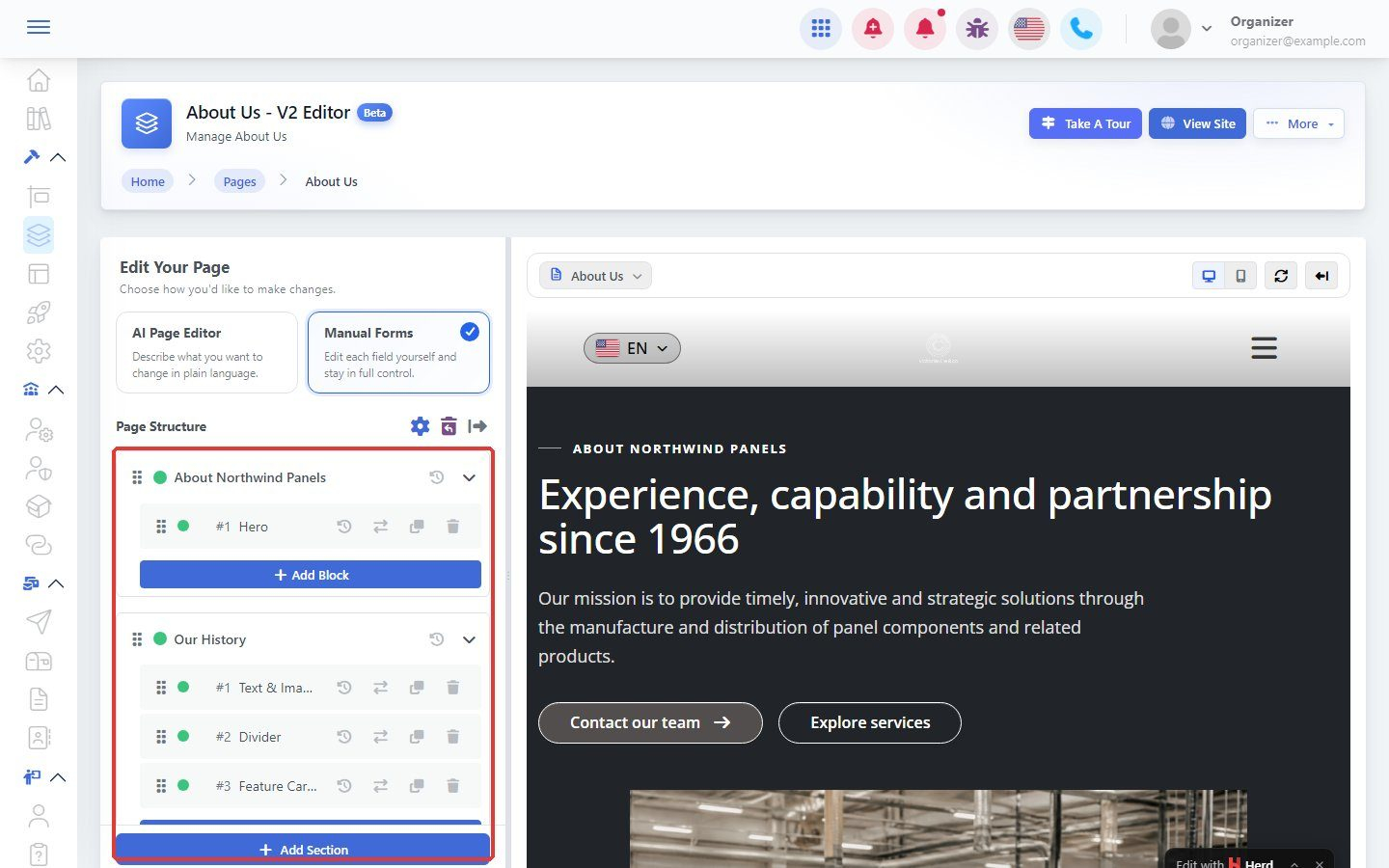
The editor asks how you want to edit. Choose Manual Forms. The Page Structure panel lists the sections and blocks on your page. Click a block to edit it.
Step 5: Change your text and publish
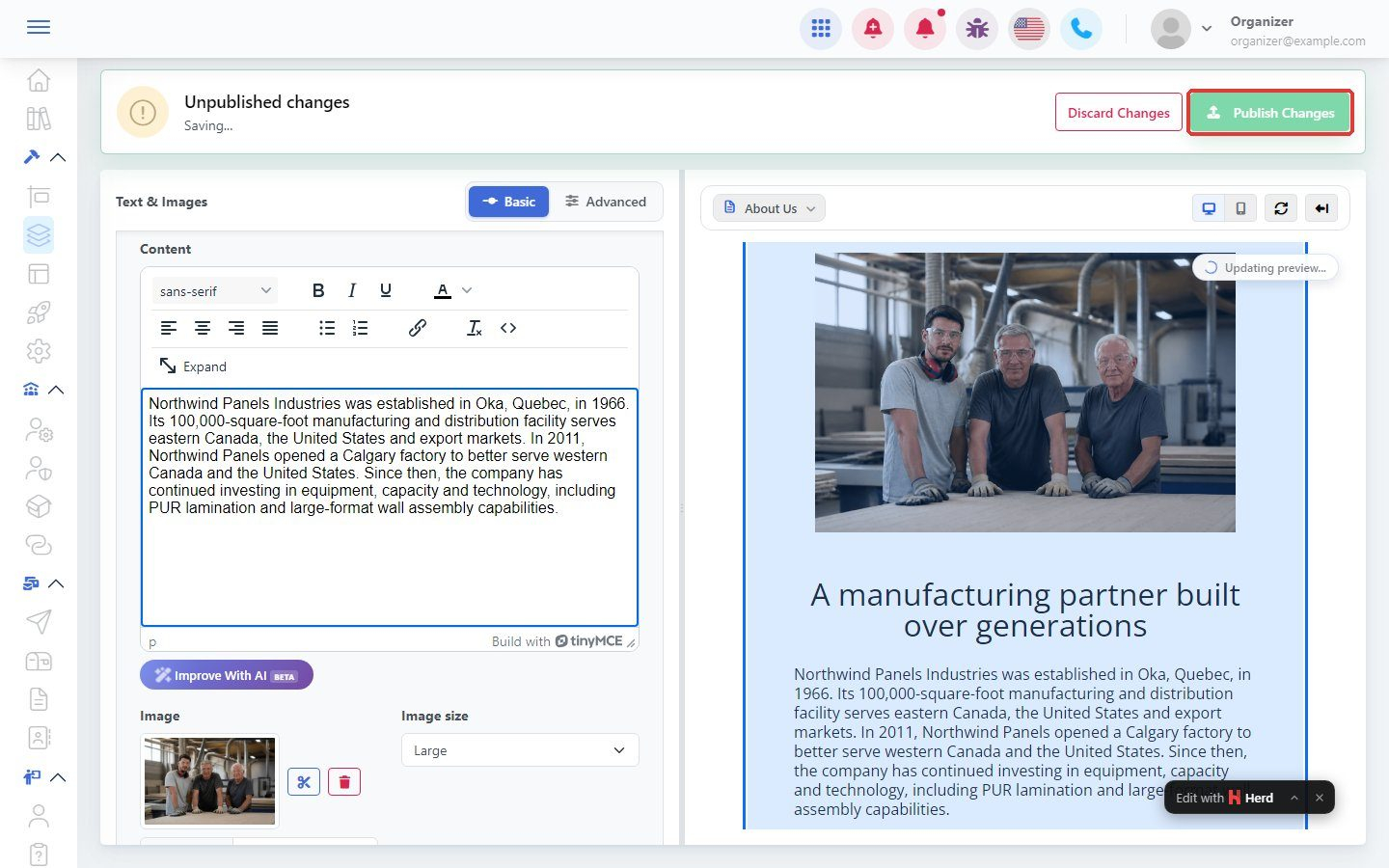
Edit the text in the block settings. The preview on the right updates as you type. Your edits are saved as a draft and the bar at the top shows Unpublished changes. When you are happy, click Publish Changes to put them on your live website. Click Discard Changes to undo them instead.
Step 6: View your website
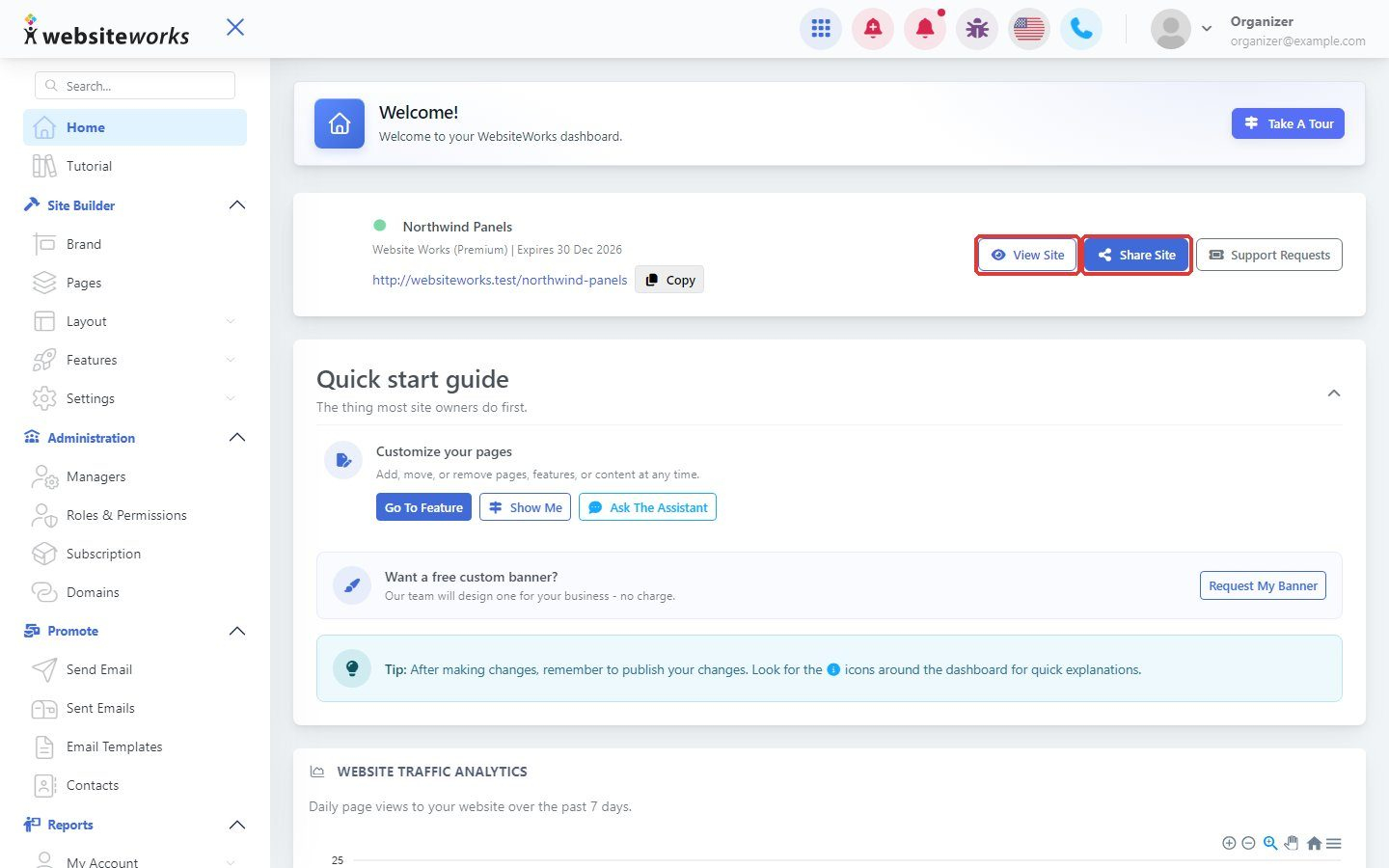
Go back to Home and click View Site to open your live website. Click Share Site to copy its link or share it.