

If you can't get into your dashboard, try these steps in order. Most login problems are fixed in a minute.
Step 1: Check your email address and password
Go to the WebsiteWorks login page (click Login at the top of our website). Type the Email address you signed up with and your Password, then click Log In.
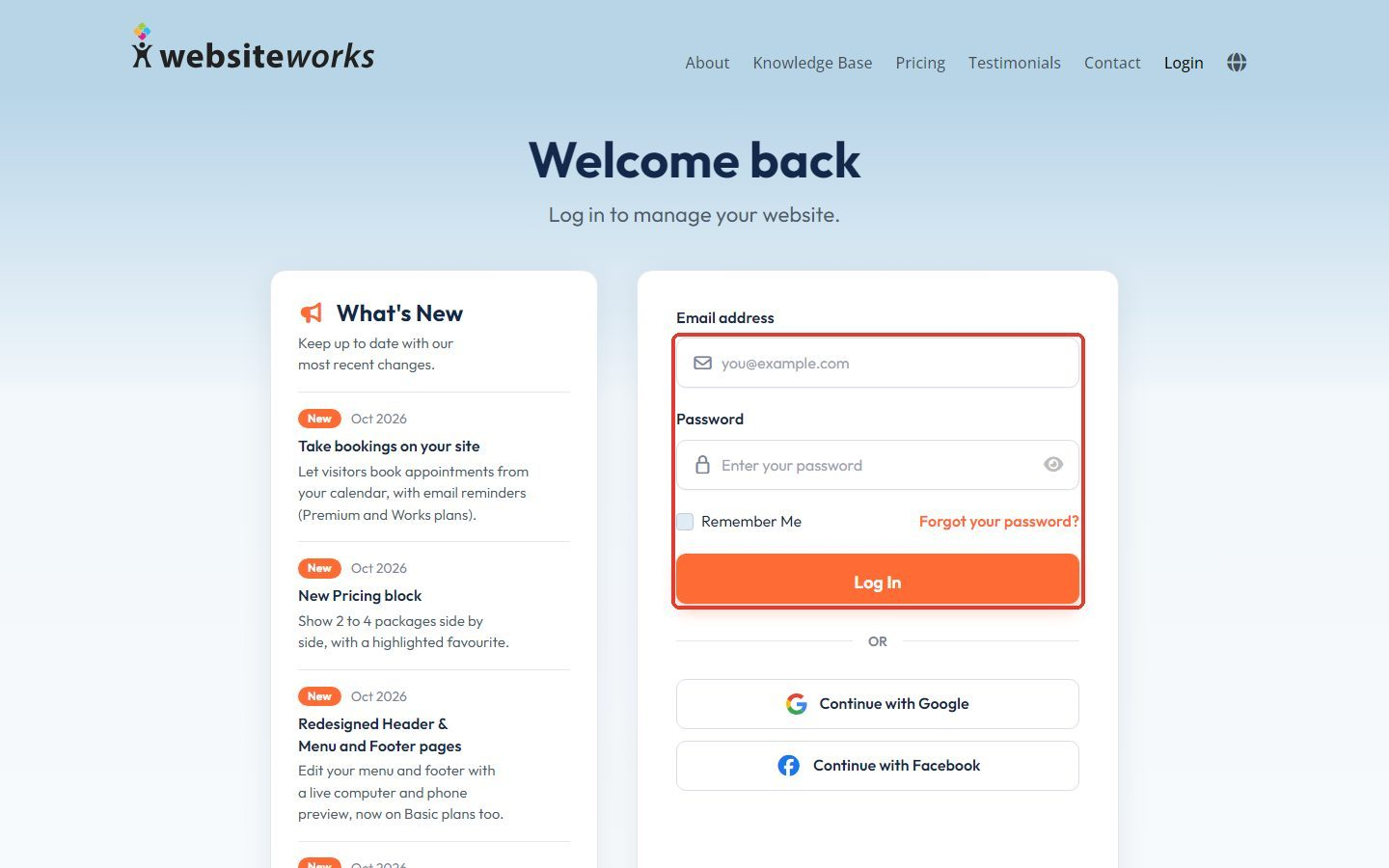
- Check for typos and extra spaces in your email address.
- Passwords are case-sensitive. Make sure Caps Lock is off.
- Click the eye icon in the Password box to see what you typed.
- Tick Remember Me so you stay logged in on this computer.
Step 2: Signed up with Google or Facebook?
If you created your account with Google or Facebook, you may not have a password. Click Continue with Google or Continue with Facebook instead.
Step 3: Reset your password
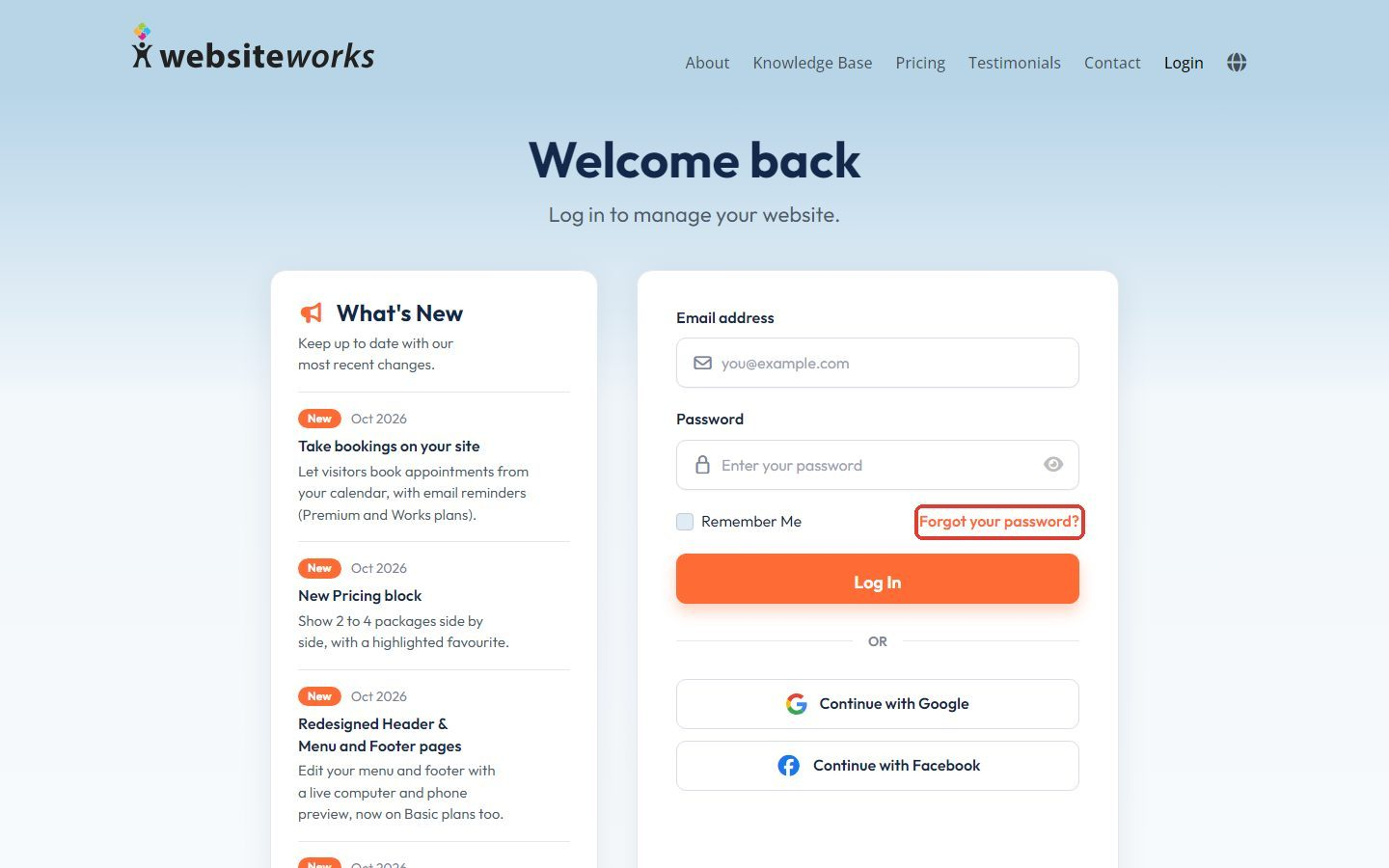
Forgot your password? Click Forgot your password? under the password box.
Step 4: Get a reset link
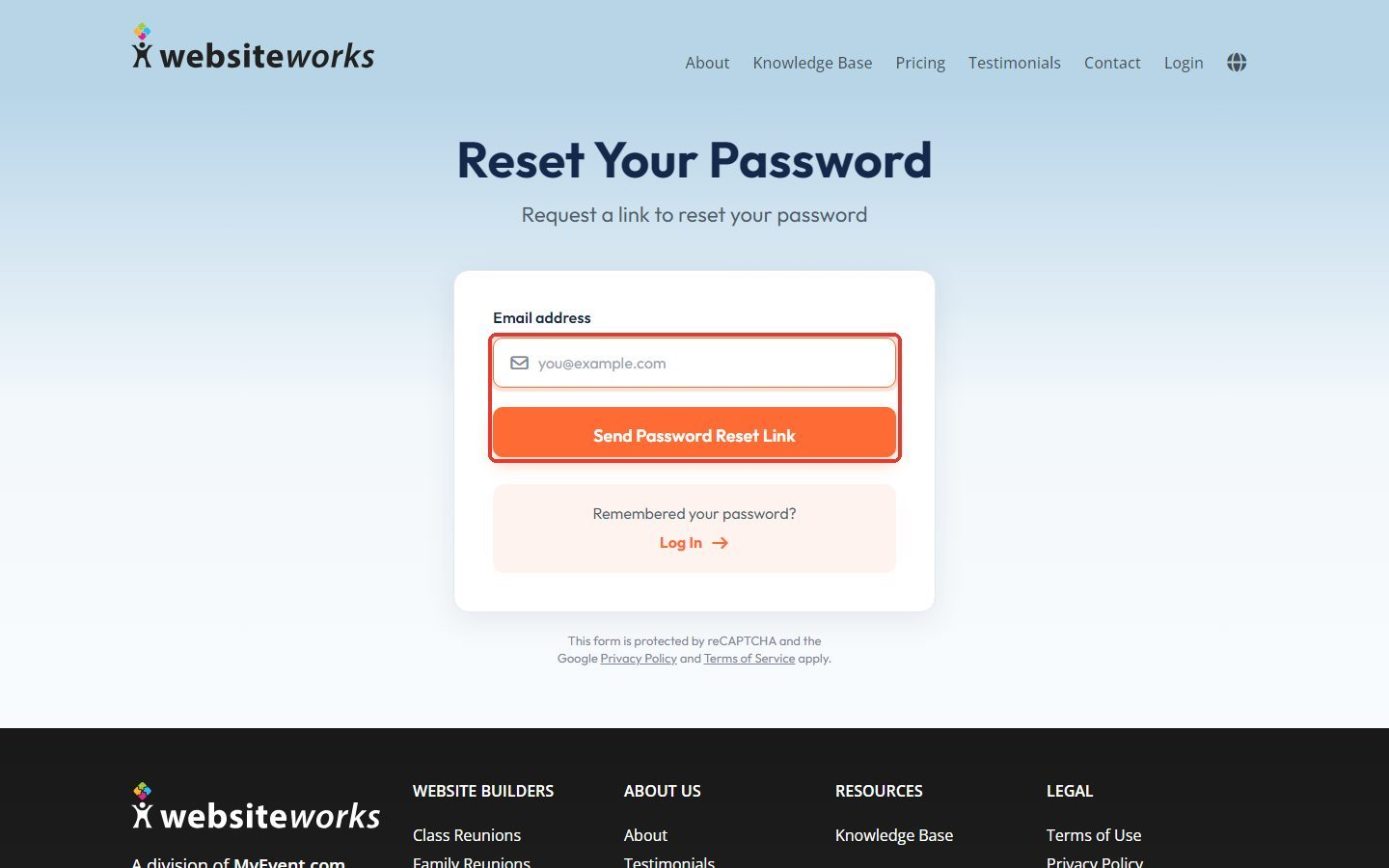
On the Reset Your Password page, enter your Email address and click Send Password Reset Link. Open the email we send you and follow the link to choose a new password.
No email? Wait a few minutes and check your spam or junk folder. Make sure you used the same email address you signed up with.
Step 5: Still stuck?
If you were invited as a manager, make sure you accepted the invitation first, and ask the website owner to check that you're still listed in Managers. Otherwise, use the Contact page on our website and our support team will help you get back in.